How To: Permanently Delete Text Messages on Your iPhone
Deleting text messages on your iPhone may seem like a pretty simple task, but it's those really simple tasks that usually end up causing headaches later on. Data can stick around, even if you asked it not to, so there's always a slight chance that embarrassing and incriminating texts you supposedly deleted may end up in the wrong hands one day.In older versions of iOS, deleted text messages weren't completely erased from an iPhone, and they'd be available for viewing right inside Spotlight Search. Over time, iOS has gotten better at managing your deleted data, so this issue does not persist in the latest version of Apple's mobile operating system. If you'd like to fix this problem permanently, updating is the best way to go.Don't Miss: How to Disable Your Spotlight Search History in iOS 10But staying up to date with iOS doesn't mean your text messages aren't still lingering out there somewhere. Deleted SMS, MMS, and iMessages can be found in your iCloud backup files, iTunes backup files, and even hiding in the Messages app on your Mac computer. To really wipe the slate clean, you've got to attack it from all angles.
Texts vs. iMessagesYour iPhone supports multiple technologies in its Messages app, not to mention in other third-party messaging applications. For this guide, we'll be focusing solely on Apple's Messages app.The messages in green boxes in the Messages app are SMS text messages that you send to phone numbers unassociated with an Apple ID, like to people with Android phones. Texts are what all smartphones and most cell phones can send and receive, and include MMS texts, i.e., multimedia texts with images and video, as well.Don't Miss: The Coolest iOS 10 Features You Didn't Know AboutThe messages in blue boxes in the Messages app are iMessages, and are only available to send and receive between Apple devices associated with an Apple ID. iMessages work through internet, which allows them to have more capabilities than texts, such as Apple's Bubble, Screen, and Tapback effects. However, if there is no Wi-Fi or cellular data connection, iMessages cannot be sent.You can send and receive texts on an iPad, iPod touch, and Mac, but they must be associated with an iPhone that has "Text Message Forwarding" turned on. If you have an Apple device but not an iPhone, those devices will not receive texts — only iMessages.
1. How to Delete Text Messages on Your iPhoneWhether you want to save space or erase sensitive material, deleting texts can be an essential part of owning an iPhone. Plus, when messages get deleted the regular way, they are actually deleted, unlike in previous versions of iOS where the Spotlight Search bug worked. So, for those of you who don't create backups or have any other Apple devices, this will be good enough.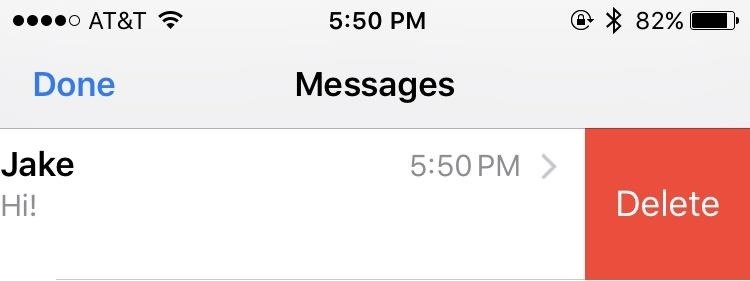
Deleting Entire ConversationsThis is a quick and easy process. When you want all of your messages with someone gone, here's what to do:Swipe to the left on a conversation. Tap the "Delete" button that pops up. There's also a second way to do this, but it will leave the empty conversation in the Messages main view.Open up a conversation. Tap and hold on any message within. Tap on "More" when the pop-up options appear. Tap on "Delete All" in the top left, then "Delete Conversation" to confirm.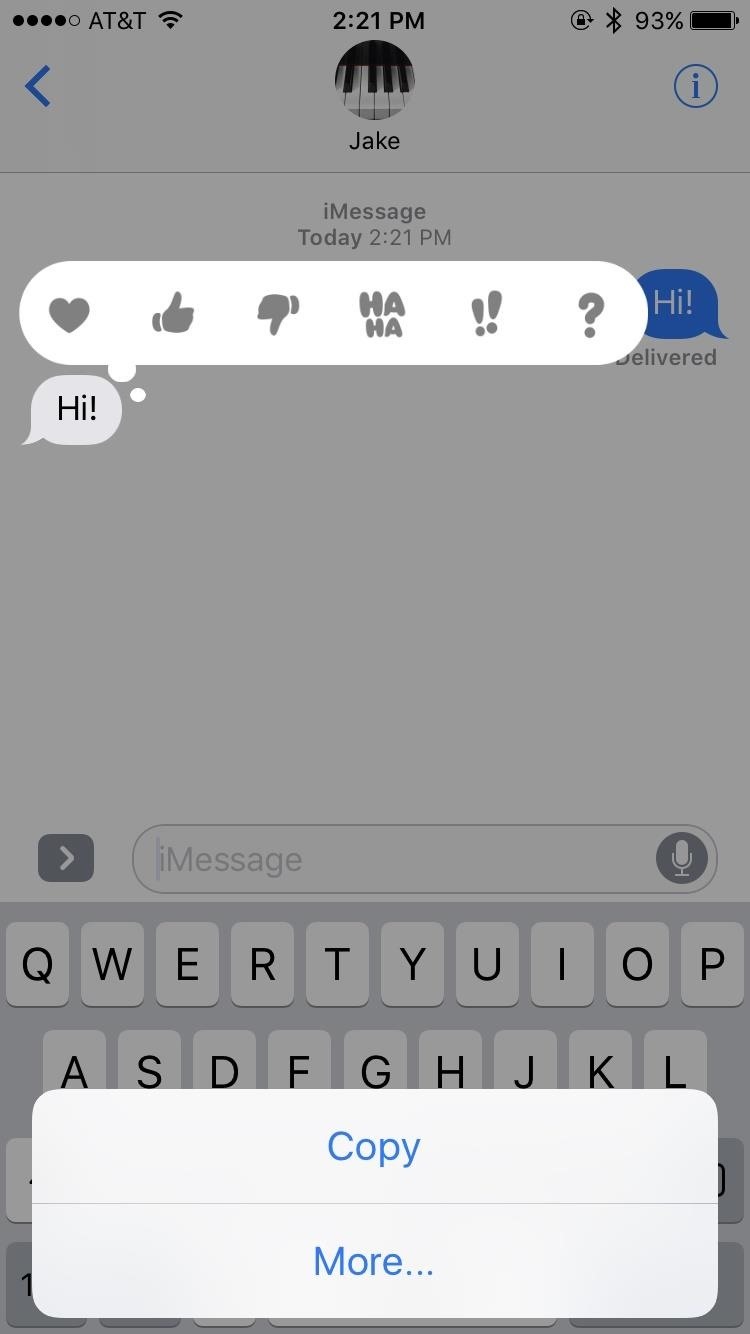
Deleting Individual MessagesWhen you don't want to delete entire conversations, you can just delete individual messages withint a conversation thread. Deleting select messages is very similar to the second method of deleting conversations:Open up a conversation. Tap and hold on the message you'd like to delete. Tap on "More" when the pop-up options appear. Tap on the dots next to any other messages you'd like to delete, if any. Tap the trash can icon in the bottom-left corner, then tap "Delete Message" to confirm.
2. How to Delete Text Messages in Your iPhone BackupTo make sure your messages are gone for good, you may have to look toward data that might not even be on your iPhone — your backups. Older backups can still retain copies of text messages that you deleted, so if you restore your iPhone with one of those backups, you'll restore those messages as well.Furthermore, if these backups were to ever get into the hands of a thrifty hacker, they might be able to access them, so it's important to keep an up-to-date backup and remove unwanted backups off iCloud and/or macOS.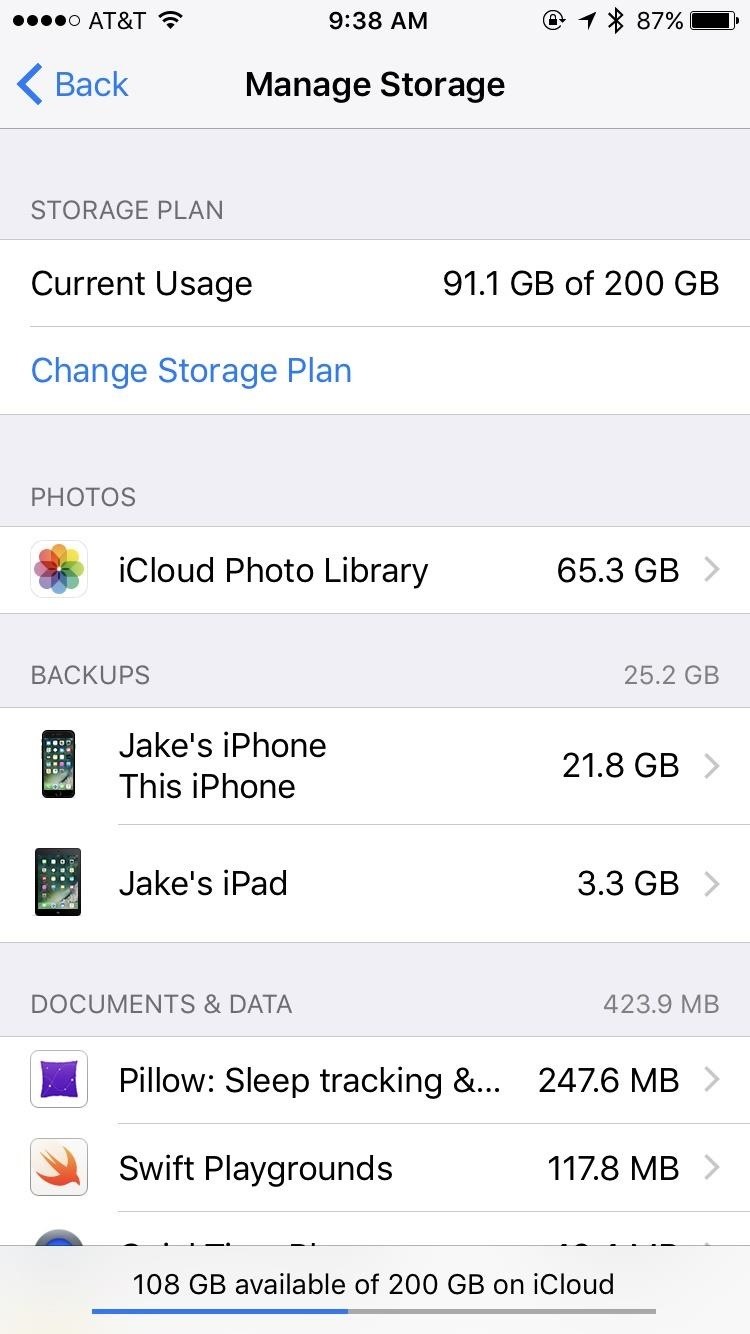
Deleting an iCloud Backup Containing Old MessagesAh, iCloud. For all the headaches it can produce, when you need it, you're happy to have it. Whether your iPhone lost itself in the back of a cab or took a nose dive into the toilet, having an online backup of its information gives you some peace of mind. But those backups can contain information you might not want to hold on to, such as old text messages.Don't Miss: How to Back Up & Restore Your iPhone Without iTunesIf you think that your iCloud backup is holding onto any sensitive, embarrassing, or otherwise unwanted texts, it's easy to make sure they're gone for good. On your iPhone:Go to the "Settings" app and tap on "General." Tap "Storage & iCloud Usage," then "Manage Storage" below the iCloud section. Select the device you wish to delete under "Backups." Scroll to the bottom of the page and hit "Delete Backup." Tap "Turn Off & Delete" and the backup will be erased. You can also get to the Manage Storage storage section in iOS 10.3 and higher by tapping on your name at the top of the Settings app, then iCloud -> Storage -> Manage Storage. You can also wipe your iPhone backup on iCloud from macOS. To do so:Click on the Apple logo in the menu bar, then select "System Preferences." Click on "iCloud" and then "Manage." On the left, click on "Backups." From the list, select your iPhone, then click "Delete."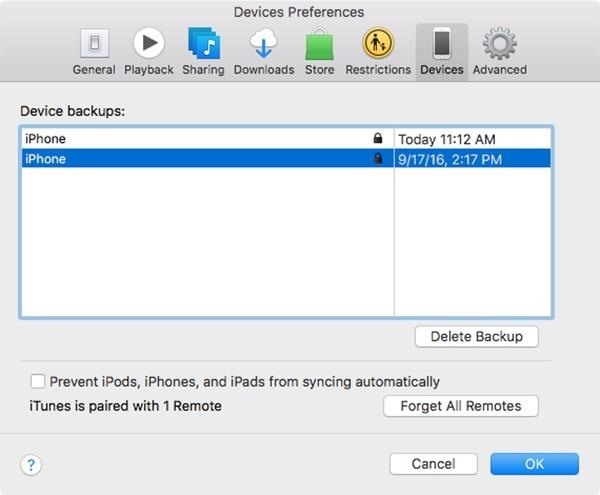
Deleting an iTunes Backup Containing Old MessagesIf you're someone who doesn't have enough iCloud storage to back up to the cloud, perhaps you've made an iTunes backup instead. If that backup contains unwanted messages, here's how to delete it:Open iTunes. Click on "iTunes" in the menu bar, then "Preferences." Click on "Devices." You should see a list of all devices with a backup stored on your computer. Click on the backup you wish to delete. Click on "Delete Backup" in the bottom-right corner. On the pop-up confirm window, hit "Delete," then hit "OK" to exit the preferences. Don't Miss: How to Back Up & Restore Your iPad, iPhone, or iPod Touch Using iTunes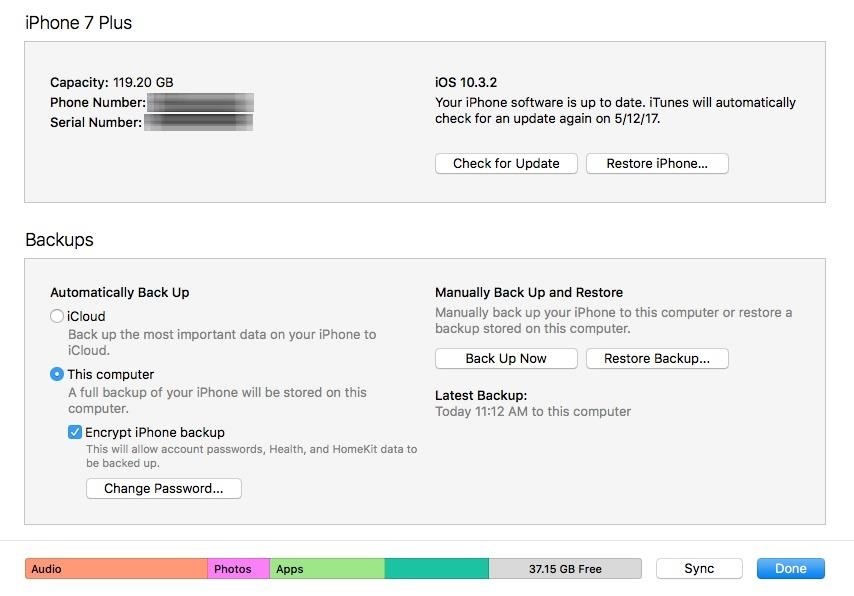
Syncing Your iPhone with iTunes to Overwrite Old BackupIf you keep an iTunes backup but don't want to delete it and create a brand new backup from scratch, you're still going to want messages deleted on your iPhone to be deleted from the backup file. This won't happen until you sync with iTunes.When you plug your iPhone into your computer and open iTunes, this should happen automatically. If it doesn't, you just need to click on "Sync" or the "Back Up Now" button in the iPhone Summary page. iTunes will then remove any deleted texts from the backup file while updating it. If you want extra security on your backup, select "Encrypt iPhone backup." This makes it more difficult for outsiders to see your information since a key will be needed to access the messages database in the backup file. Without this option selected, that database file can be easily viewed by anyone with access to it. Just note that encryption requires a master password, and if you forget this password, you won't be able to access your backup.
3. How to Delete Text Messages Off Your MacIf you have more than one Apple device set up to receive messages (iPad, iPod touch, Mac), including text messages if "Text Message Forwarding" is toggled on, just deleting messages off one device won't delete them off the rest. Deleting messages off of an iPod touch or iPad is exactly the same as deleting off an iPhone, but Macs can be a bit trickier.
Deleting Texts from Within the Messages AppTo just delete messages from the app itself, you have a few options:Right-click on the individual message you want to delete, then click "Delete." Click on the message you want to delete, then hit the delete key on your keyboard. Click on the message you want to delete, go to "Edit" in the menu bar, the click "Delete." For the first method above, just make sure that when you right-click on the individual message that you're not right-clicking on text inside the bubble, or you won't see a "Delete" option come up. If you want to delete an entire conversation from the Messages app in macOS, there are also a few options you can use:Right-click on the white space inside the conversation window, then hit "Clear Chat Transcript." On the left side pane, click on the "X" mark under the time of the thread you want to erase.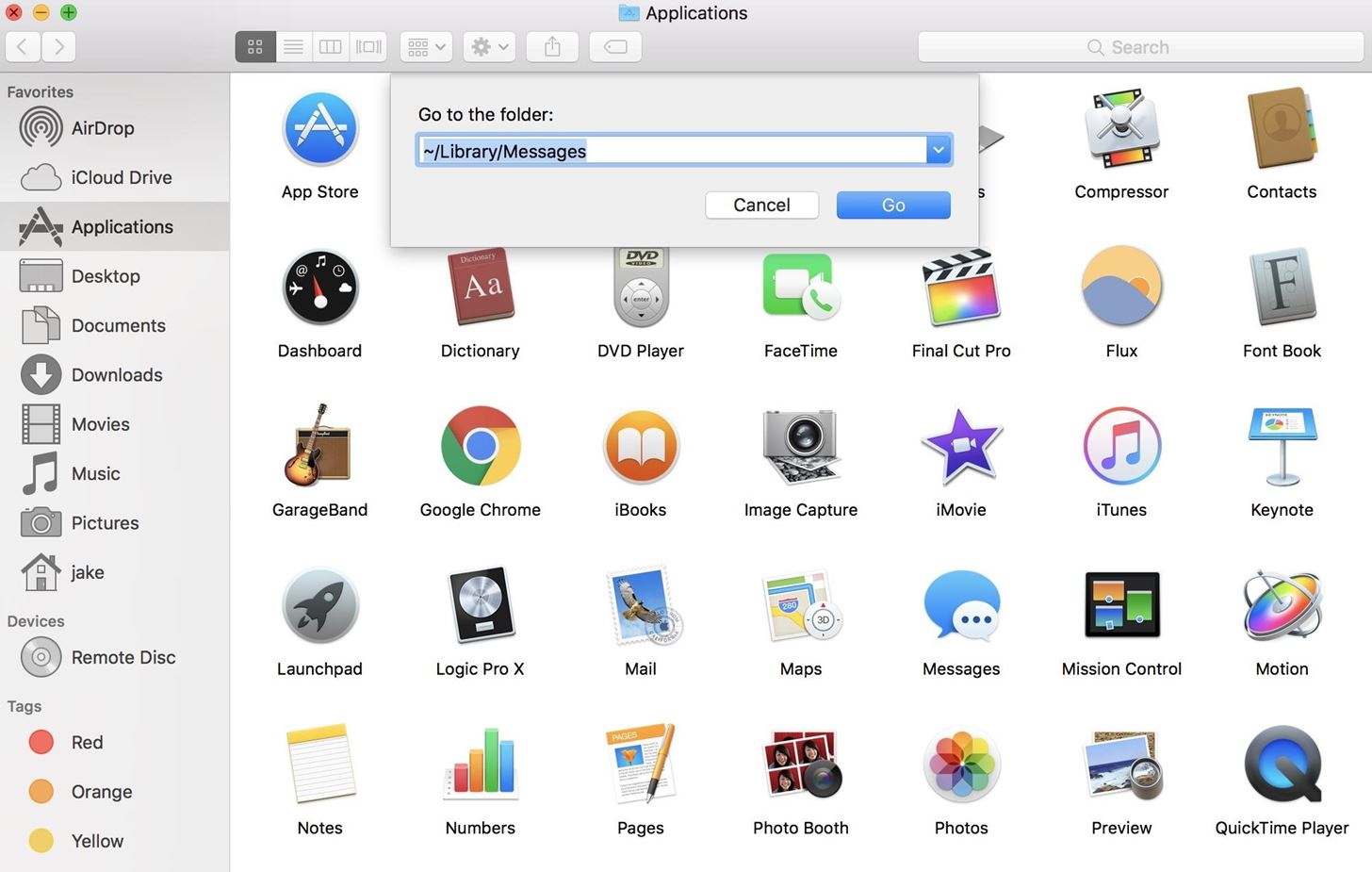
Deleting Texts from Within the Messages Library FolderBut we're not done yet, believe it or not. On a Mac, not only do these messages appear in the Messages app, each message you receive and send saves to a folder in your system files. That means, to completely erase a message, you must delete it from the Messages app and delete the .ichat file of it in your user library. To find your message archives:Open up the Finder or click on the Desktop. Click on "Go" in Finder's menu bar, then select "Go to Folder." Type ~/Library/Messages in the pop-up window, then click "Go." In the Messages folder, select the "Archive" folder. Here, you will have access to all messages saved to your computer, sorted by date. Delete as needed, then empty your trash.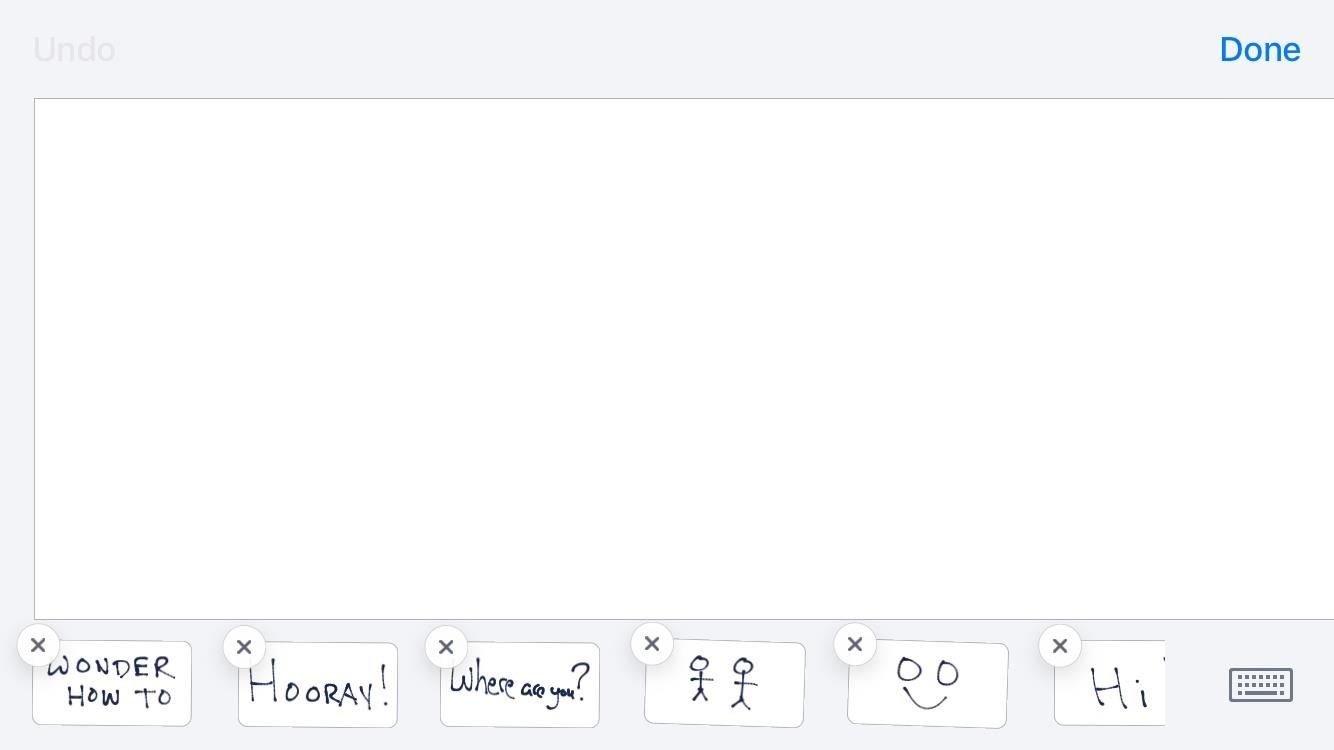
4. How to Delete Handwritten Messages on Your iPhoneHandwritten messages is a fun addition to iOS that adds some personality to your chats, and you can send animated messages this way via iMessages, as well as still images as regular SMS. However, each handwritten message you write is saved after sending, and it isn't entirely obvious how to remove them. Here's how:Flip the iPhone to a landscape position. Your handwriting canvas will pop up, along with all of your previous handwritten messages. Tap and hold on any of the images to activate the deletion mode (just like you would for an app on the home screen). Click the "X" above the picture you'd like to delete, and your message will be deleted. Don't Miss: How to Delete Handwritten Messages from the 'Recents' List on iOS 10 to Clear Your Handwriting History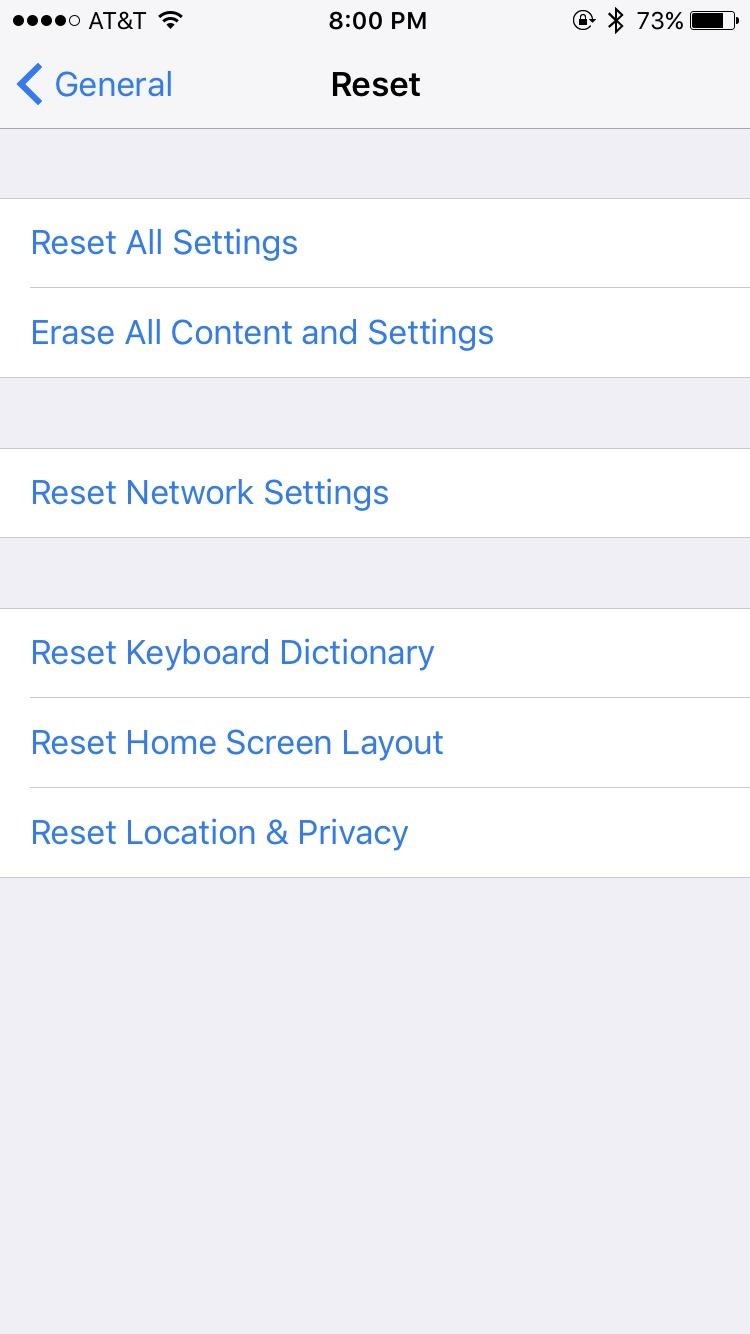
5. How to Delete Messages with a Clean SlateIf you're ultra paranoid and don't think that Apple actually deletes the messages you delete on your iPhone, there is the nuclear option — "Erase All Content and Settings." Your messages will be gone, but so will everything else (this is a factory reset basically), so make sure this is what you really want to do.Go to the "Settings" app, then tap "General." Scroll all the way to the bottom, then tap "Reset." Tap "Erase All Content and Settings," then enter your passcode (if applicable). Tap "Erase iPhone," then tap "Erase iPhone" again. Wait for your iPhone to wipe and restart, then set it up as a new device. This will only delete the content on your iPhone, however, so make sure all backups are erased as well if you want that data permanently erased. And, obviously, don't set it back up using one of those backups, or the messages might reappear again.Follow Gadget Hacks on Facebook, Twitter, Google+, and YouTube Follow Apple Hacks on Facebook, Twitter, and Pinterest Follow WonderHowTo on Facebook, Twitter, Pinterest, and Google+
Cover photo by Justin Meyers/Gadget Hacks
Apple's scheduled to show off the first look of iOS 13 at WWDC 2019 on June 3, but what will the new operating system hold for iPhone? Rumors suggest that many features initially planned for iOS 12 will show up in iOS 13, codenamed "Yukon," and dark mode will be the big ticket item this […]
Flipboard: News: Features We Want in iOS 13 for iPhone
If you've found someone else's signature good enough, you can potentially copy its HTML code. Just right-click the webpage with the signature and choose 'Inspect.'
How To: Unblock applications on Facebook Block and unblock Facebook applications Remove, Block & Unblock Facebook Applications
What is unblocking and how do I unblock someone on Facebook
How to Know Your Data Usage on Your Android. Many mobile networks charge you more if you go over your monthly allotment of mobile data. This can end up costing you quite a bit if you aren't monitoring how your data connection is being
Restrict background data: how to reduce your data usage in
How To: Change the Lock Screen Shortcuts on Your Galaxy S9 How To: Get a Feature-Packed, iPhone-Like Lock Screen for Your Galaxy S6 or Other Android Device How To: Draw & Send Messages to Your Friend's Lock Screen from Your Nexus 5
How to Disable the 'Good Morning' Message on Your iPhone's
But thanks to this easy mod, you don't have to wait, nor do you have to purchase a new phone, because you can get the Pixel's best features right now. Don't Miss: How to Get the Pixel's New Google Assistant Working on Other Devices
Get Google Pixel Experience with one Simple Mod - YouTube
Before you're able to use your SIM card in the new handset, you'll first need to make sure it's of the right size. If not, you can replace your current SIM card with either a smaller Micro SIM or Nano SIM. In this article, we'll explain how you can change your current SIM card for a Micro SIM or Nano SIM.
How To Use A Nano SIM Card In A Phone That Requires A Micro
How To: Check if Your iPhone 6 S or 6 S Plus Is a Victim of 'Chipgate' News: Preorder & Release Dates for the iPhone 7 & 7 Plus How To: You Don't Need a New iPhone to Take Live Photos News: iPhone X Roundup — Everything You Need to Know About Apple's 10th Anniversary Smartphone
iPhone 6S Chipgate: How To Tell Which A9 Chip Is In Your
xda-developers Samsung Galaxy Note 10.1 Galaxy Note 10.1 General Creating CUSTOM BACKGROUNDS for your S-Notes by mitchellvii XDA Developers was founded by developers, for developers. It is now a valuable resource for people who want to make the most of their mobile devices, from customizing the look and feel to adding new functionality.
Right out of the box, iPhone is incredibly easy to use. If you want to get the most out of every feature, you've come to the right place. This video tutorial straight from Apple will teach you how to use the keyboard on the Apple iPhone 3G.
How to Install Google's Gboard Keyboard App on iPhone and iPad
How to Intersect roofs on Google SketchUp - Gadget Hacks
Internet Leer en español How to set up Kindle Family Library. At long last, Amazon will allow adult family members to share their books, apps and more. Here's how to make it happen.
BookBub: Free & Bargain Ebooks | Read on Any Device
AD
Electronic Arts' soft launch is officially over; you can now download The Sims Mobile for Android and iOS. And as you kick off the first of many (many) hours toward tricking out your virtual
The Sims 4 Android - YouTube
How to Browse the Web Anonymously. by Natasha Stokes on January 23, 2017 If you want to browse the internet anonymously and securely, you have to start using either free or paid proxy. A proxy
How to use the Tor Browser to surf the web anonymously


0 comments:
Post a Comment