How To: Add Interactive AR Characters to Your Videos with Google Camera
Google's has expanded ARCore support to numerous Android flagships like the Galaxy S10, so if you have a compatible device, you get access to all the cool new apps that can augment the world around you. One of ARCore's most sought-after features, AR Stickers, is normally exclusive to Google's Pixel lineup, but by sideloading the Google Camera app, you can try it on any ARCore device.Now known officially as Google Playground, Google's AR Stickers can made to work on most ARCore devices with a little bit of tinkering. Developer Arnova8G2 has done all the hard work beforehand (as covered by XDA), so the process is as simple as installing a few apps. Simply put, after a few quick taps, you'll be recording interactive videos with cool AR characters like Marvel's Avengers!Note: If you're a Pixel user, skip ahead to Step 4 to see how to use the Playground feature built into your phone.
Step 1: Install ARCoreTo get started, you'll need to download ARCore if you don't already have it. The app can be installed directly from Google Play Store, so either head over there or simply tap on the link below to install ARCore.Play Store Link: ARCore by Google (free)
Step 2: Install Google PlaygroundWith ARCore on hand, you'll now need to get the modded Google Playground app, which serves as a framework for the AR stickers. Since the file is 467 MB, it may take a few minutes to download. If you have a limited cellular plan, we recommend using Wi-Fi for this part.Download Link: Google Playground for ARCore After downloading the modded app, install the file by tapping on the notification alert for the completed download, then follow the prompts and press "Install." Alternatively, you can install the app at a later time by opening the APK from your Download folder with a file manager app.
Step 3: Install Google CameraWith both the ARCore platform and the Google Playground mod installed on your device, you'll now need to install the ported Google Camera app. You'll need this app to interact with the Playground stickers.If you're familiar with sideloading, you can head to XDA's Google Camera port hub and install the APK that corresponds with your device. If you'd like more help, we have a full guide on this subject that you can check out below:Full Guide: How to Install Google Camera on Any Android Device Once the process is done, don't open the app just yet, as Google Playground might fail to register and not show up as an option. So to play it safe, restart your device first to ensure everything works as it should.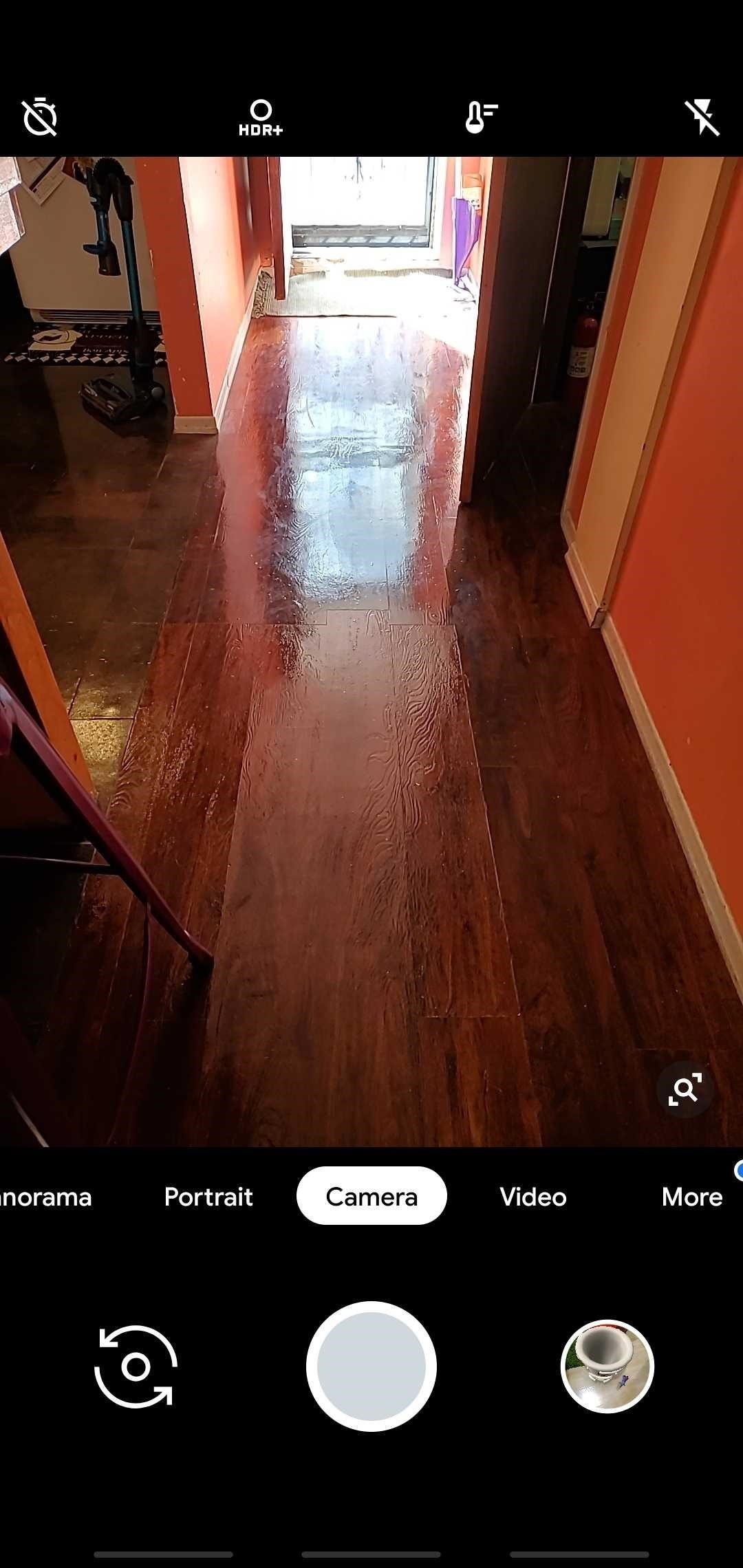
Step 4: Open Google Camera & Enjoy!After installing all the necessary files, you're free to try out your new AR Stickers. So open Google Camera and tap on "More" along the bottom of the screen, then select "Google Playground" from the list of options that appear. As you can see from the GIF below, there's a ton of animated stickers you can paste onto your photo or video, which are separated in various categories under the "Recent," "Featured," "Playmoji," and "Stickers" tabs. These stickers come in all sorts of shapes and sizes, and range from popular themes like the Avengers, Star Wars, Stranger Things, to weather-related stickers, cute pets, and more. If you want more stickers, you have the option of installing extra packs like the new Avengers: Endgame characters. Simply tap on the "Install" button within the the sticker pack to do so, then wait a brief moment for the stickers to download and become available. You can slap as many AR stickers as you'd like onto the screen, which will interact with each other in turn, and even totally change the scene. Pinch to zoom if you want to resize a character, and you can move your stickers around by selecting them and dragging them to a more ideal location.When you're satisfied with your stickers' placement, you can easily record a video by tapping and holding onto the shutter button for as long as you want to record, which you can stop at any time by letting go of the button. Doing so will seamlessly integrate your AR stickers with your film, and the characters will realistically stay in place thanks to ARCore's advanced surface detection, which even lets you move around while filming.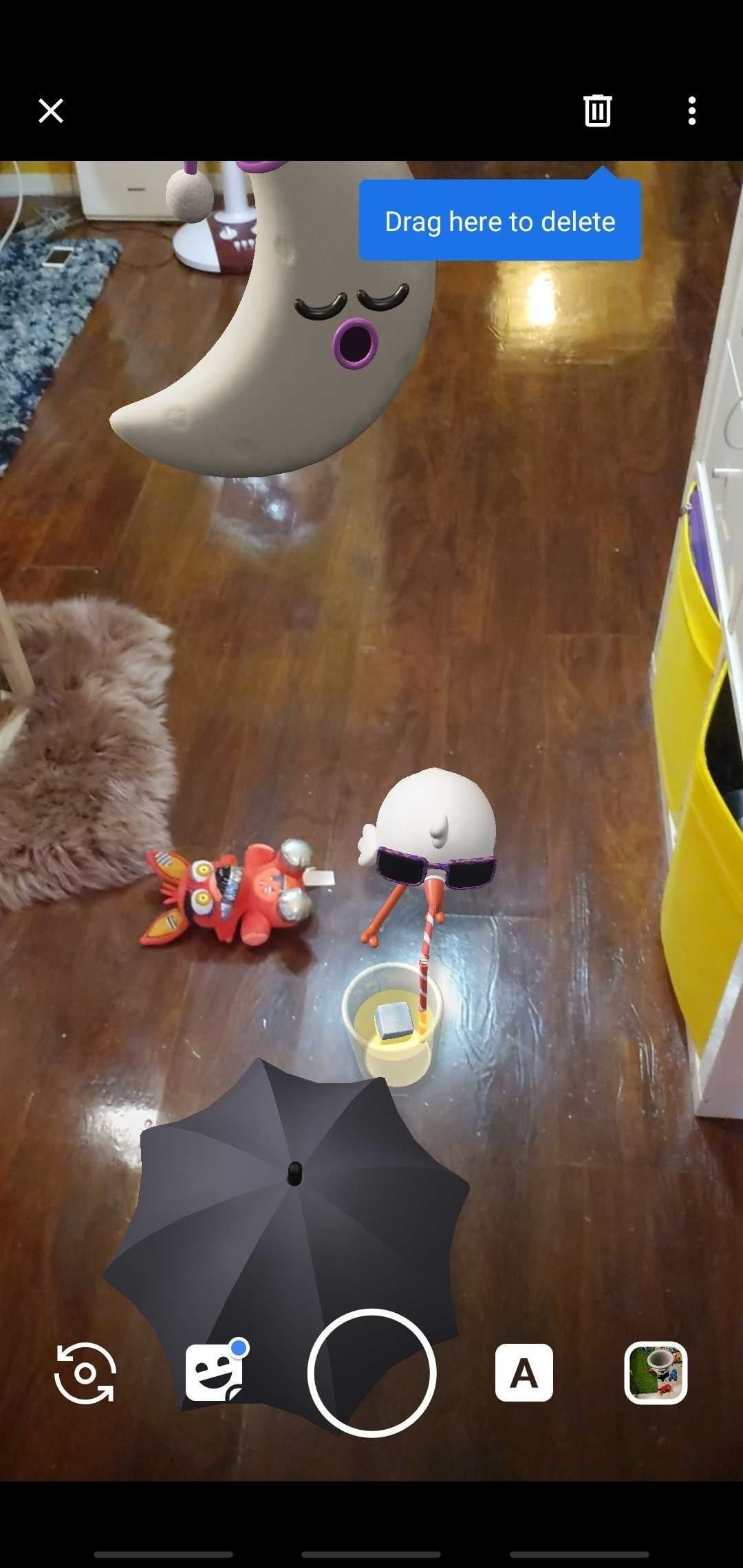
Step 5: Remove Stickers (Optional)If you feel like you got carried away with slapping too many stickers onto your photo or video, you can easily remove them in one of two ways. To erase stickers individually, simply drag the sticker you want to delete to the trash button on the upper-right. If you want to remove them all in one go, tap on the three-dot menu button next to the garbage can, then select "Clear the scene" to start again from scratch. This article was produced during Gadget Hacks' special coverage on smartphone-based video creator tips for filming and editing. Check out the whole Videography series.Don't Miss: Tips & Tricks for Your New Galaxy S10Follow Gadget Hacks on Pinterest, Reddit, Twitter, YouTube, and Flipboard Sign up for Gadget Hacks' daily newsletter or weekly Android and iOS updates Follow WonderHowTo on Facebook, Twitter, Pinterest, and Flipboard
Cover image, screenshots and GIFs by Amboy Manalo/Gadget Hacks
Type in iphone wallpapers and tap Go. Doing so will bring up a list of popular wallpapers for iPhones and iPods. Searching for "iphone wallpapers" rather than "ipod wallpapers" will typically result in higher-quality photos. You can vary your search by adding "hd" or other keywords related to the content you'd like to see (e.g., "mountains").
how to get wallpapers on iphone/ipod touch - YouTube
Download Free Boost Mobile Ringtones. Here is how to create 100% free Boost Mobile ringtones, don't despair. Here are solutions, tips and techniques for you to try, and a list of our free-to-download Boost Mobile ringtones.
How to Download a Ringtone by Boost Mobile - YouTube
Usage Restrictions: The Microsoft Movies & TV app allows you to watch movies and TV shows purchased from the Windows Store, the Xbox Store and the Microsoft Store, as well as movies & TV shows previously purchased on Xbox Video or Zune Marketplace. TV shows can only be purchased, not rented.
Share App Store, iTunes Store, and Apple Books purchases with
If you own a Google Pixel 2 XL and have wondered why your screen has a blue tint on it, well it would seem we now know what most likely is causing the issue, but sadly there is no real way to fix it.
How to Test for Dead Pixels on Your Smartphone « Smartphones
Or you can download youtube video using youtube app and watch them later without any internet connection. Lengthily 720 pixel high quality video always buffer even in high speed connection. In such condition you can't see 1 hour video in a day.
Apple TV: Worth it without Internet connection? - iPhone
How to Beat Cut the Rope : Ultimate Stars Guide for iPad, iPhone & iPod Touch If you've played the addicting game Angry Birds on your iPhone, chances are you've heard of a newer game called Cut the Rope.
How to Measure and cut a rope « Climbing :: WonderHowTo
If you've found your speakers to be lacking in the visuals department, this is just the mod for you. Using 3" PVC, you can turn your speakers into light-up glow rods that pulse to the beat of your music. You'll need some electrical skills and experience soldering to get this one together, but otherwise it's not all that complicated.
How to Identify Genuine Beats by Dre Studio Headphones
Apple Watch owners know the struggle — it's the end of the day, and those rings aren't met. Whether you forgot your watch before hitting the gym, let the battery run out, or just didn't move enough, you could feel the sting of fitness failure.
Apple Watch For Dummies Cheat Sheet - dummies
News: Save Money on Hulu by Picking the Plan That's Right for You News: More People Use Spotify Than Live in the Entire Country of Mexico How To: Cancel the Apple News+ Auto-Renewal Before Your Free Trial Ends How To: Get Unlimited Free Trials Using a "Real" Fake Credit Card Number
Mexico City Is the No. 1 Market for Many Artists on Spotify
The Chromecast finally supports a feature users have been requesting for ages: customized wallpaper. Read on as we show you how to add custom wallpapers to your Chromecast's splash screen as well as turn on weather, news, satellite images, and more.
Set Chromecast Background Images as Your Android's Wallpaper
If you exceed your monthly mobile data limit, your cell phone bill can skyrocket pretty quickly. This is why a lot of people vigilantly monitor internet usage and even uninstall apps that use too much background data.
How to Know Your Data Usage on Your Android (with Pictures)
How to Increase Performance for Individual Apps on Your


0 comments:
Post a Comment