How To: Change Google Chrome's Default Search Engine on Your iPhone or Android Phone
Even if your default mobile browser is Google Chrome, you may not want Google to also be your search engine. Maybe you're not impressed with Google's search results all the time, maybe you want a more private search experience, or maybe you just don't want Google's hands over everything in your life. Whatever the case, it's easy to switch from Google to another default search engine.Those of you who have a Microsoft PC might like to choose Bing as your default search engine in Chrome, and it's totally possible on both Android and iPhone. Aside from Bing, the other default options you can choose for the address bar (omnibox) search feature in Chrome include Google, Yahoo, and DuckDuckGo. However, you can also choose a different search engine, but you need to manually add it.Don't Miss: How to Play the Hidden Dinosaur Mini-Game in Google Chrome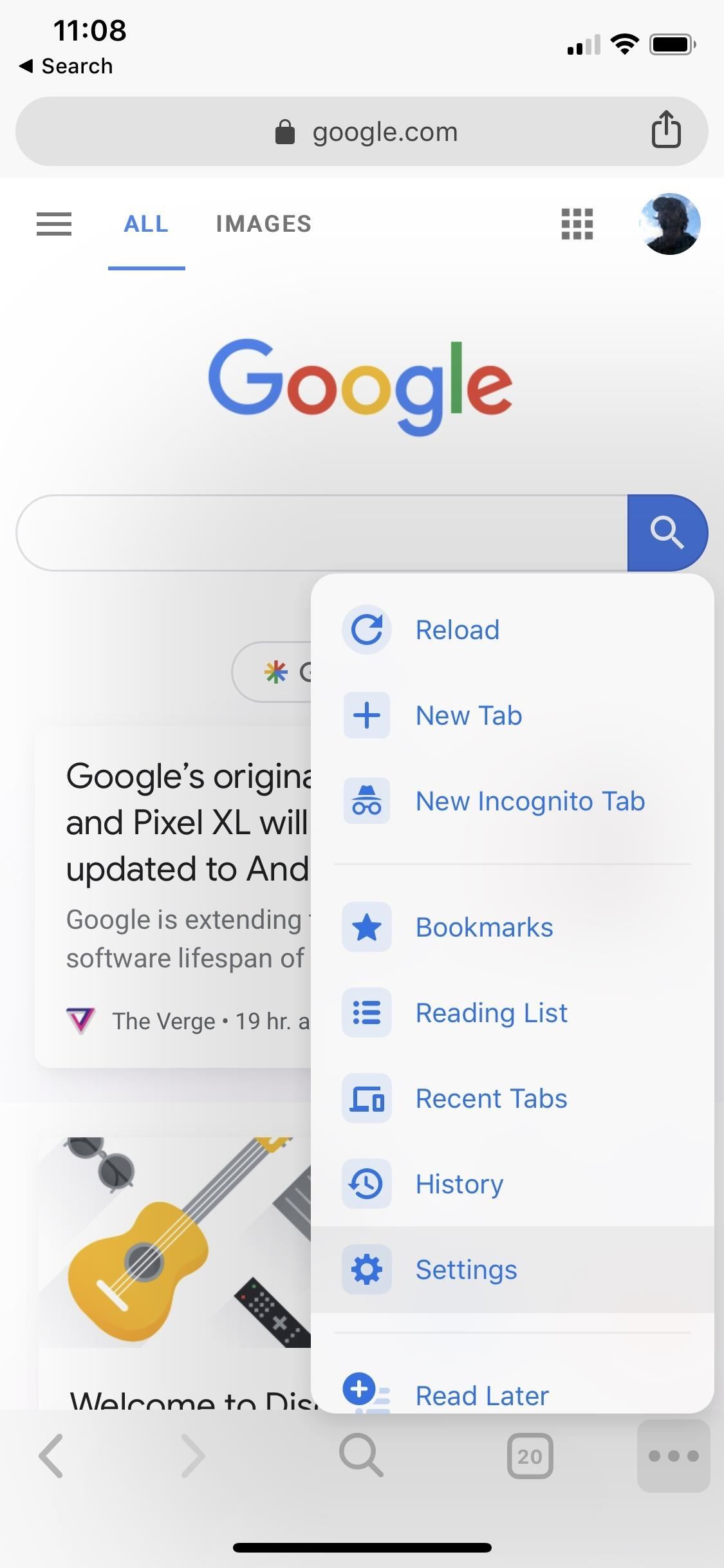
Option 1: Change the Search Engine Using Google's PicksWhether you're on Android or iOS, the method here is identical. First, with Chrome open, tap on the horizontal or vertical ellipsis (•••). On iOS, it's in the bottom right, while on Android it could be in the bottom or top right, depending on your device.Next, hit "Settings," then "Search Engine." On the following screen, select between Google, Bing, Yahoo, or DuckDuckGo. In older versions of Chrome on mobile, before Chromium 73 was released, you could also choose other search engines such as AOL and Ask. Once you've selected, just hit "Done" or the back button to confirm.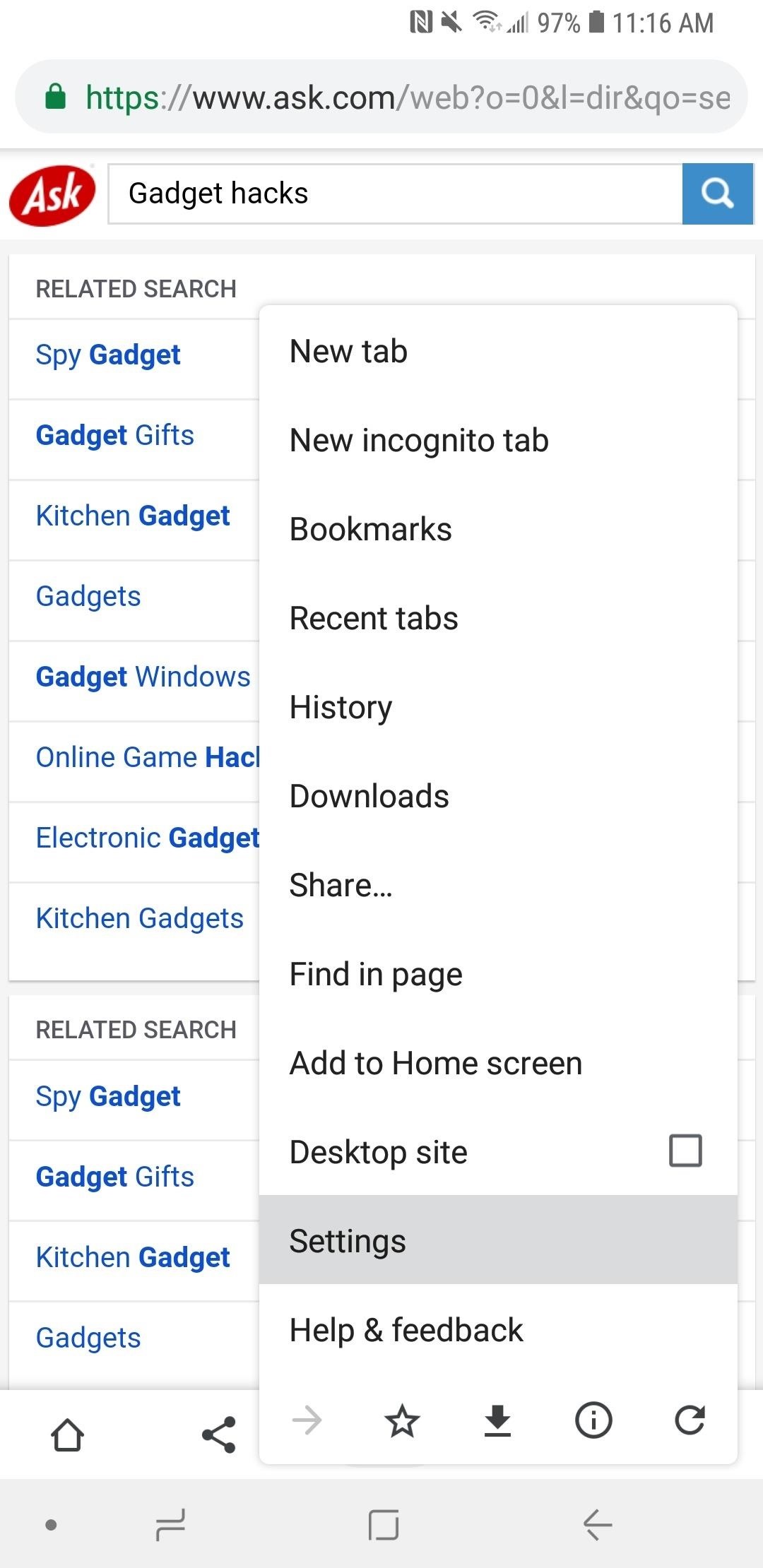
Option 2: Change the Search Engine to Anything You WantIf you don't like any of the alternatives that Google has provided, there's a way you can choose your own default search engine on either your iPhone or Android phone.For example, if you wanted to make your default search engine Ask, you would visit ask.com in Chrome, then perform a search for anything. On older Chrome versions, a pop-up might appear asking you to add the search engine to your list of options before performing a search, and you could tap the "Add" button to do so. However, on newer versions, there is no prompt, but it's still added after performing a search.Afterward, tap on the horizontal or vertical ellipsis (•••), choose "Settings," then "Search Engine," and you should now see your custom search engine under Recently Visited. Choose it, then tap "Done" or the back button, and you're good to go. Almost any website you can search can become your default search engine, so you could even make Gadget Hacks at gadgethacks.com the default if you wanted. However, specific site search tools may not always work as your default search engine in Chrome since the sites aren't optimized to read the search properly how Chrome formats it. If it doesn't work, just switch back to another search engine. Other search engines and sites you can try out include Ecosia (which donates some profits to non-profit conservationist organizations), Gigablast (an open-source search engine), Baidu (Chinese), Yandex Search (Russian), Library of Congress (for research), WonderHowTo (all the how-tos you need), and Shodan (a hacker's search engine). Check out Wikipedia's list of search engines to see the hundreds available, though any website with a search bar would probably work.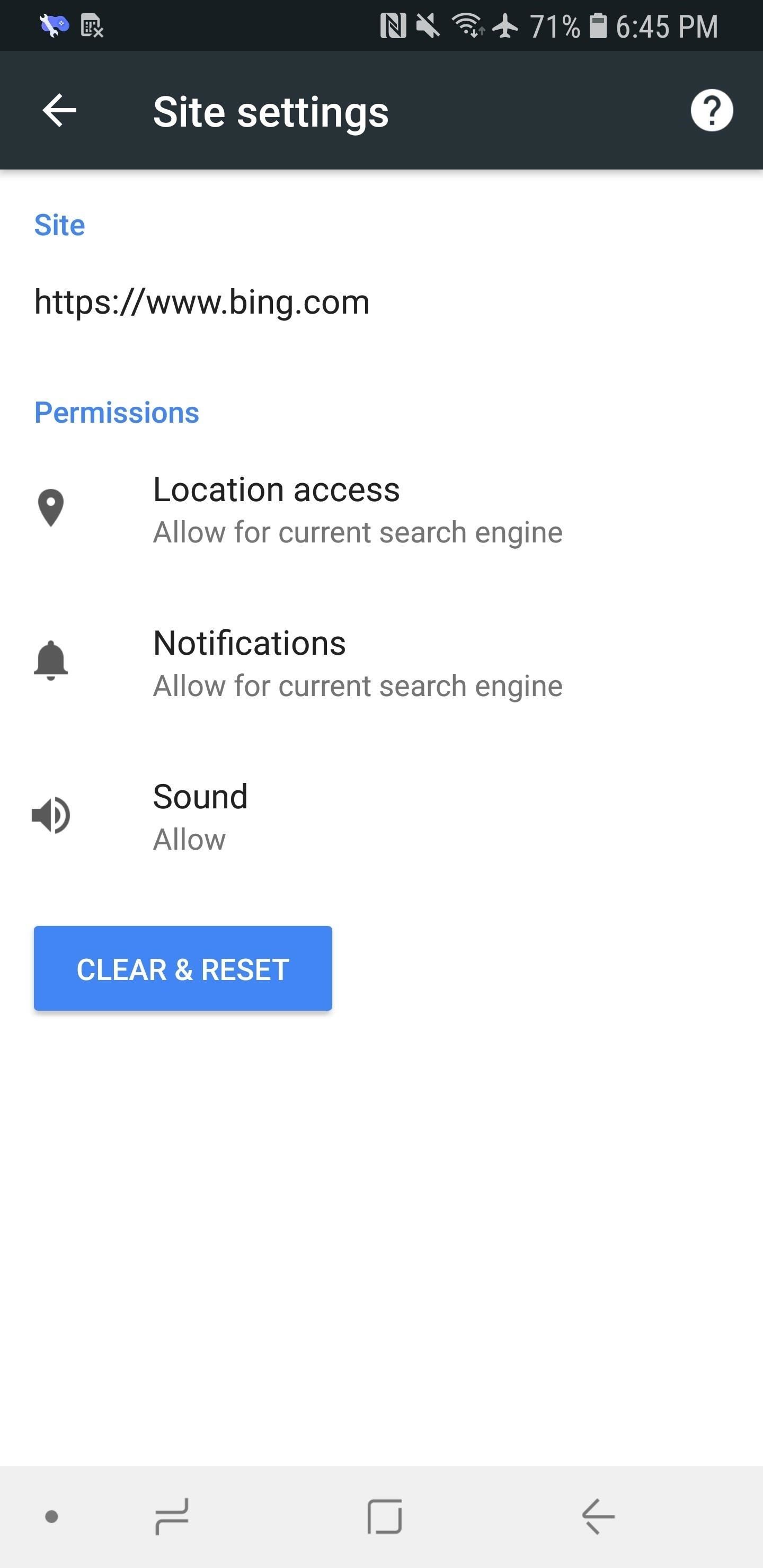
Choose Your Search Engine Settings (Android Only)On Android, you can fine tune some location and notification settings for each search engine individually. If you're using an iPhone, you can only change location settings for Chrome as a whole (notifications may not be an option).From the "Search Engine" section from inside "Settings," tap a search engine to select it, then tap "Location and notifications are allowed." If you tap "Notifications" from the list, you'll be able to tweak all sorts of settings, from sounds to where your notifications will appear.If you tap "Location access" instead, you'll be able to choose whether to grant or deny that specific search engine access to your location. You can also tap "Sound" to disable sound entirely for the search engine. Don't Miss: Like Tabs? Put a Tab in Your Tab with Chrome's New Sneak Peek Feature on AndroidFollow Gadget Hacks on Pinterest, Reddit, Twitter, YouTube, and Flipboard Sign up for Gadget Hacks' daily newsletter or weekly Android and iOS updates Follow WonderHowTo on Facebook, Twitter, Pinterest, and Flipboard
Cover photo and screenshots by Justin Meyers/Gadget Hacks
The article discusses how to make a simple laser communicator circuit for sending and receiving data through laser beam. Laser has been a boon since its invention. Laser is used in wide variety of applications, from Blu-ray driver to high powered cutting torch. There are also many classifications of laser technologies. Here we use
How to Make a simple laser communicator « Hacks, Mods
A lot of people ask us the best way to do screen recording on your Android devices. In this piece, we'll show you the best apps to do it and other ways!
Record Android Lollipop Screen (No Root) - YouTube
Upgrading your router can boost your speed if your old one is especially old or if it is not designed to go as fast as the internet that you pay for. But you have to go through the modem. The modem is the thing that tells your ISP that you are paying for your internet.
How to Speed Up an Internet Connection | Techwalla.com
Android Basics: How to See What Kind of Processor You Have
With this app came lot of information and tutorials because Apple Music was new for all users. We have recently listed some quick help for users to make the most of playlists in Apple Music app. In spite of much has been written on this wonderful app, users keep asking questions on Apple Music in general and "shuffling songs" in particular.
iOS 8.4 Apple Music App: How to shuffle all songs by an artist?
How to Download free sheet music for any instrument
Phone Unlocking Service - Learn how to unlock HP iPAQ HW6910 phone. Find an unlock code for HP iPAQ HW6910 cell phone or other mobile phone from UnlockBase.
HP Hw6510 - iPAQ Mobile Messenger Smartphone 55 MB
Lastly If I do take the basic take a picture every 66 milliseconds approach, what can I do to ensure the picture is taken at the correct time intervals. Android is not a hard RTOS. AFAIK it will be impossible for you to precisely time things to be 66 milliseconds.
How to Print Digital Photos To Perfection Every Time
Custom ROM users: what do you use and why? (also known as the HTC EVO V or HTC EVO V 4G depending upon carrier) did, however. either to get away from OEM
The Easiest Way to Unlock the Bootloader on Your HTC EVO 4G
Google understands that controlling your privacy is important to you, so Google+ was created with a number of privacy controls that let you dictate who can find you and who can tag you in photos, as well as a number of other options. Follow these steps to edit your circle settings: Go to your main
Change your privacy settings - Google Account Help
How to Make Your Own Pneumatic Candy Cannon How To: Make a PVC Hand Pump to Move Water, Compress Air, & Create Vacuum How To: Build a high-powered air cannon that shoots rolled up T-shirts How To: Make a Super Cheap One-Way Check Valve
Build A Powerful Hand Pump From Scratch With PVC Pipe
Windows Spotlight puts a Bing images slideshow on your lock screen, but right now only for Windows 10 Home. Here's how to get something similar in Windows 10 Pro.


0 comments:
Post a Comment