News: Why the iPhone X Needs a $25 USB Type-C Cable to Fast Charge
After learning that you'll need to spend at least $74 on a special charger and a USB Type-C Lightning cable to enable fast charging on the new iPhone X and iPhone 8 models, you may be wondering why you can't just use the standard Lightning cable. While we can't answer why Apple didn't include the USB-C cable in the box with their new phones, we can explain why you need USB-C to enable fast charging.Really, it all comes down to the fact that Apple's Lightning protocol doesn't support the wattage, voltage, and amperage needed to enable true fast charging when it's connected to a standard USB Type-A port on the other end of the cable. But to help you understand why, we'll give you a brief history on the evolution of USB charging standards, then explain how it impacts the new iPhone models.Don't Miss: The Cables & Adapters You'll Need to Buy to Get Fast Charging on the New iPhones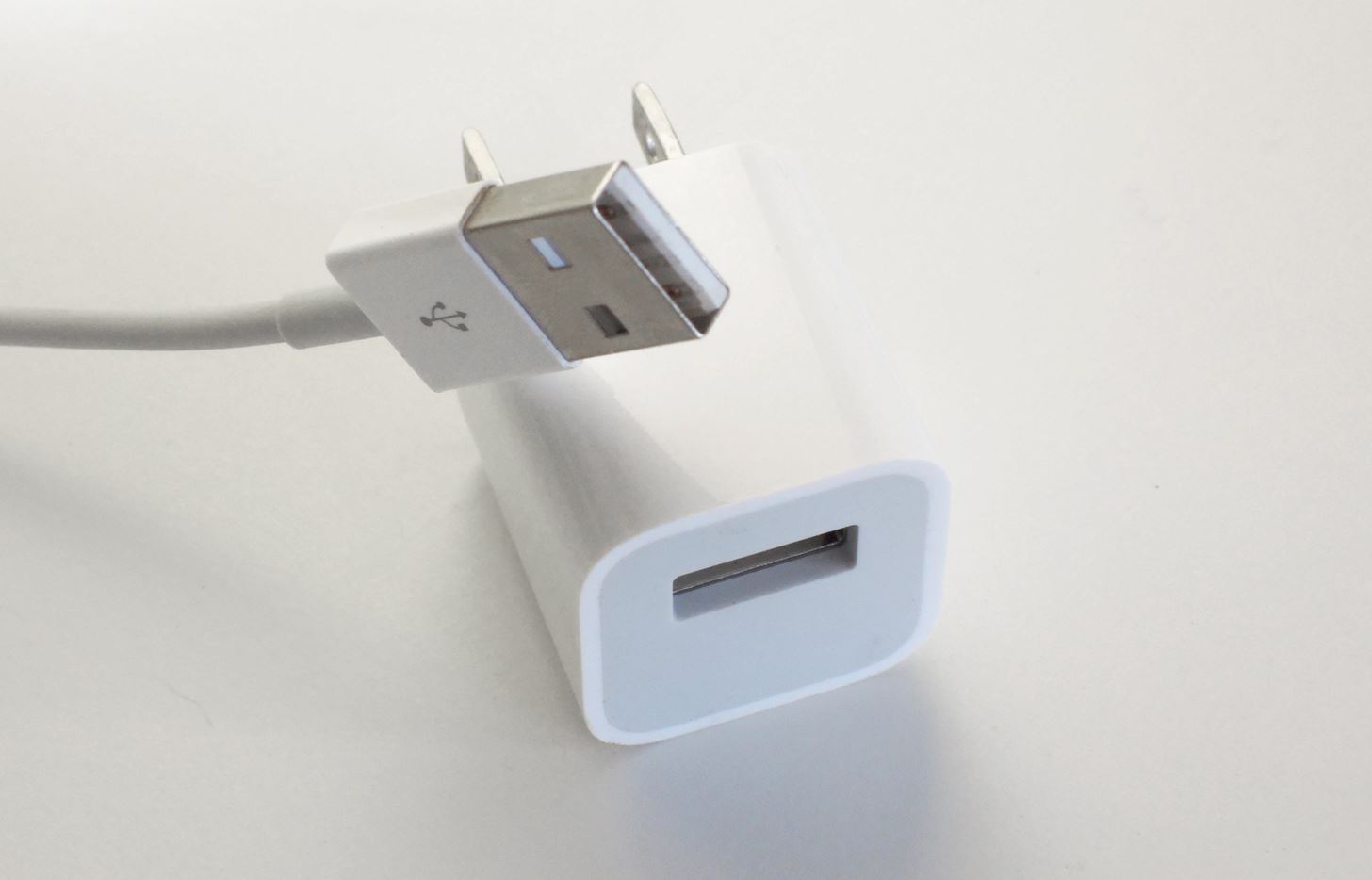
Background on USB ChargingWhen USB was first introduced, it was designed as a way to transfer data, not to power devices. However, with the advent of smartphones and other smaller devices, manufacturers wanted a way to minimize the number of ports needed on these devices. Having two separate plugs for power and data simply wasn't going to cut it.The most obvious way of solving this issue was to use USB as both a data port and a power port. At the time, if USB was used to charge a device, the source (i.e., your phone) had to be on the entire time due to limitations in the USB standard. This led to the development of a dedicated battery charging protocol called USB Battery Charging 1.1 (which was later followed by 1.2), which itself created three different types of USB ports.The Standard Downstream Port was used for data transfer with a maximum wattage of 2.5 W (5 V at 500 mA) when using High-Speed data transfer modes. The Dedicated Charging Port, which was incapable of data transfer, could provide 7.5 W (5 V at 1.5 A). And the Charging Downstream Port, which allowed for 480 Mbit/s data transfer (USB 2.0 max speed) and the ability to charge devices at 7.5 W, combined the features of the two other ports. Standard USB Type-A cables, like the ones Apple includes with every iPhone, typically only include the requisite pins for USB Battery Charging 1.2. Image by Dallas Thomas/Gadget Hacks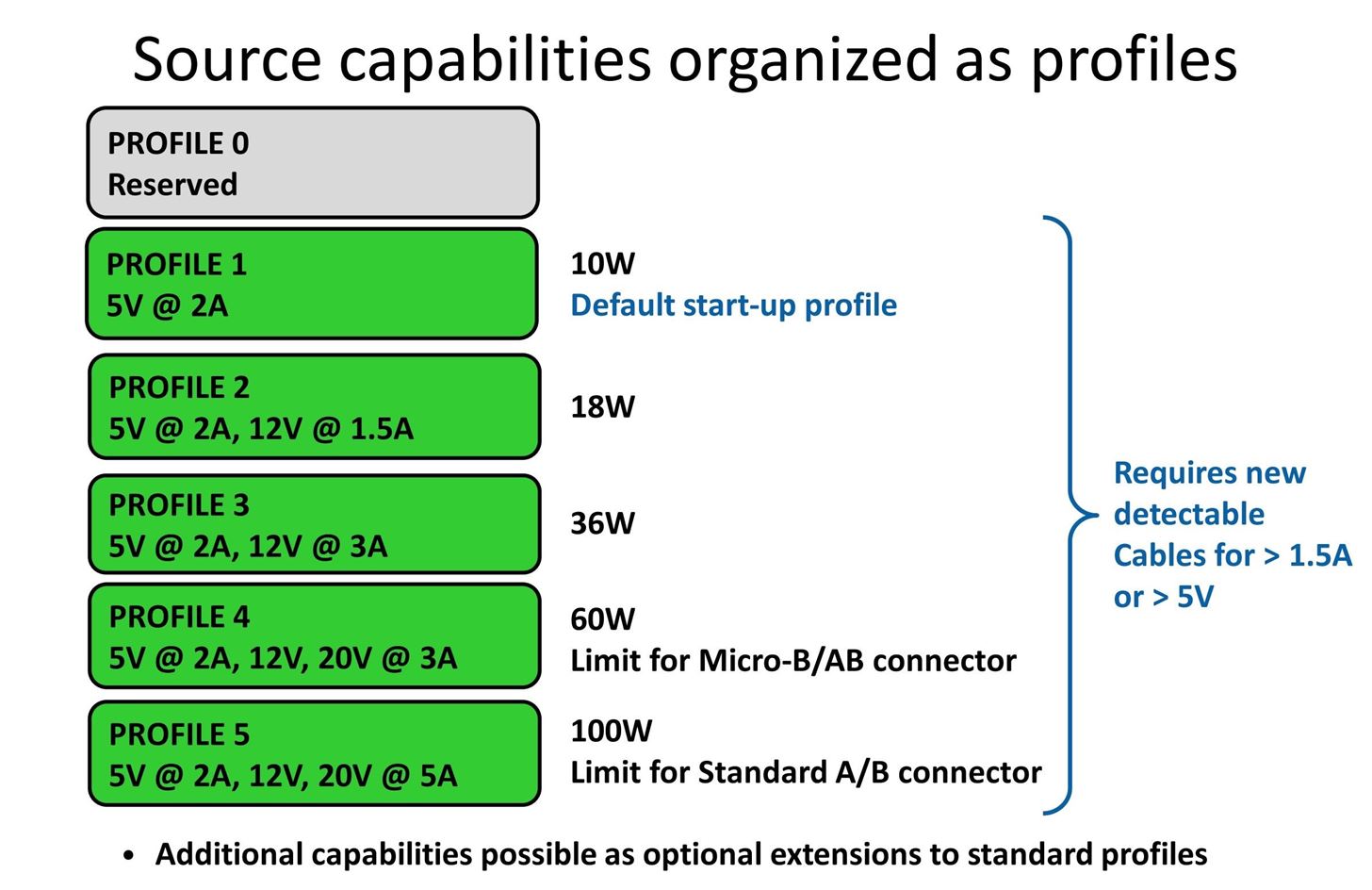
The USB Power Delivery (USB-PD) StandardWith its high-current charging, USB Battery Charging effectively met the needs of smartphones and other small devices. However, with the introduction of tablets, manufacturers wanted to extend this minimal port's design to accommodate devices with higher power needs. Therefore, USB Power Delivery (USB-PD) was created, and this is how the new iPhone models get their ability to fast charge.USB Power Delivery was introduced in 2012 as a way to meet the power demands of large devices using USB ports. With this new protocol, USB ports that met the USB-PD specification would be able to deliver a maximum power output of 100 W (20 V at 5 A), a significant jump from the USB Battery Charging protocol's 7.5 W (5 V at 1.5 A) output.USB-PD 1.0 achieved this increased power rating using USB Type-A and Type-B connectors and Power Profiles. When USB-PD 1.0-compliant cables are connected to a proper port, charging started at a default rate of 10 W (5 V at 2 A). Then, depending on power source, the new setup would increase power to its maximum output. The output increments were 10 W, 18 W, 36 W, 60 W, and 100 W (60 W was achievable either by 12 V at 5 A or 20 V at 3 A). With these limited power output options, many companies ignored the new standard. Therefore, USB-PD 2.0 with Power Rules was introduced. USB-PD 1.0 Power Profiles. Image via USB Implementers Forum With USB-PD 2.0, instead of power supplies being required to use fixed profiles, they could support any power output from .5 W to 100 W. Manufacturers now had set voltage choices, which were comprised of 5, 9, 15, and 20 V.The range of voltages required to be supported by an item was dependent on the power source's maximum output. If the power source put out more than 15 W, it required support for 5 V and 9 V. If the output exceeded 27 W, it had to support 5, 9, and 15 V. And if it exceeded 45 W, it supported all voltages.However, what varied was the current, which enabled a broad range of power output. For example, if you only need to supply 14 W, you used 5 V and 2.8 A. Power output using custom mixes of voltage and amperage wasn't possible with PD 1.0, so with this improved design, smarter equipment was needed to facilitate this communication. USB-PD 2.0 voltages and currents. Image via USB Implementers Forum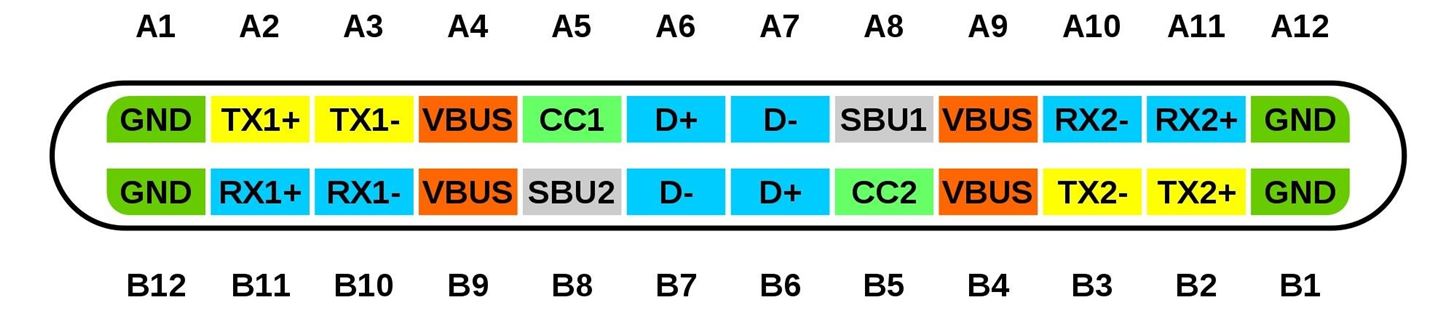
Enter USB Type-CUSB Type-C introduced a reversible design, similar to Apple's Lightning port. One of the ways this reversibility was achieved was through the introduction of the channel configuration (CC) pins. These two pins (CC1 and CC2) detect the cable's orientation, but they're also vital to USB-PD 2.0 because they manage the communication between the cable and the port.This communication is between the Downstream Facing Port (DFP) and the Upstream Facing Port (UFP). The DFP sends data and supplies power, while the UFP receives data and consumes power. This is because many devices, such as smartphones, require both data and power, sometimes simultaneously. Also, the new USB Type-C standard allows devices to change roles from power recipient to power provider, so communication between the DFP and the UFP was essential.With USB-PD 2.0, devices will agree upon a lower initial power output, then increase the power based on communication between the CCs. They will also lower power consumption as devices reach closer to full charge (typically around 80%), to reduce the wear on lithium-ion batteries, as these types of power cells decrease in capacity with each complete charging cycle (from 0% to 100%). USB Type-C pinout with CC1 and CC2 visible (top); Apple's demonstration of lowered charge power after 80% (bottom). Images via Chindi.ap/Wikipedia Commons, Apple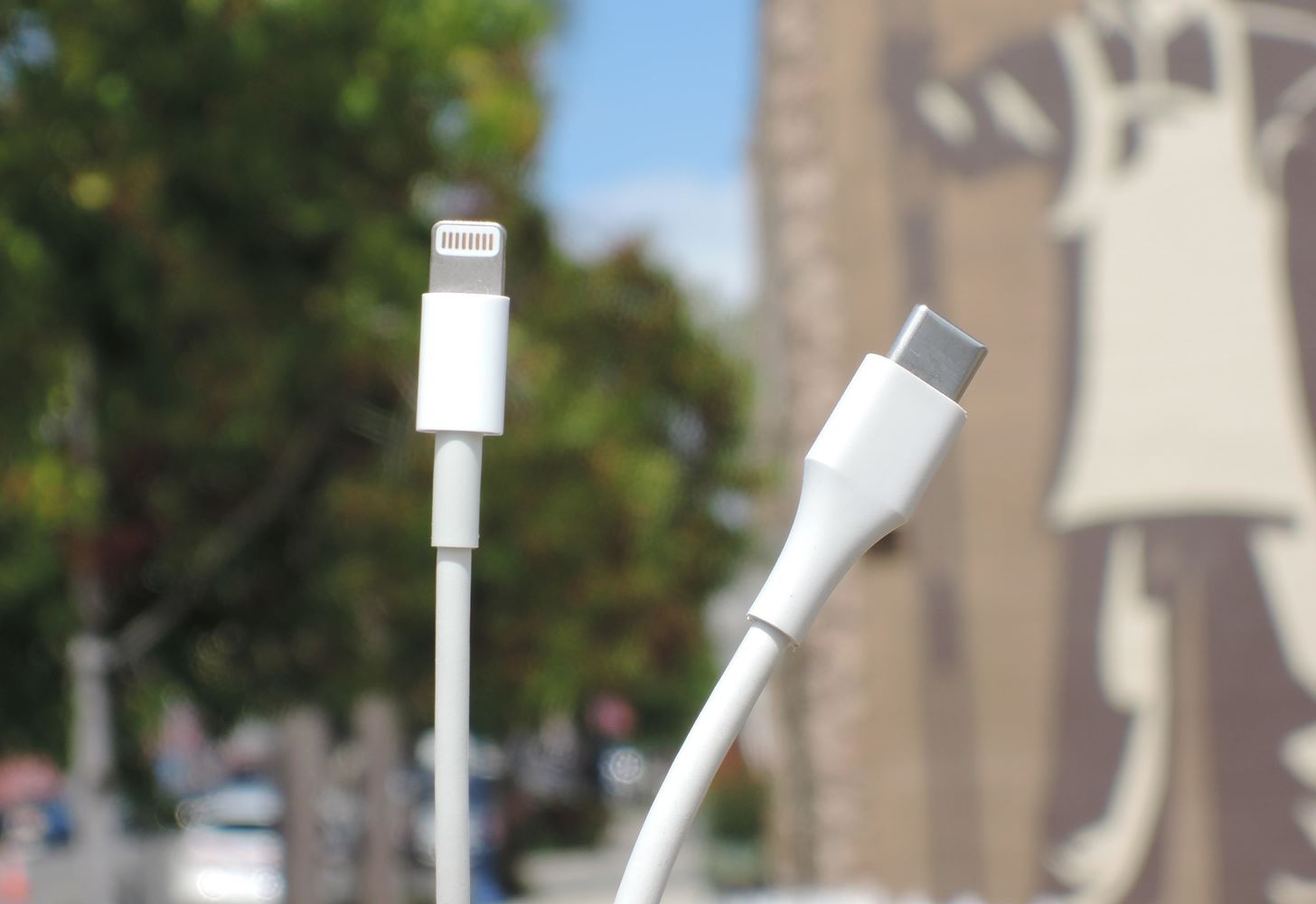
What All of This Means for the New iPhonesBecause the Lightning cables that Apple includes in the box with every iPhone have a USB Type-A connector on the end that plugs into the charger, they don't possess the pins needed to facilitate USB Power Delivery. Namely, the two channel configuration pins, CC1 and CC2. This is why the new iPhone models need a special cable — one that uses USB Type-C on the charger side — to take advantage of USB-PD 2.0 and enable fast charging.After connecting the USB-C Lightning cable to your iPhone X and the appropriate power adapter, the CCs will facilitate communication, which will increase the power received from the iPhone to the maximum power output possible for the iPhone X and iPhone 8 (currently Apple hasn't specified that number). Depending on the number, the iPhone X and iPhone 8 models might require the 87 W power adapter to achieve the advertised charging speed of 50% in 30 minutes. A Lightning cable (left) compared to a USB Type-C cable (right). To use Apple's new fast charging feature, you'll need a cable that has both of these connectors. Image by Dallas Thomas/Gadget Hacks Now you know why you will need the special power adapter and the USB-C Lightning cable. The power adapter and the USB-C cable use the USB Power Delivery protocol, and the power adapter provides the additional wattage necessary for fast charging (the basic power adapter included with the new phones is only 5 W). Now that you understand USB-PD, how do you feel about needing additional equipment to get fast charging? Let us know in the comment section below.Don't Miss: The Best Qi Wireless Chargers for Your New iPhone X, iPhone 8, or iPhone 8 PlusFollow Gadget Hacks on Facebook, Twitter, Google+, YouTube, and Instagram Follow WonderHowTo on Facebook, Twitter, Pinterest, and Google+
Cover image by Dallas Thomas/Gadget Hacks
How To: Merge duplicate contacts on an HTC Desire HD smartphone How To: Easily create a speed dial for contacts on the Android How To: Transfer contacts, calendars and text messages to a new HTC Desire HD phone How To: Navigate the home screen on Android cell phones (2.0)
The best Apple TV apps Make the most out of your new Apple TV with these must-have apps By Kris Wouk and Simon Cohen — Posted on February 20, 2019 7:43PM PST 02.20.19 - 7:43PM PST
10 Best Free Movie Apps for Streaming in 2019 - lifewire.com
The Sony Xperia XZ Premium will come with an absolute top-tier Qualcomm Snapdragon 835 processor and an Adreno 540 GPU. Paired with 4 GB of RAM, the XZ Premium will be sure to run its power- and memory-intensive features (like the 4K HDR screen and 19 MP camera) with cold, cruel efficiency.
Sony unveils Xperia XZ Premium with 4K HDR Display and Super
The same report shows that if you sideload apps, you're almost seven times more likely to be infected than if you stick to Google Play as your app source. All of the data provided in the report is quite interesting, but there's a clear pattern among malware-infected users. Google calls malware PHAs, or potentially harmful apps.
Google's Security Report Shows a Clear Pattern Among Malware
Install Windows 8.1 or Android KitKat as primary OS (Windows
Two Ways To Change Your Android Boot Animation [Android Tip
How To: Change the Lock Screen Shortcuts on Your Galaxy S9 How To: Get a Feature-Packed, iPhone-Like Lock Screen for Your Galaxy S6 or Other Android Device How To: Draw & Send Messages to Your Friend's Lock Screen from Your Nexus 5
How to Disable the 'Good Morning' Message on Your iPhone's
A good news app is the best way to make sure you're able to handle the influx of daily news, and that's why we've rounded up some of the best news apps for iOS and Android.
10 must-have apps for your new Android phone - CNBC
Jack Wallen shows you one of the fastest ways to remove unwanted apps on your Samsung Galaxy S4. Pro tip: Quickly uninstall applications from the Samsung Galaxy S4 app drawer and the voice
How To Remove Bloatware from Samsung Galaxy S5 - NaldoTech
Get Faster Access to Your Favorite WhatsApp Contacts on Your
Enable Adobe Flash Player on Firefox Enable Adobe Flash Player on Opera Enable Adobe Flash Player on Edge Enable Adobe Flash Player on Chrome 1) Open your Google Chrome browser, type chrome://settings/content in the address bar and press Enter. 2) On the content settings screen, locate Flash player settings. Select Allow sites to run Flash
JavaScript settings and preferences for interactive web pages
One option you won't find buried in the Galaxy Note 9's Settings is the ability to return the navigation bar to black. Samsung changed the default color to white with the Note 8, removing any ability to bring the black color back. But thanks to a neat app, Note 9 users can do it themselves. Before
How to Change Navigation bar to black in Samsung Galaxy S9
Everything you need to know about location sharing in iOS. Another temporary sharing option is to just send your current location. This is good when you're waiting for a friend in a
Share your location with your family - Apple Support


0 comments:
Post a Comment