How To: Get Apple's Live Fish Wallpapers Back on Your iPhone
Remember the live fish wallpapers from iOS 9? They may be a fading memory at this point since Apple removed them all from the iPhone in iOS 11, but there is a way to get those fishies animated on your device again. They'll be live photos for your lock screen, which is as good as it will get until Apple lets us use all its live wallpapers, new and old, one day, which will probably never happen.While these are the original video files we'll be using for the fish animations, they won't act exactly like Apple's stock live wallpapers when we're done.Apple's default live wallpapers not only animate when you use 3D Touch on the display, but they move faster or slower depending on how much force you apply. When you lift your finger off the screen, the animation reverses back to the first frame. The only way to simulate this right now is by using a jailbreak tweak, and there is no public jailbreak for iOS 12 yet, though there is one for iOS 11.So our version of these fishy live wallpapers will act just like normal live photos that you turn into live wallpapers on your iPhone. They will animate when you use 3D Touch, but they will stop playing when they reach the end of the video, and they won't reverse back to the first frame.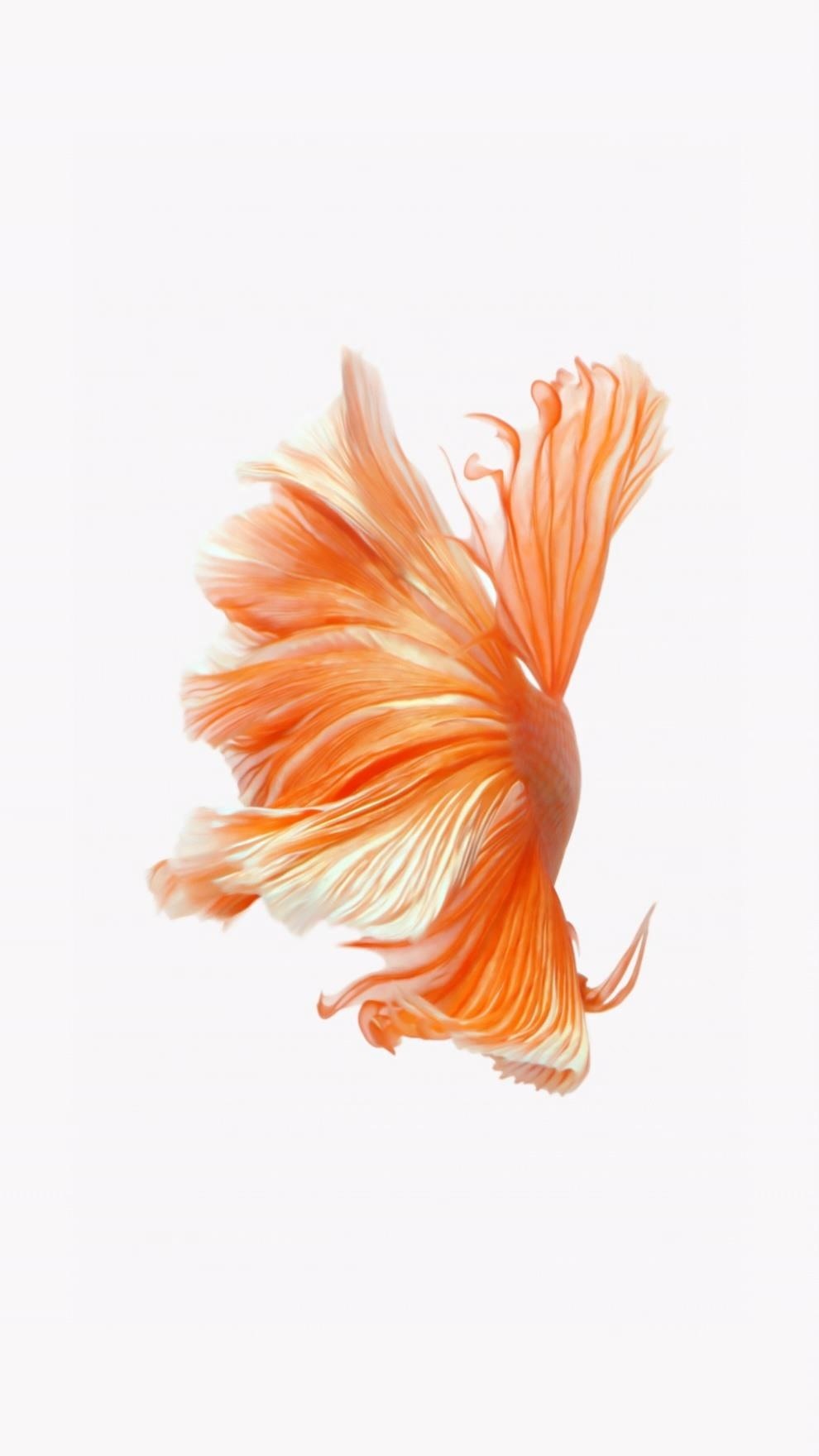
Step 1: Download the Fishy FilesThere are six live fish wallpapers that Apple removed starting in iOS 11, and all of them are linked individually below as .m4v video files. However, there's no simple way to download individual video files on your iPhone, so we recommend to just download them all in a .zip file. If you choose the .zip file, you'll want to choose "More" in Safari, then "Save to Files." Then you can select "Preview Content" when viewing the .zip in the Files app, and use the share sheet to save each video to your Photos app.Orange Fish on White Background Light Blue Fish on White Background Blue/Orange Fish on White Background Blue/Yellow Fish on Black Background Blue/White Fish on Black Background Blue/Red Fish on Black Background
Step 2: Install a Video-to-Live-Photo ConverterIn order to turn the .m4v video files into live photos, we'll need to use a conversion app. There are some good paid ones in the iOS App Store, but free is always better. Paid options include Live Maker (subscription), Live Studio ($0.99), and intoLive Pro ($2.99). There are also a few free trial ones like LiveMaker Free which only lets you convert five videos before paying and haven't been updated in a long time.In our case, it's best to use intoLive, the free version. There are some limitations, but not for what we need. Plus, it was recently updated to work with iOS 12.App Store Link: intoLive - Live Wallpapers (free)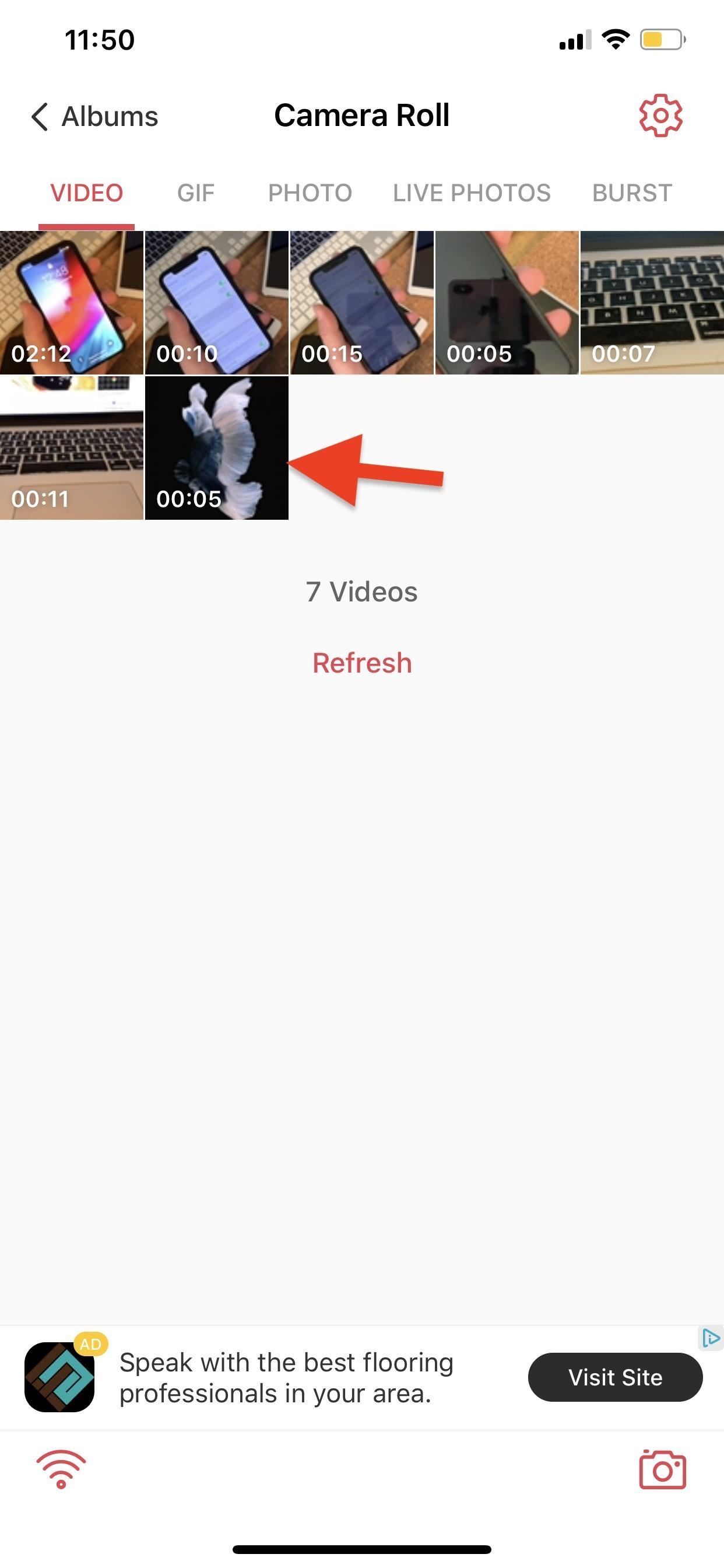
Step 3: Convert the Videos to Live PhotosOpen up the intoLive app (you will have to grant it access to your Photos library), make sure the "Video" tab is selected, then choose the fish video file you want to convert. On the edit screen, just tap the "Make" button in the top right. Next, choose "No repeat" on the popup unless you want to pay to repeat the animation twice, three times, or five times. After you've made your choice, tap "Save Live Photos" on the next screen and it will be saved to your Photos app as a live photo. You will have to watch an ad or two, but it's worth it for the price of free.Don't Miss: How to Turn GIFs into Live Photos on Your iPhone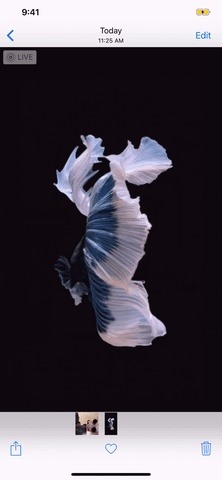
Step 4: Set as Your Live WallpaperYou can set your new live fish photo as your wallpaper. Go to "Wallpaper" in the Settings app, select "Choose a New Wallpaper," then choose your live photo. In this guide, however, I'll show you how to do it straight from the Photos app, so go ahead and open that up.Open up the live photo, then tap the share sheet icon in the bottom left. On the bottom row of options, tap the "Use as Wallpaper" option, then tap "Set." On the prompt, select "Set Lock Screen," and you're done. It would be nice if Apple kept all its previous wallpapers and just added to them in new iOS updates, but for some reason, Apple feels the need to completely remove older ones to highlight fresher backgrounds associated with new iPhones. Too bad.Don't Miss: 100+ Coolest New iOS 12 Features You Didn't Know AboutFollow Gadget Hacks on Pinterest, Reddit, Twitter, YouTube, and Flipboard Sign up for Gadget Hacks' daily newsletter or weekly Android and iOS updates Follow WonderHowTo on Facebook, Twitter, Pinterest, and Flipboard
Cover photo, screenshots, and GIFs by Justin Meyers/Gadget Hacks
Some common sense can go a long way when it comes to keeping your information away from prying eyes. Delete apps that you don't need anymore and log out of apps after each session, especially for things like online banking. Don't keep unnecessary information on your phone, and avoid keeping sensitive documents or intimate images on your device.
How to increase security and privacy on your Android or iOS
How to Copy and Paste on Your iPhone or iPad. This wikiHow teaches you how to duplicate text or images in one location and insert them elsewhere on your iPhone or iPad. Tap and hold on a word. This activates a window that magnifies the
How To Cut, Copy & Paste On The iPhone 6 and 6 Plus
howtouseyouriphone.com/how-to-cut-copy-paste-on-the-iphone-6-and-6-plus/
To cut, copy and paste on the iPhone is a very useful ability to know. The process of doing so is very easy at the same time and allows you to copy text, images and links for use in other areas. Below is a full tutorial that will teach you how to cut, copy and paste with your iPhone, iPad or iPod Touch. Cut, Copy And Paste With The iPhone
How to copy, cut and paste on iPhone - iOS Guides
iosguides.net/how-to-copy-cut-and-paste-on-iphone/
Or copy a photo from the Gallery and paste it into an email. The options are endless. In this tutorial you'll learn how you can copy content in one app then paste it into another. Read on to see how easy it is… 1. Copy text. Find a source of text on iPhone, perhaps your phone number in Contacts. Tap and hold your finger on the number, let
How to Cut & Paste a Document on an iPhone | Chron.com
How To: Make DIY gummy candy out of gelatin How To: This Easy Tip Will Make Your Homemade Cupcakes Look More Professional News: The Hollagram Selfie Booth Shows How Close We Are to Functional Holograms How To: It's Raining Sweets and Treats! How to Make Your Own Pneumatic Candy Cannon
Today's Tidbit: Candy Can Help You Curb "That Time of the
Relinquishing control of anything important is never easy but, in the right circumstances, doing just that can be so very worthwhile. If you don't believe me, give indoor skydiving a try. Indoor skydiving - or body flying - has all the fun of freefall, while being safely suspended in a lovingly crafted wind-tunnel.
Consumer News Archives - consumerqueen.com
How To Change Font On Your iPhone - iPad - iPod Touch 2016 Get PAID Apps For FREE
Aug 20, 2018 · Google announced a new Gmail feature called Confidential Mode earlier this year that lets you send self-destructing emails. The feature is now available to everyone. Confidential Mode also
ProtonMail - Security Features
-gameboy advanced -gameboy colou
Instalirajte Gameboy Advanced (Gba) emulator na BlackBerry
News: Nokia 8 Seems to Be the First Non-Google Phone to Get Android 8.1 News: iPhone 8 Leaked Without Touch ID, Includes Wireless Charging News: Google Teases Nexus 6 in Leaked Android Ads News: Puppies Come to Farmville Self Portrait Challenge : The room is spinning
Google teases Nexus devices and Android L in new ads
Get Samsung Galaxy S9 features on Any Android phone: If your Android phone is rooted and if the Xposed module is installed on it then, download S8 Navigation Bar module for Xposed after installing this go to the Xposed app then click on modules, now enable the module and restart your device, after restart you will see the new navigation bar on
How To: Get Samsung Galaxy S7 Edge Apps feature on any Android
How To: Get Sony's New Xperia Z3 Keyboard on Almost Any Android Device How To: Root Your Nexus 7 Tablet Running Android 4.4 KitKat (Mac Guide) How To: Mirror & Control Your Android's Screen on Your Windows PC How To: Get the Android L Launcher on Your Nexus 5 or Other KitKat Device
Enable Chromecast Mirroring from Any Device - xda-developers
How to Maximize the Speed of Your Internet Connection
Install Android Apps on Amazon Kindle Fire HD. Amazon Fire is an excellent tablet with dual camera and powerful hardware. However, you may not find your favorite Apps on Amazon App Store. Here you have to depend on the Google Play Store to install your favorite apps on Amazon Fire Tablet.
30+ Best Apps For Samsung Galaxy Watch - Tizen Help
To opt out for five years: Call toll-free 1-888-5-OPT-OUT (1-888-567-8688) or visit


0 comments:
Post a Comment