How To: Enable Dark Mode in Google Calculator
As the industry has shifted toward OLED (including Google's own Pixel lineup), the outcry for dark mode has been louder than ever. Google heard the cries and has been working toward a real system-wide dark mode. To lay the groundwork, they are adding the feature to all their apps, including their Calculator app.The calculator app is one of over ten Google apps that have already receive dark mode. While it is a simple cosmetic change, with so many phones using OLED panels, it makes a difference. With phone manufacturers having to balance thickness and battery size, often phones get smaller batteries than users desire. With dark mode, users can maximize this capacity by limiting how much power is used by each pixel in the display.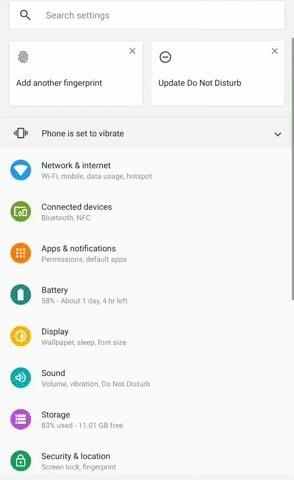
Step 1: Download the Latest Verison of Google CalculatorYou will need the most recent version of Google Calculator, v7.6 or higher. Because this is a fairly new update, you'll want to double check you are on the right version.Open Settings and select "Apps & notifications," then choose "See all X apps." Select "Calculator" and choose "Advanced" to reveal more options under "App Info." Scroll to the bottom to find the version number to see if it is running v7.6 or higher. If you are running an older version, open the Play Store and see if there is an update for Google Calculator. If not, you can either wait for the update or use APKMirror to sideload the app.Play Store Link: Calculator (free)
Step 2: Turn on Dark ModeNow, open the Google Calculator and select the three vertical dots in the upper-right corner. There will be a new option titled "Choose theme." Select this to reveal a popup with three choices: "Light," "Dark," and "Set by Battery Saver." On Android 10, the third option will be replaced by one titled "System default."To permanently switch on dark mode, choose "Dark." This will change the default look to a dark theme. However, if you prefer the light look, the other option for Android 9 and lower is to "Set by Battery Saver." When chosen, your phone will turn on the dark theme on the calculator app when battery saver is enabled. This allows you to use the preferred look but let you stretch the battery a bit when at a lower battery percentage.Finally, if you're running Android 10 or higher, you can choose "System default" in this prompt and the Calculator app will be themed based on your system theme. So if you enable Dark Mode in Android 10's Settings (or Quick Settings), the Calculator app will turn dark. Don't Miss: Enable Dark Mode in All Your Favorite AppsFollow Gadget Hacks on Pinterest, Reddit, Twitter, YouTube, and Flipboard Sign up for Gadget Hacks' daily newsletter or weekly Android and iOS updates Follow WonderHowTo on Facebook, Twitter, Pinterest, and Flipboard
Cover image, screenshots, and GIFs by Jon Knight/Gadget Hacks
How to save snapchat stories/snaps with the official app without the sender knowing! Get the SnapCatch app here:
How To: Make the AccuWeather Widget Transparent on Your Samsung Galaxy Note 3 How To: Music Not Loud Enough? Here's How to Increase the Volume Limits on Your Samsung Galaxy Note 2 How To: Watch 2 Videos Simultaneously on Your Galaxy Note 9
Samsung Galaxy S5: How to Get Back Accuweather Widget to Home
Thank you for posting your query on Microsoft Community. As per the issue description, I understand that you want to change the images in live tile in Windows 10. I will certainly help you with the query. Please follow the below mentioned steps to change the images in live tile in Windows 10. Press "Windows key", right click on Photo app
Making the most of Live Tiles | Microsoft Devices Blog
With any password manager, the only password you need to remember is the master password that locks the vault from both hackers and the company. This makes the master password very important. But what happens if you forget this password? Well, LastPass has you covered. It isn't a stretch to believe you might forget your password.
How to Log In to Your LastPass Password Vault With Your
How To: Use Samsung's Hidden Hearing Test to Get Drastically Better Sound Quality from Your Galaxy News: Samsung's Amazing Music-Making Tool Soundcamp Is Coming to All Androids How To: The Galaxy S9's 'Adapt Sound' Feature Makes Your AKG Earbuds Sound Even Better
How to Dampen Drum Stick Noise on Electronic Hi-Hats
The volume control icon has disappeared from the taskbar From: msiz My volume control button has dissapeared from the bottom right hand corner of my screen - how can i get it back?
Classic View WIndows 10 - Microsoft Community
Is there a certain someone whose pictures and status updates you would rather not see? Like, ever? Wish you could hide a person on Facebook without publicly defriending him or her?
3 Ways to Make a Person Disappear - wikiHow
The Health app uses your iPhone's accelerometer to measure steps and distance traveled, so long as you keep your iPhone with you to get accurate figures. Import health records. If you need
How to Rip Music CDs to your iPhone/iPod | iPhoneLife.com
News: iOS 11.2 Beta 4 Released for iPhone with Mostly Under-the-Hood Improvements News: Apple's iOS 12.1.3 Public Beta 2 for iPhone Released to Software Testers News: iOS 11.2 Beta 3 Released, Includes Pop-Up Alerts for Wi-Fi & Bluetooth Controls, New Control Center Bar
News: Apple iOS 11.3 Update Introduces Brand New Set of
Recipients must have a Google account to add their own images and videos to a shared album, but anyone with the link can view the album and download photos — even if they're not in Google's
Google Photos Review: The Best Photo/Video Backup App
I've rounded up apps to track books, TV, games, music and movies, plus a few that track a bit of everything. Hopefully these will get you started if you're looking for a way to keep an eye on what you're reading, watching and listening to. Books Goodreads [Web, Android, iOS] Goodreads helps you track which books you're reading, what you've read
Beginner's guide: How to set up and start using your new


0 comments:
Post a Comment