How To: Turn Off, Sleep, or Restart Your Apple TV
Apple likes to make their products simple. However, sometimes that simplicity leads to a confusing user-experience. Take the Apple TV, for example. How do you turn it off? Just press the power button, right? Sorry, there is no power button. Okay, so it's like an iPhone and has a nondescript button designated as a power button, right? Nope.You can scour the Apple TV and its remote all day but you will never find a power button. In fact, depending on the model you have, you may only find six to seven buttons to choose from, not one of which would seem to control the power. So how in the world do you turn your Apple TV off?
1. Powering Off Your Apple TVIf you're looking to completely power down the entire Apple TV, the only way to do it is to unplug the device from power. I know. It's kind of crazy. Unless you're trying to eliminate your energy output at all costs or fix audio, video, or power issues that you're experiencing, this solution isn't usually necessary. Instead, Apple designed the Apple TV with another system in mind. ...
2. Entering Sleep Mode on Your Apple TVSleep mode is the normal way to "turn off" the Apple TV. While it won't be properly powered down, the Apple TV will be conserving energy and won't take long to turn back on again. There are two main ways to enter this mode. One is not obvious at all, so let's start with that one.Don't Miss: How to Customize Your Apple TV's Name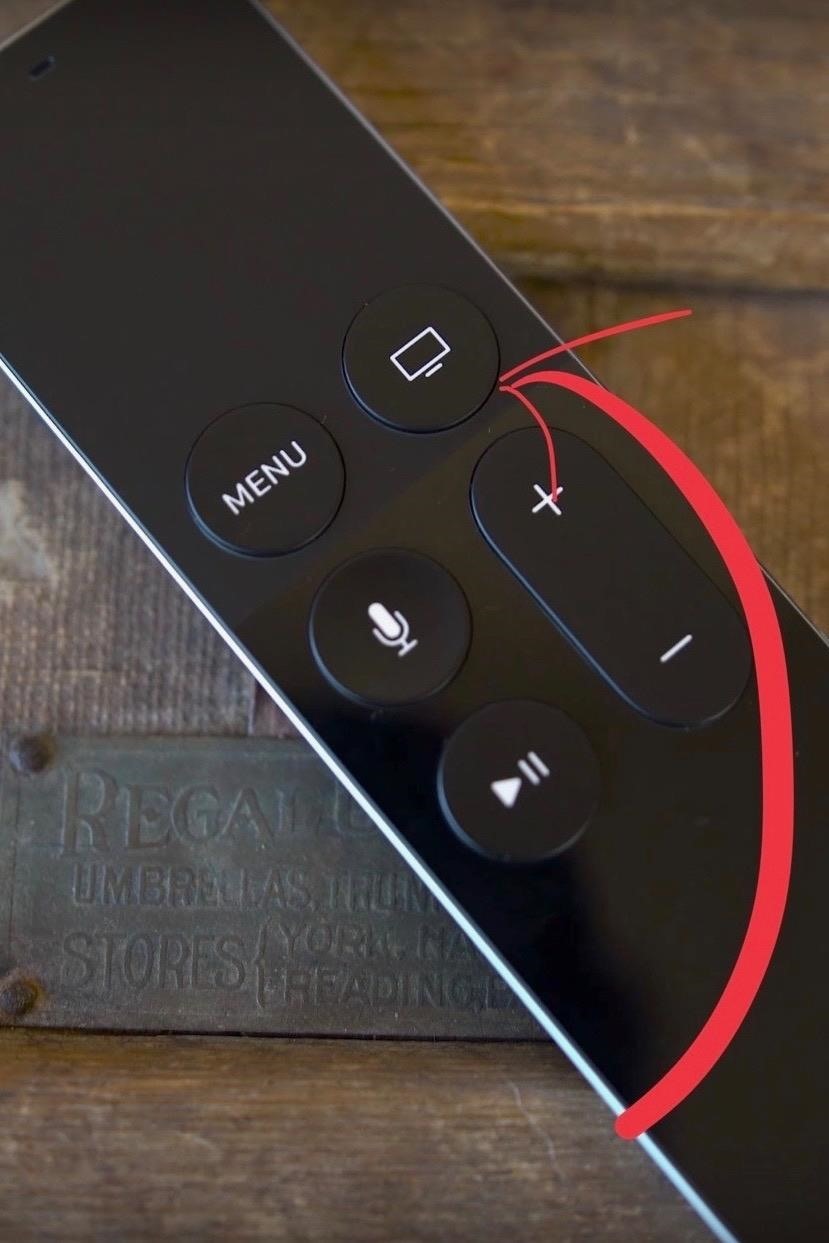
Manually Enter Sleep ModeThis method is probably why you're here in the first place. Contrary to how the Apple TV may present itself, there is a way to activate Sleep mode yourself. And there are actually many ways to activate it, as you'll soon see.For the first way, the process differs depending on your Apple TV model, so you will need to identify that first. Luckily, it's pretty simple. If your Apple TV came with a black remote with Siri, you have a fourth generation Apple TV. If your Apple TV has an aluminum or white remote, that would be a third generation or earlier.Apple TV (4th gen.): Hold the Home button for 5 seconds, then, when prompted, select "Sleep" using the Touch surface. Apple TV (3rd gen. and earlier): While in the main menu, hold down the Play/Pause button for 5 seconds. (In my experience, the device will go to sleep anywhere from 1.5 to 2 seconds, but your mileage may vary). Images by Dom Esposito/YouTube, Ocrho/Wikimedia Commons A second way to manually enter Sleep mode is by going to "Settings" in tvOS and selecting "Sleep Now." Pretty simple.The last method for putting your Apple TV to sleep is to use the Apple TV Remote app on your iPhone. Just hold down on the Home button (in the bottom right), then tap on "Sleep" on the prompt. Image by MacRumors/YouTube Don't Miss: The 4 Best Phones for Binge-Watching Hulu & Netflix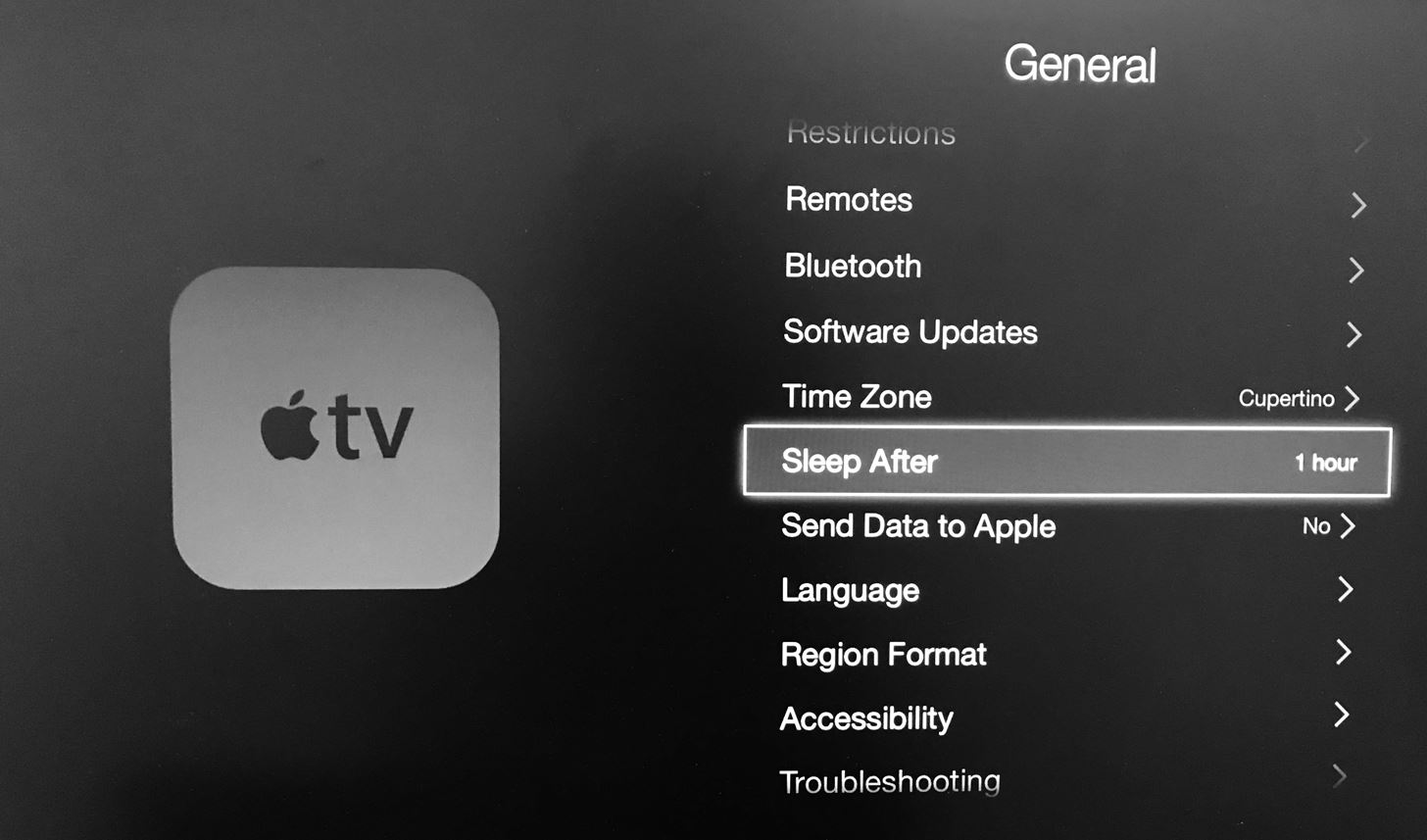
Automatic Sleep ModeIf you've ever left your Apple TV stay on because you didn't know how to turn it off, you may have noticed that it turns off on its own. That's weird.Actually, the Apple TV's programming puts it to sleep after one hour of inactivity. Apple is probably aware that turning off an Apple TV is confusing, so having them turn off automatically makes sense. Still, would it have been so hard for them to include a simple instruction on how to manually enter Sleep mode?Oh well. That's why we're here.Anyway, while the default setting may be for one hour, you can change that to a time of your choice. Head to "Settings" in tvOS, then "General." From there, select "Sleep After" and choose your preferred sleep time. Apple offers times from 15 and 30 minutes, and one, five, and 10 hours. You can also choose for the Apple TV to never go to sleep automatically.
3. Restarting Your Apple TVIf you're running into issues with your Apple TV and don't want to get up to unplug it and then plug it back in, you can simply restart it. The process is slightly different depending on what Apple TV model you have.Apple TV (4th gen.): Hold down the Home and Menu buttons together for about 10 seconds. Apple TV (3rd gen. and earlier): Hold down the Menu and Down buttons together for about 10 seconds. When you see a tiny white light on the front of the Apple TV starts flashing, let go and the Apple TV will reboot automatically.You can also do this manually via tvOS's settings. Just go to "Settings," then either "General" or "System," depending on your model. On the next screen, select "Restart."Don't Miss: How to Cancel Your HBO Now SubscriptionFollow Gadget Hacks on Facebook, Twitter, Google+, YouTube, and Instagram Follow WonderHowTo on Facebook, Twitter, Pinterest, and Google+
Cover image and screenshots by Jake Peterson/Gadget Hacks (unless otherwise noted)
CarPlay units usually have eight app icons on each home screen page, so there's not a lot of room for your favorites apps without having to swipe — unless you have a bigger screen. Even then, a car that can display 10 apps on each screen might still need some app prioritization to get your most used apps up front and center.
How to Make Your Mac's Dock & App Icons Look Like Yosemite's
Google Assistant Easter Eggs & Fun Commands. Don't Miss: Google Assistant Has a Fun Easter Egg Game Show for When You're Feeling Lucky. I'm feeling lucky: Starts up a multiplayer game show. Give me a random number between (x) and (y): Gives you a random number that falls between two other numbers. Crazy beeping sound effects, too.
Google Assistant: 'I'm feeling lucky' includes surprise
By JR Raphael (@jr_raphael). Well, I did it: I took the plunge and bought one of those dirt cheap HP TouchPads.As a happy owner of a Motorola Xoom, you wouldn't think I'd be in the market for a new tablet -- especially one that's just been given its last rites -- but over the weekend, like thousands of other technophiles, I found myself shelling out a hundred bucks for a discontinued and
Install the latest version of either Chrome for Android or Chrome Beta from the Play Store. It doesn't matter which of the two you download, although it is interesting to know that in the past, this minigame was available only on Chrome Beta.
How To Play The Google Chrome Hidden Game - Android Secret
100+ Tips and Tricks for the iPhone 7 and iOS 10. The Ultimate Guide in less than 30 minutes! - Duration: 29:45. Video Gadgets Journal (VGJFelix) 805,348 views
How to Fix iPhone Ring / Silent Button not Working
How-To: Pirate a Vinyl Record | Make:
Portrait Mode is an arty photo format that first arrived with the iPhone 7 Plus. It uses the twin-lens camera that's present on the back of some iPhones to create an artistic depth effect, whereby
Portrait Mode: The Complete Guide To Portrait Mode On iPhone
So it turns out that you don't even need to root the new Nook Touch to get a web browser, it has one hidden in the search feature.. It's true. All you have to do is hit the little "n" icon below the Nook Touch's screen, tap the search icon, then enter a url into the search (just end a word with .com, .net, etc), and suddenly a hidden web browser launches!
How to Access the Hidden Internet Browser on Nook Simple
Most artists will allow users to download their music from SoundCloud, and My Cloud Player takes full advantage of that. From the same context menu that pops up before playing a track, you can also select Download to save the song directly to your device.
Android Music Manager
AD
Coolmuster.com/AndroidMusicManager
Report Ad
How to Manage Music Files on Android with Android Music Manager on PC?
The slower video just lets you see so much more of the lightning at a glance, allowing your mind to process more of it at once. Sometimes you just need a quick and easy way to convert a standard speed video to slow motion, and since your iPhone may not be your only video-recording device, you may not always have slow-motion capabilities at your fingertips.
How To: Add RT/Retweet button to your Twitter page How To: Add Real-Time Twitter Results to Google Search in Chrome and Firefox How To: The 5 Best Free Twitter Clients for Android How To: Pimp Out Your Tweets with Rich Text Formatting on Twitter
Inbox by Gmail on Twitter: "Thanks to your feedback, rich
Set Custom Navigation Bar Icons Now that you've set up the Custom Navigation Bar app, you can play around with the settings and change the navigation bar icons on your phone. For demonstration, I'll change the icons on my Nexus 5X to those of Galaxy S8.
How to Change App Title Bar Colors in Windows 10 - Gadget Hacks


0 comments:
Post a Comment