IFTTT 101: How to Find & Set Up Applets
IFTTT (short for If This, Then That) is an amazing piece of software that automagically links actions on your phone with online services and real-world objects. For example, an applet could read: "if you come home, then turn on Wi-Fi." IFTTT goes further than just using simple smartphone functions, though — thanks to applets, it's fully configurable with a ton of smartphone apps.Even with IFTTT's simple interface, it can still be intimidating for a new user. The process of finding and applying applets isn't always straightforward, and searching for exactly what you need is frequently unintuitive. After all, smartphones can be automated to perform a myriad of functions, and your needs don't always reflect those of the general public. So if you're just getting started with IFTTT, I'll clear up these issues for you.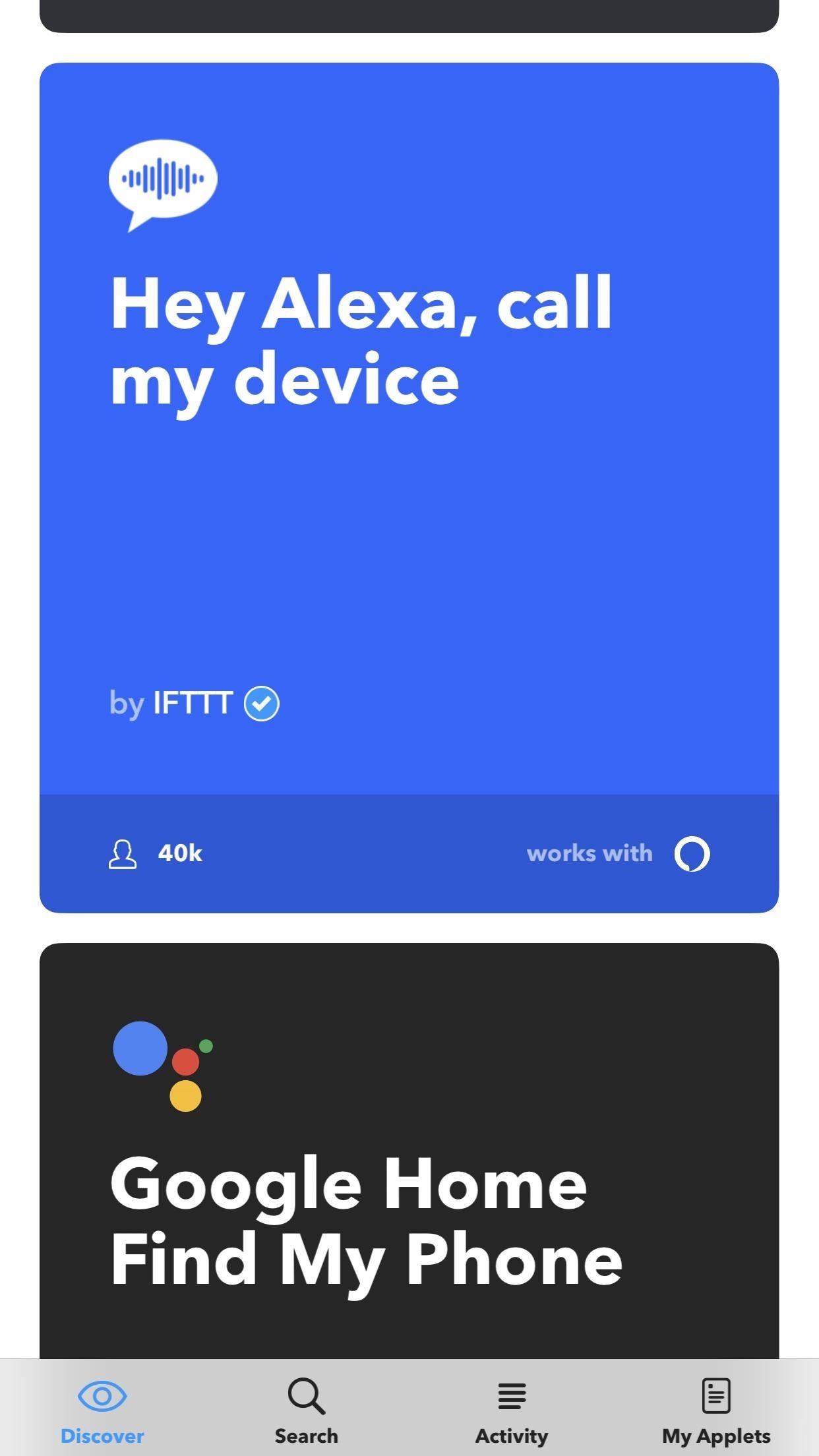
Step 1: Find Applets with the 'Discover' TabImmediately after you install IFTTT from the iOS App Store or the Google Play Store, you'll be greeted by the Discover tab. This tab curates the most popular applets from across IFTTT, and they should all have straightforward labels that make it easy to understand what they do.Some of the applets in the Discover tab are created by official developers like Google or IFTTT themselves (verified developers have a blue check next to their names), while others are created by regular IFTTT users. Either way, these applets are usually very safe and stable additions. If one of these applets tickles your fancy, tap on it, then tap "Turn on." Sometimes you'll need to give IFTTT permission to access certain accounts or devices, but that's as easy as following the provided prompts. Other applets may require you to sign into an account. For example, if you choose an applet that uses Amazon Alexa, you'll need to sign in to your Amazon account.To see what permissions the applet will need before you tap "Turn on," tap on the app icon in the bottom-right corner of the card. This will expand the card, showing exactly what the applet uses in order to function.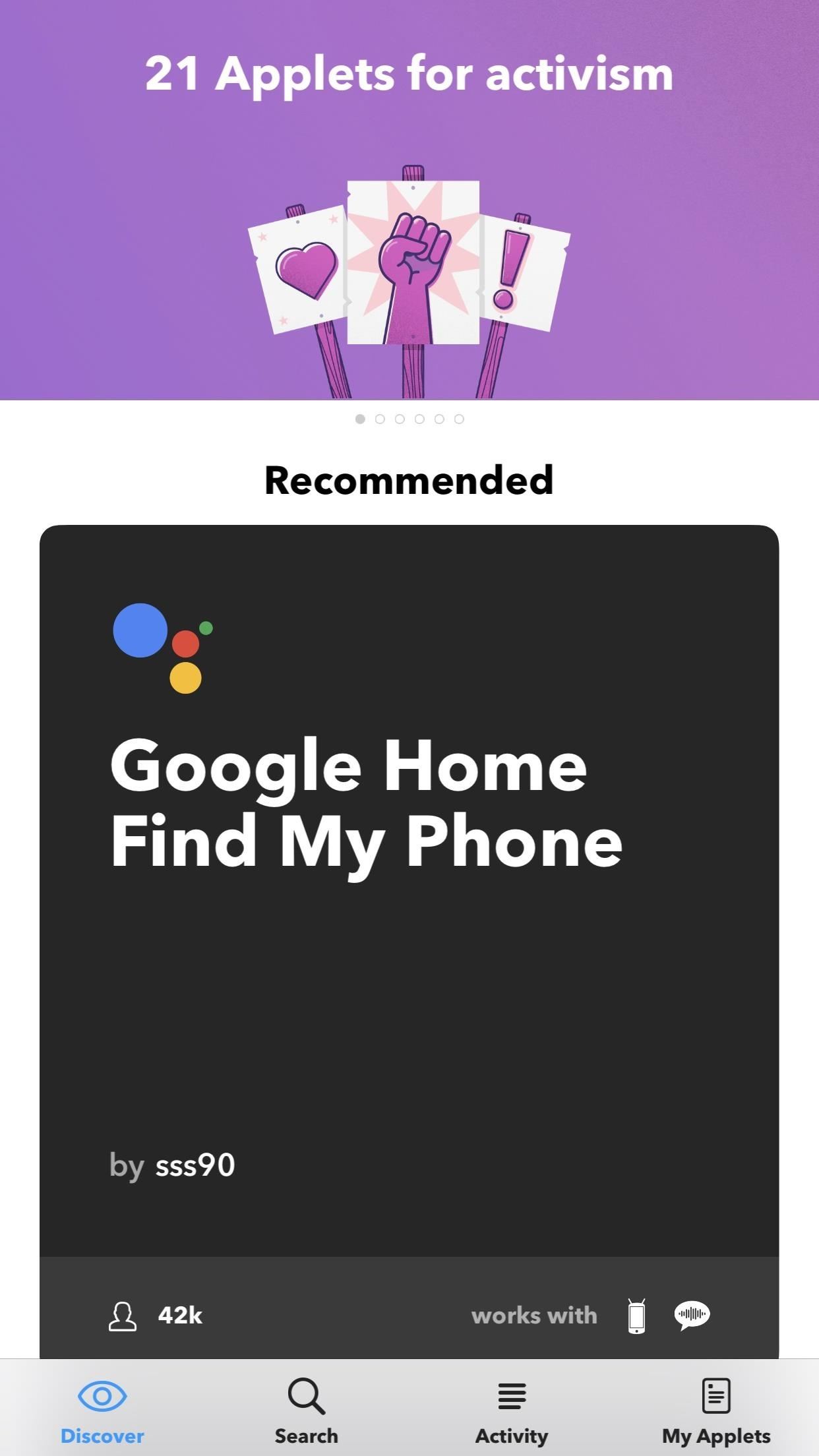
Tip: iOS Users, Beware of Android-Only AppletsIf you look at the bottom-right corner of the applet cards, you'll notice that some have an icon of a phone with alien antennas — this means the applet requires an Android device. If you're using an iPhone, IFTTT will still allow you to add these applets to "My Applets," but they won't perform any actions. While this isn't harmful in any way, it can clutter things up, so just look out for it.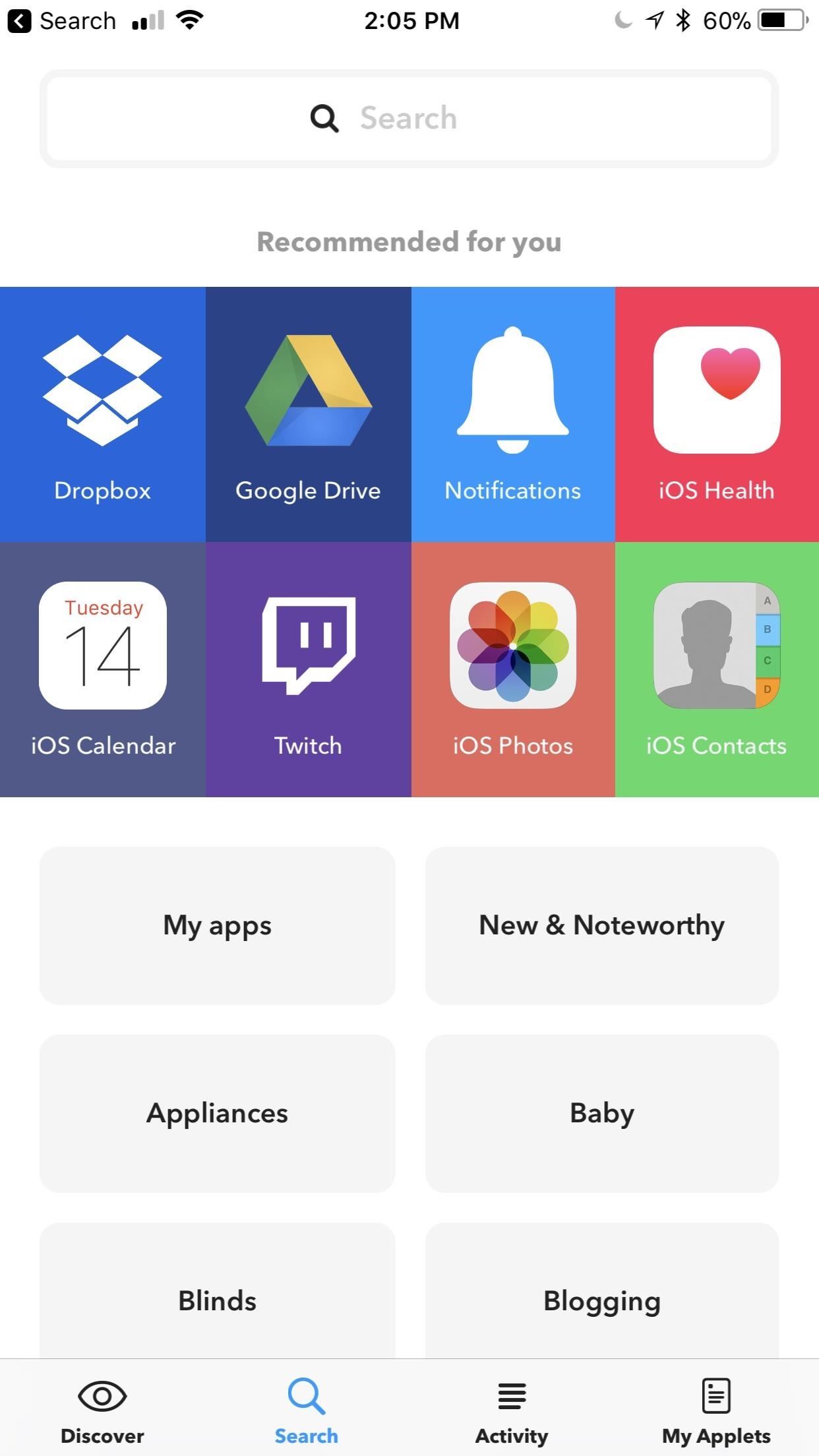
Step 2: Use the 'Search' Function to Find Specific AppletsDiscover is a great way to get started, but you'll find a bunch of great applets in the Search tab along the bottom, as well. IFTTT will display some of your most-used apps in the "Recommended for you" section just beneath the search bar, where you can browse applets sorted by the apps they leverage. Once again, if you find something you like while poking around in here, just select it, tap "Turn on," then follow the prompts to finish setup. If you scroll down even further on the Search tab, you'll see applets sorted by functions, like "Blogging" or "Communication." Tap on one of these and a list of applications pops up that pertain to each category. For example, Slack didn't appear under my "Recommended for you," but it's an application that I use daily. By finding it under "Communication," I can easily add Slack applets to "My Applets." Additionally, you can use the search bar at the top to manually search for apps that you use. Just type in an app's name, then either select the category result at the top, or scroll through the search results to find applets that leverage the app you searched. To find a comprehensive list of all IFTTT-compatible apps that you currently use, scroll to the bottom of the Search section and tap "All services." Every app with IFTTT integration will be shown before you, where you can add applets to "My Applets."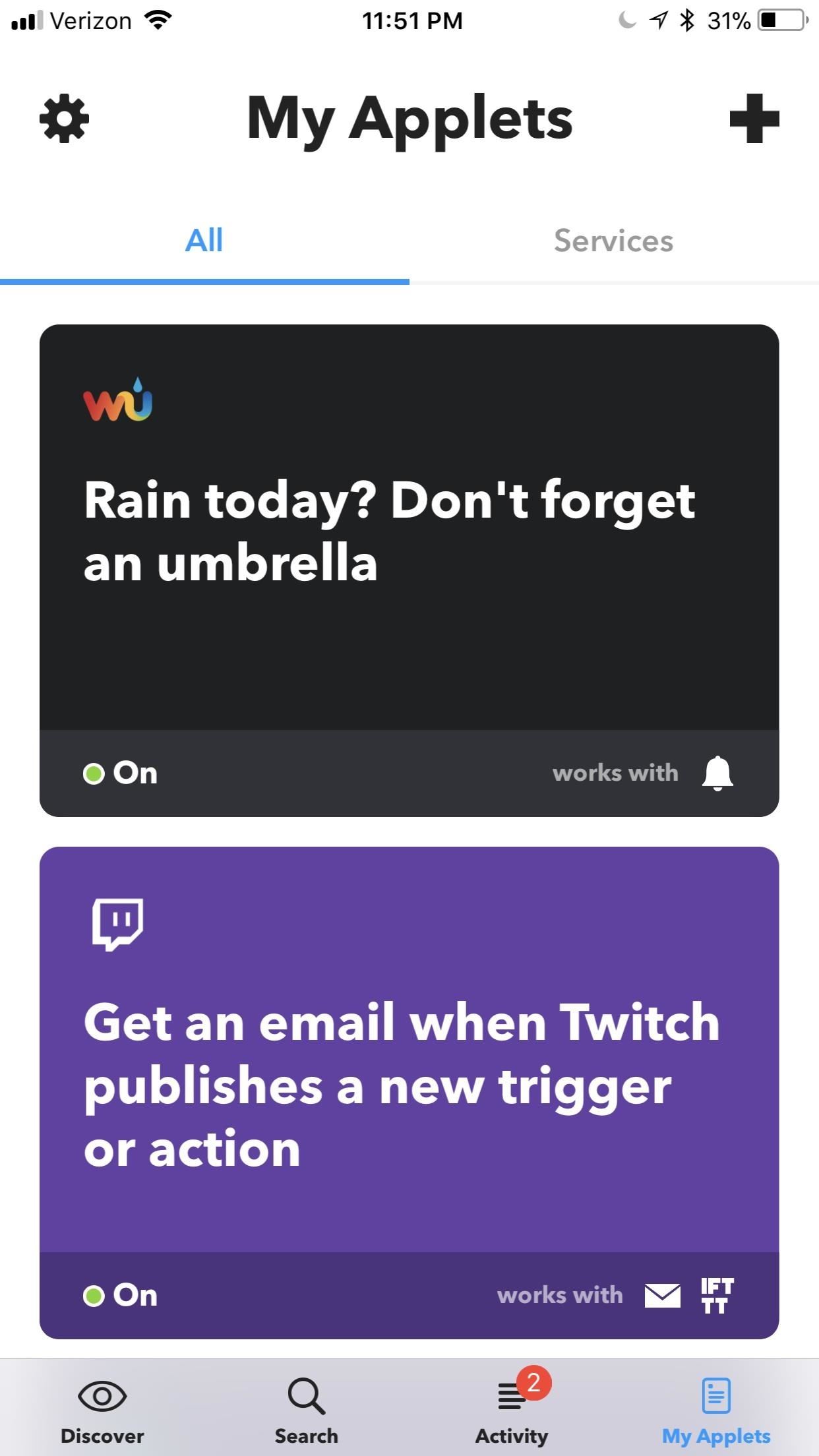
Step 3: Manage Your AppletsWhen you use IFTTT, it can be difficult to keep track of all the applets that you've added. Fortunately, IFTTT holds them in the My Applets tab along the bottom. From here, tap on any of the applets you use. This will open up the same type of submenu that you used to add new applets. Here, you can switch off applets you want to temporarily disable.If you want to permanently remove the apple, tap on the gear icon in the top-right corner, then press "Delete." What applets have been your favorite so far? What apps do you wish had IFTTT integration? Let us know in the comments below.Don't Miss: Tasker 101 — Getting Started with the Most Powerful Automation Tool for AndroidFollow Gadget Hacks on Facebook, Twitter, YouTube, and Flipboard Follow WonderHowTo on Facebook, Twitter, Pinterest, and Flipboard
Cover image and screenshots by Brian Lang/Gadget Hacks
This video is about FDM and how to use it.And why this soft ware is better than internet download manager.This is free so enjoy Follow me on facebook:http
How to Download files faster for free w/Free Download Manager
Google's got a nice new Easter egg for you. On YouTube, you can play the game Snake. Playing Snake on YouTube will only work in YouTube's new video player, and it only works for videos that don't have any extraneous stuff like annotations or ads.
DJ Snake - YouTube
Apple Seeds Second Beta of iOS 11.1 to Developers and Public Beta Testers With New Emoji. Apple publishes software (like this beta) Following the release of iOS 12.3 on May 13, Apple has
New Unity Beta Brings with It Much Needed New Features
By Dan Bristol '18 and Alex Kerai '19. Truecaller Smartphones Is Phone Sharing Psa « Your Activity Managing Editor and Editor-in-Chief. Seven individuals were cited for possessing counterfeit identification or criminal impersonation two weeks ago in an enforcement operation by the New York Department of Motor Vehicles, the Ontario County Sheriff's Department, and the Geneva Police
What Exactly Does Last Seen In True Caller Indicate | What
fireworks2017.com/news/what-exactly-does-last-seen-in-true-caller-indicate
PSA: TrueCaller Is Sharing Your Phone Activity « Smartphones Mar 17, 2017 TrueCaller is sharing your phone activity by revealing the last time your phone allows it to sync their contacts, their "Last Seen" time is visible in the application.
TrueCaller is spying on you, Sharing your phone activity with
A crystal radio is a very simple radio that was popular in the early history of radios. It is an electrical circuit that can pick up and play sound from AM radio stations. . Rather than rely on outside electrical sources, like a batteries or plugs, crystal radios get their power directly from the radio wa
Report Ad
Did you check eBay? Fill Your Cart With Color today!
If you want to add voice recognition to your group's android app it is very simple. Throughout this tutorial you will need to add imports as you paste in the code. create an xml file or use an existing one and make sure that you add a button and a listview.
List of Google Now voice commands | Greenbot
While the Play Store has a plethora of apps available for finding lost Android phones, Google came out with its own web-based application, Google Device Manager, earlier this year to help you keep track of all your Android devices and remote lock, erase, ring, and track if need be.
4 Ways to Find Your Lost Cell Phone—Even If It's on Silent
Whatsapp Messages, Text Messages Spy, How to Send & Receive Text Messages from Your Nexus 7 by Wirelessly Syncing SMS with Your Phone. If you are a CEO , or business owner you may already be aware that the mobile management of your …. Jan 11, 2013 · Email is one of the most used applications on a person's mobile device.
Send & Receive Encrypted Android Texts Using Your Mac's
Bluetooth is not just useful for exchanging files between mobile devices, but it can be used to transfer files between a phone and a laptop and even from one laptop to another laptop. You just need to make sure that the laptop you are using has the Bluetooth support.
How To Use Bluetooth File Transfer Between Devices
It's easy to send animated GIFs from your iPhone using the Messages app, using the built-in app drawer added in iOS 11. In this tutorial we show how to make use of this feature, and amuse and
How to Search and Send GIFs with Messages in iOS - OS X Daily
osxdaily.com/2016/10/17/search-send-gifs-messages-ios/
The iOS Messages app for iPhone and iPad includes an animated GIF search feature which allows you to search for and send GIFs to any recipient, whether they have an iPhone with iMessage or not. Note that your iPhone or iPad must have a modern version of iOS to have the GIF search feature, iOS 10.0
How to Find & Send GIFs from the Message App on the iPhone
The Hacker News is the most popular, trusted cybersecurity and hacking news source for everyone, supported by hackers and IT professionals worldwide.
How To Access Blocked Websites? — 13 Working Ways To Bypass


0 comments:
Post a Comment