How To: Create a New Movie Project in iMovie on Your iPhone
While the iMovie application for Mac has a few more bells and whistles, Apple's mobile version of its video-editing program is jam-packed full of features and more intuitive than its big brother. Still, before you dive right in to become a movie editor on your iPhone, it's good to know the basics first.The first step to getting started in iMovie for iPhone is to start a new project, import photos and videos, and create your movie. Of course, after you create the movie, you can begin applying your editing skills to it for a polished smartphone-based mini film, and we'll cover some of the editing tools you'll be using later. For now, let's just get a project started in iMovie.Note that you can do all of these steps in either portrait or landscape orientation.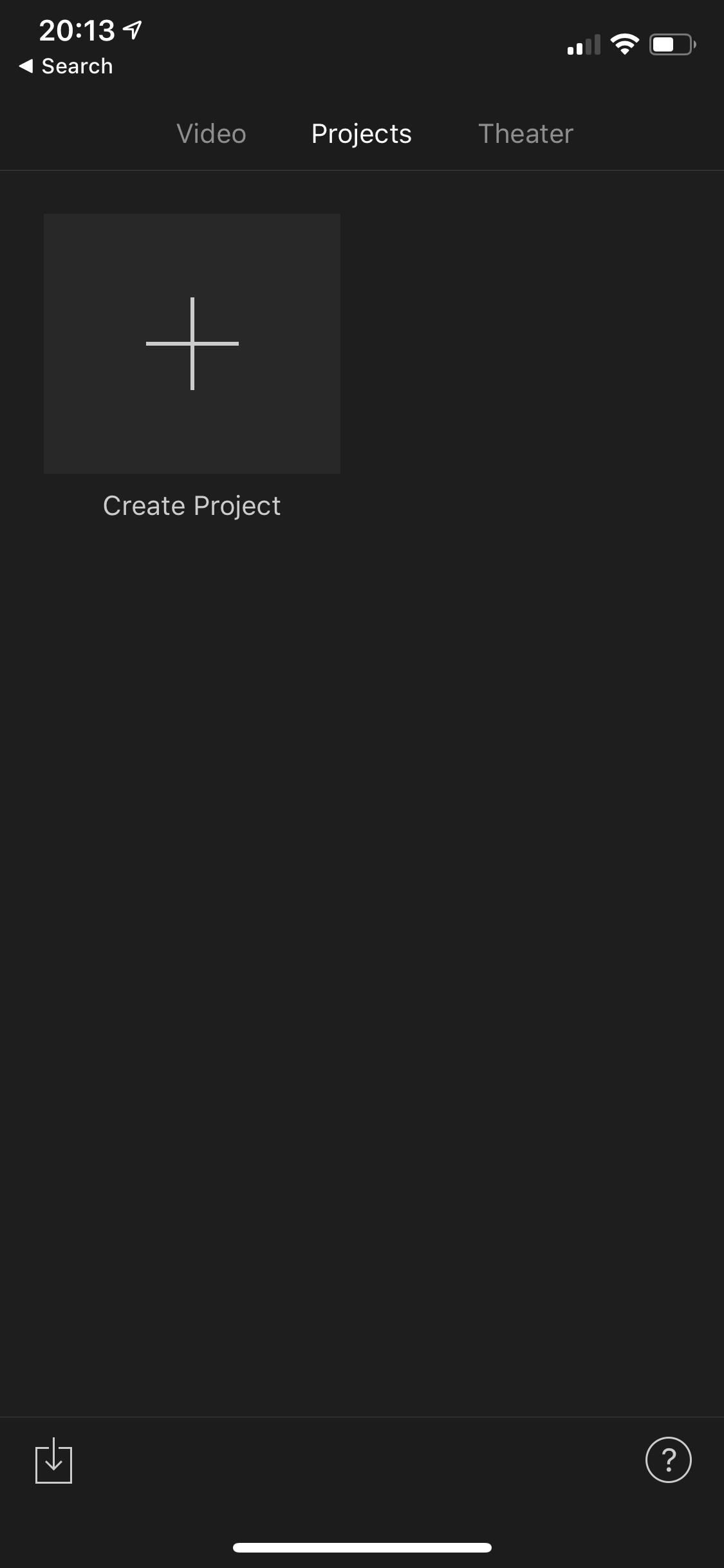
Step 1: Create a Movie ProjectOn the "Projects" viewer tab, tap on the "Create Project" icon (the plus sign), then select "Movie" on the following prompt. Alternatively, you could choose the "Trailer" option, which lets you make a Hollywood-style movie trailer in an automated way, but we won't be going over that in this guide. Feel free to play around with it, though.
Step 2: Browse Your MediaiMovie will jump you straight to your Moments from the Photos app where you can start picking and choosing photos, videos, or both to start importing into your new project. If you'd like to search other albums, tap on "Media" in the top left, where you can choose between "Video," "Photos," or "Albums." In landscape mode, the Media browser opens on the left side on devices with larger screens. If you're making a moving picture without any stills, "Video" would be your best option here. You can choose to drill down to specific albums, recent items, or just all of the videos in your Photos app. You could also choose "Albums" instead to see all of your video albums, as well as your photo albums (or mixes).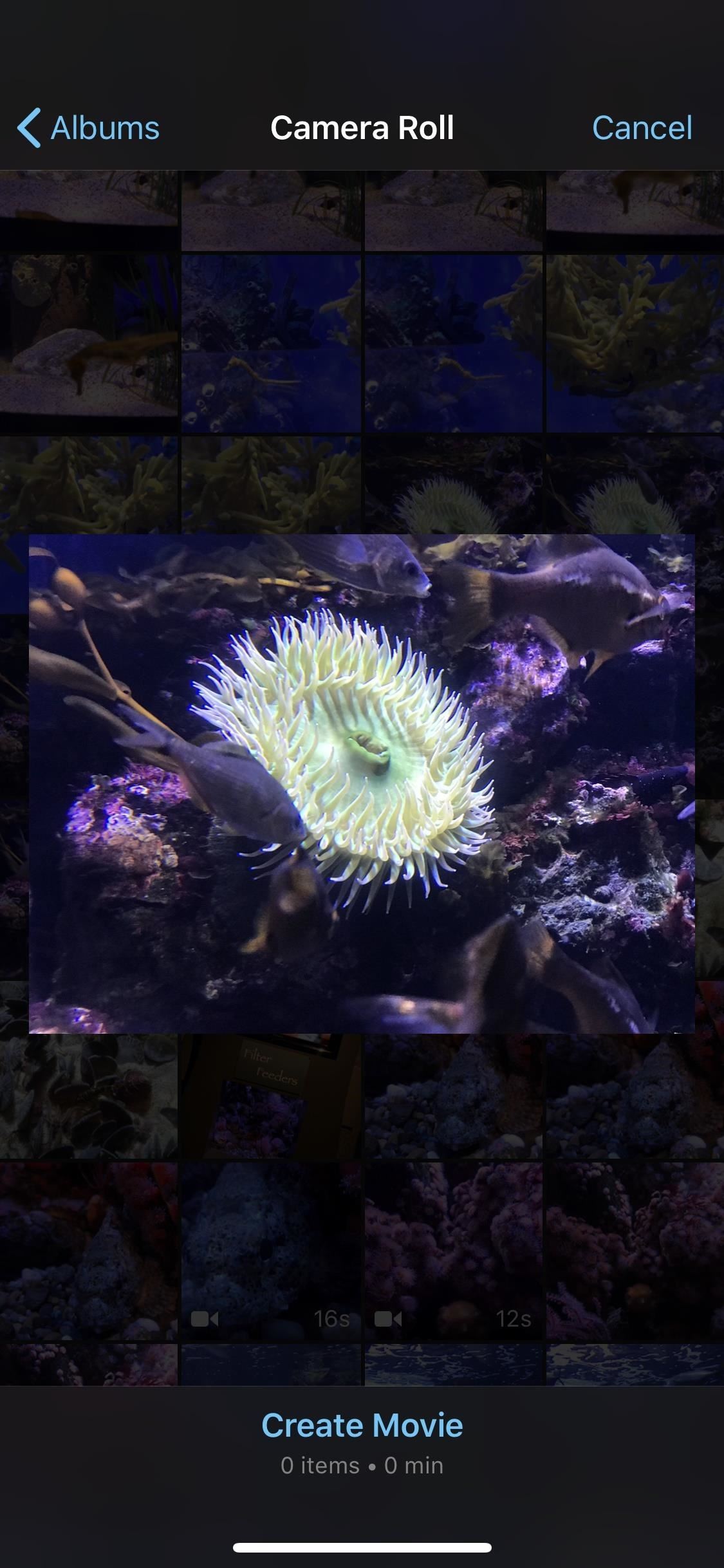
Step 3: Select Your Photos & VideosWhen you're checking out albums with photos only or photos and videos combined, tap-and-hold on a photo or video to get an enlarged preview. Once you've found all the ones you want to add, tap on the thumbnails until you see white/blue check mark icons appear on them. If you are in an album with videos only, the view will change to mini-timelines for each video. To quickly scrub through a video without actually playing it, tap on the video, then drag your finger right or left. A thumbnail will follow your finger showing you the frames of the video.To preview a video, tap on it once to highlight it (if not already highlighted), then tap the play button. Then, on the same pop-up menu as the play option, you can check it. In this view, before you check a video, you can also adjust the start and stop points for it by dragging the yellow bars inward.You can tell that videos are "checked" for import by the thin yellow bar on each one signifying how much of the video will be imported into the project.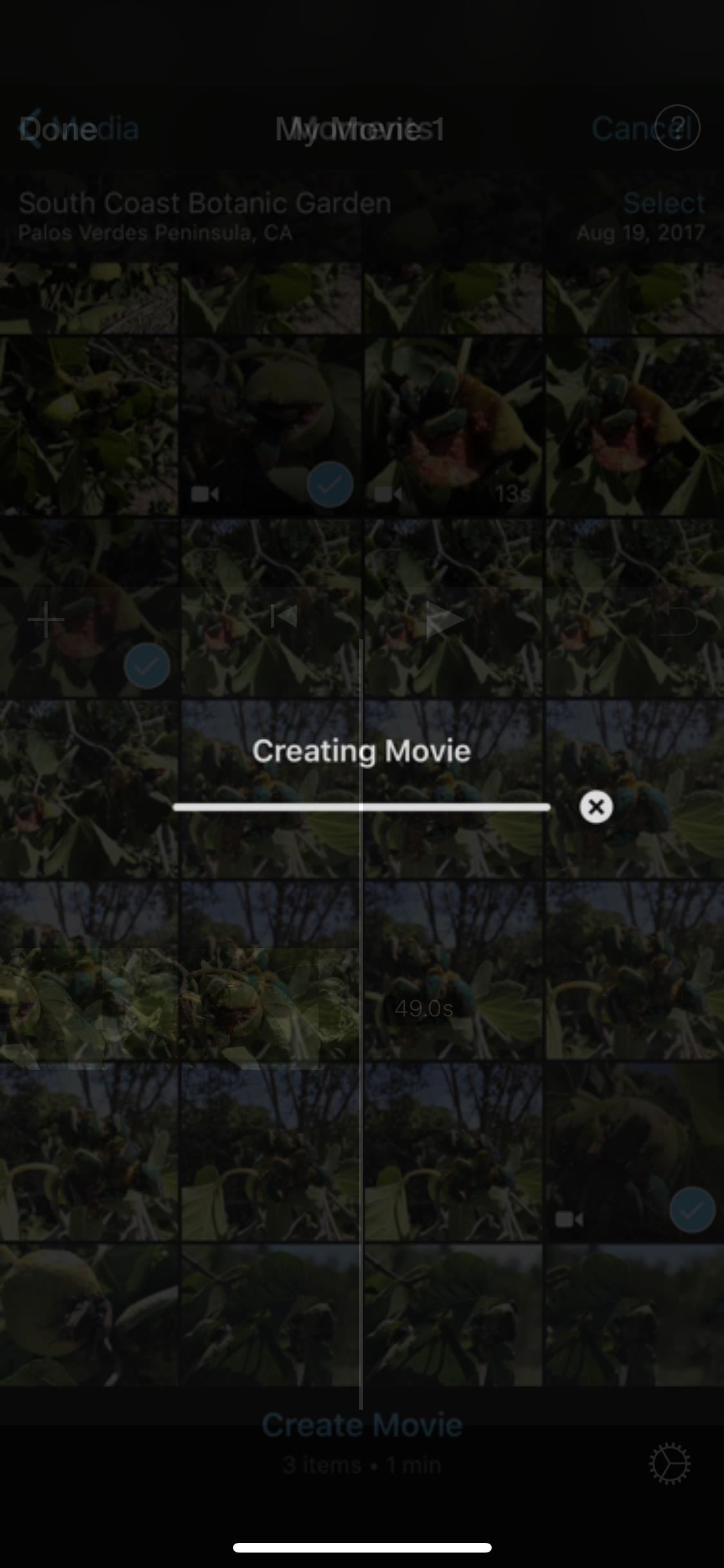
Step 4: Create Your Movie ProjectWhen you've selected all of the photos and videos you want to add to your first project, tap the "Create Movie" button at the bottom. And don't worry if you forgot any, you can add them in later!Videos import as their actual length, while most photos import in 4-second clips. I say most because it all depends on the transitions applied, which could make them anywhere between 3 and 6 seconds long. By default, if an image starts or ends a video, it will be 5 seconds long, and middle ones will go for 4 seconds.From here, you're ready to start playing around. You can delete clips, move clips around, change transitions or edit them, undo/redo changes, add more media, and much more. I won't go into these details in this guide since this article was meant to get you started. Feel free to play around in your new video project, and check back here for upcoming guides on harnessing all of iMovie's powers on the iPhone.This article was produced during Gadget Hacks' special coverage on smartphone-based video creator tips for filming and editing. Check out the whole Videography series.Don't Miss: How to Add More Photos to Your iMovie ProjectFollow Gadget Hacks on Pinterest, Reddit, Twitter, YouTube, and Flipboard Sign up for Gadget Hacks' daily newsletter or weekly Android and iOS updates Follow WonderHowTo on Facebook, Twitter, Pinterest, and Flipboard
Cover photo, screenshots, and GIFs by Justin Meyers/Gadget Hacks
How To: Get Unique Face Filters by Following AR Creators on Instagram By Jake Peterson; Smartphones; Instagram 101; Social Media; It's easy to forget just how cool face filters are. Augmented reality has come a long way, and apps like Instagram now offer a suite of awesome effects to play with, but some of the best ones aren't easily found.
Instagram will allow third parties to create custom AR filters
When you make or receive a call on your iPhone, you're forced to use the built-in ear receiver at the top of the phone to hear anything—unless you're already connected to a Bluetooth device. If you don't have Bluetooth in your car, or prefer to just use the speaker instead, having to manually
How to Set Speakerphone Mode to Automatically - OS X Daily
osxdaily.com/2015/01/19/speaker-phone-default-iphone-calls/
How to Set Speaker Mode to be the Default for iPhone Calls. Want your iPhone phone calls to automatically be in Speakerphone mode? Here is how to set that up on your iPhone: Open the "Settings" app on the iPhone and head to "General", then go to "Accessibility" Look under the Interaction settings for "Call Audio Routing" and tap
How to Automatically Turn on Speakerphone for Every iPhone
drippler.com/drip/how-automatically-turn-speakerphone-every-iphone-call
How to Automatically Turn on Speakerphone for Every iPhone Call. When you make or receive a call on your iPhone, you're forced to use the built-in ear receiver at the top of the phone to hear anything—unless you're already connected to a Bluetooth device.
Speakerphone comes on automatically for every call - Verizon
(expires 29 Aug, 2017 - visit m
How to Build a Radio/Drone Jammer | From the Trenches World
If you forgot your password or username, or you can't get verification codes, follow these steps to recover your Google Account. That way, you can use services like Gmail, Photos, and Google Play. Note : If you use an account through your work, school, or other group, these steps might not work.
If you forgot your Apple ID password - Apple Support
To be clear, extensions are only available in the mobile version of Firefox if you're running Android — but if you are, it's really easy to add new functionality to your browser. Extensions range from ad blockers to video plugins, so there's one for virtually every need.
New Google Chrome and Firefox hack can take over browser and
How To: Get Unique Face Filters by Following AR Creators on Instagram How To: Cast Your iTunes Movie Library to Chromecast or Android TV Gmail 101: How to Clear Search History on Android or iOS How To: Set a GIF as the Wallpaper on Your Android's Home or Lock Screen
8 Brands Creating Custom Instagram Stories AR Filters - later.com
Any mere mortal can use the Phone app on an Android phone to key in a number. To take your dialing skills up a notch, consider some of the special tricks of speed dialing. Assigning numbers to speed dial Not every Android phone features speed dial. To see whether yours does, heed these steps: Start […]
How to Speed Dial With Your Blackberry - wikiHow
All the fixes are regarding the Google Play Services. You can try any of fix, to prevent the faster battery drain of your Android smartphone device. Fix Google Play Services Battery Draining Problem. You can't stop using your battery by apps, but you can do something to prevent extremely battery draining issues by following the steps listed
What Is Google Play Services, and Why Is It Draining My Battery?
How To: Mark exact spots on a Firefox webpage with the Dog Ears extension How To: Train a pet cockatiel to do tricks How To: Say the names of animals in Japanese How To: Identify the common crow when bird watching
How to Translate languages using Google Firefox Extension
How To: Turn Any Magazine into an iPhone Stereo Sound Dock How To: Upgrade Your Dock to Six App Icons on the iPhone 6 or 6 Plus Four Isn't Enough: How to Add an Extra Application to Your iPhone or iPad Dock How To: Bottom Right App in Your Dock Keeps Vanishing? Here's How to Fix It
Bose Ipod Dock now a BLUETOOTH WIRELESS RECEIVER! - YouTube
So it turns out that you don't even need to root the new Nook Touch to get a web browser, it has one hidden in the search feature.. It's true. All you have to do is hit the little "n" icon below the Nook Touch's screen, tap the search icon, then enter a url into the search (just end a word with .com, .net, etc), and suddenly a hidden web browser launches!
How to Access the Hidden Internet Browser on Nook Simple
How to make someone disappear? | Facebook Help Community
We've known about the Google Pixel 3a XL for a while now, but it's now official. The new mid-range Pixel 3a XL has a lot in common with its older flagship brother, though there are a few key
How waterproof is the Google Pixel? - CNET
With websites being made on new technologies and also sites carrying data that is only increasing, it becomes important for web browsers to have a better compatibility. Google chrome is very nice in those terms. They roll out updates before anyone else does and it helps users to have a butter smooth experience of browsing the web.
10 Speed Hacks That'll Make Google Chrome Blazing Fast on


0 comments:
Post a Comment