How To: Install the Xposed Framework on Android Lollipop Devices
UPDATE 11/17/15The Xposed Framework now officially supports Android 5.1 through 5.1.1 Lollipop devices as well. Everything will still work the way it has with Android 5.0 through 5.0.2, but there are a separate set of files for the newer Android version. I'll cover both below, but make sure to download the proper file for your particular version of Android.END UPDATEOh Rovo89, you sly dog. The developer behind Android's most popular modding platform had us worried that the Xposed Framework might be nearing the end of development, but after a tease earlier this week, it has finally been made compatible with Android Lollipop.Installation is a bit different this time around (at least for now), but Xposed is definitely alive and kicking. This Lollipop-compatible build is in its earliest stages of development right now, so bugs are to be expected, but I'll show you how to install it below.
Note: if you haven't updated to Android 5.0 Lollipop yet, please see one of our other guides on installing the Xposed Framework for 4.4 KitKat and below.
RequirementsRooted device running Android 5.0 through 5.1.1 Custom recovery installed "Unknown sources" enabled Update: For the time being, do not install this on Samsung devices running TouchWiz (Samsung devices running AOSP-based ROMs should be fine).
Step 1: Find Your Device's CPU Architecture & Android VersionThere are three different versions of the Xposed Framework for Lollipop devices, and each is designed for a specific CPU architecture. It can be fairly difficult to find your device's CPU architecture, so if you don't know this information off the top of your head, I'd suggest that you download a free app called Hardware Info. Once you've installed Hardware Info, simply open the app and tap the "Processor" entry. From here, look for one of three CPU architecture types—ARMv7, ARM64, or x86. The exact location of these CPU architecture names will vary, but you should see one of the three somewhere under the Processor category. (1) ARMv7, (2) ARM64 From there, head to the "About Phone" or "About Tablet" menu in Settings, then take note of your Android Version, as this will be used to determine the right files that you'll need to download.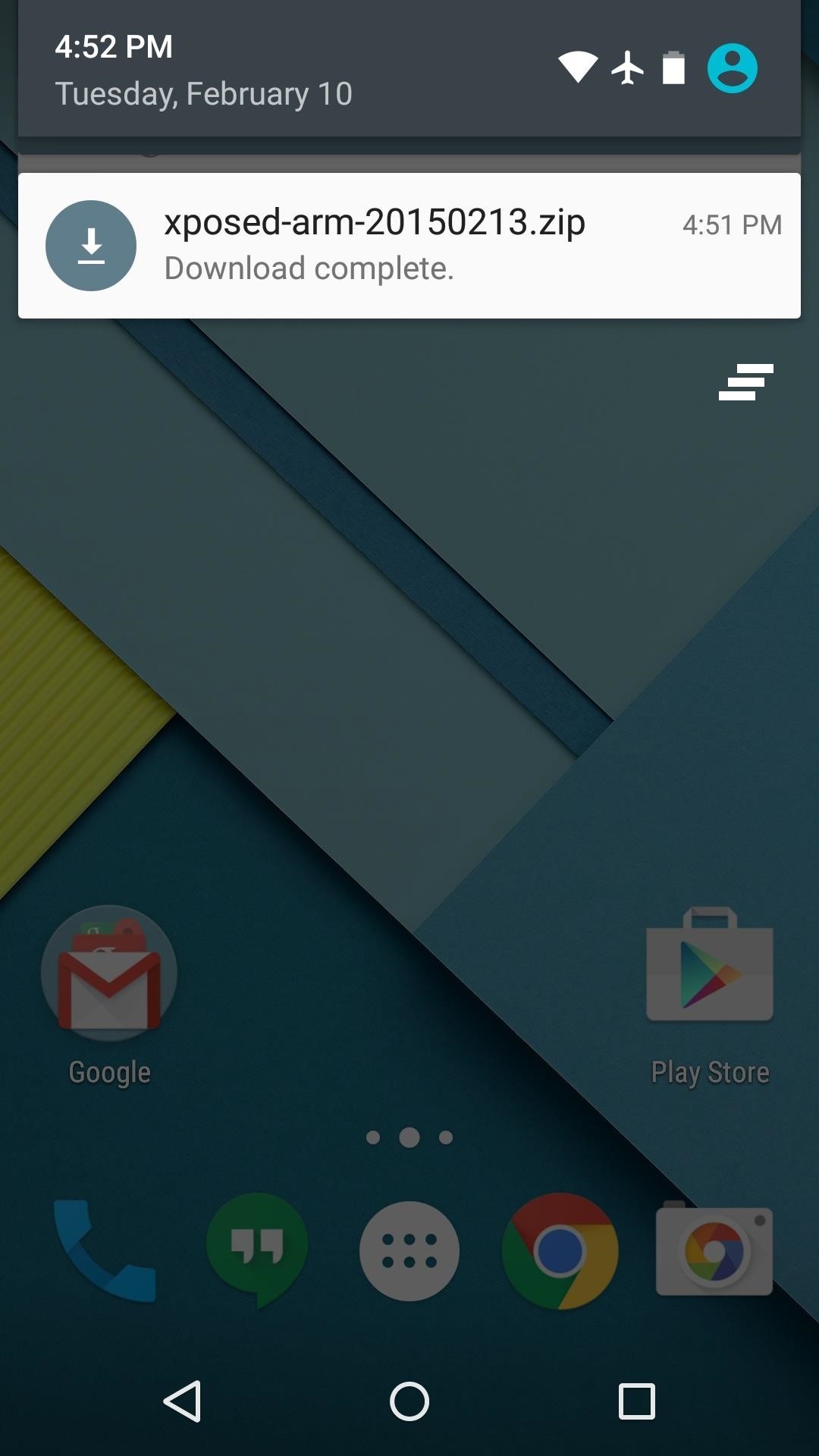
Step 2: Download Necessary FilesThere are two core elements to Xposed—one is the Xposed Framework, which lays all of the groundwork, and the other is the Xposed Installer app, which allows you to download and manage modules. First up, grab a copy of the Installer from the following link, as this is the same for all devices:Xposed Installer APK Nowadays, the Framework will have to be flashed in custom recovery. There are 3 different version of the Framework for Android 5.0.X, and three more versions for Android 5.1.X. So first up, if your device is running Android 5.0 through Android 5.0.2, download the ZIP below that matches your CPU architecture type:Xposed Framework for 5.0.X devices (ARMv7) Xposed Framework for 5.0.X devices (ARM64) Xposed Framework for 5.0.X devices (x86) On the other hand, if your device is running Android 5.1 through Android 5.1.1, find the link below that matches your CPU architecture to download the proper Xposed Framework ZIP for your device:Xposed Framework for 5.1.X devices (ARMv7) Xposed Framework for 5.1.X devices (ARM64) Xposed Framework for 5.1.X devices (x86)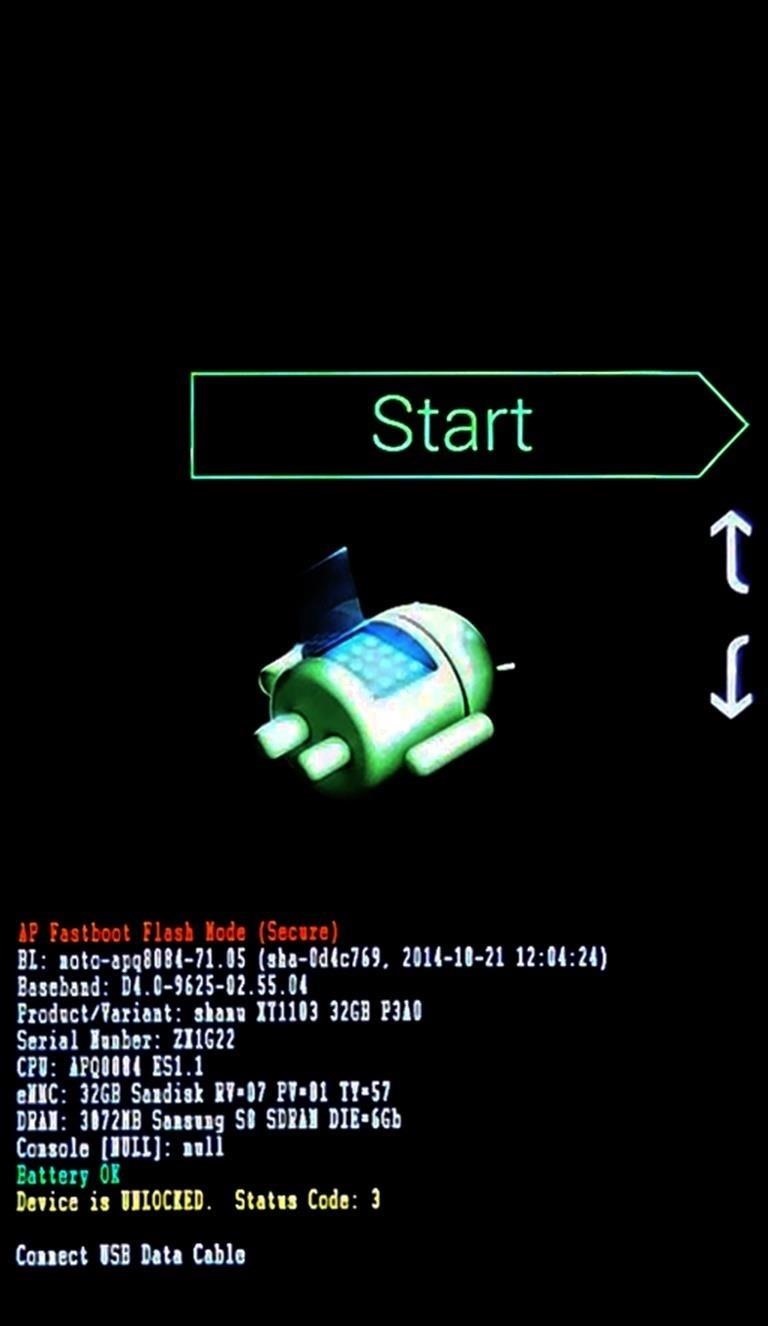
Step 3: Boot into Custom RecoveryWhen the files have finished downloading, the next step is to boot into custom recovery. To do that, start by powering your device completely off. This next part may vary, but for most devices, press and hold the volume down and power buttons simultaneously. This will bring up Android's Bootloader menu. From here, use the volume down button to highlight "Recovery mode," then press the power button to select it.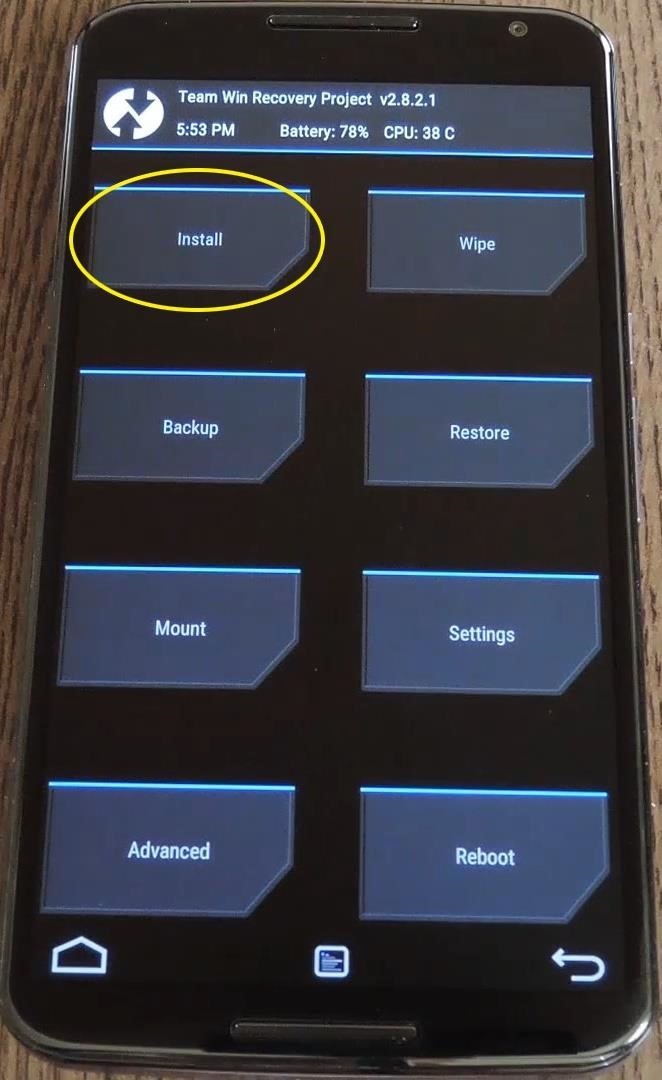
Step 4: Install the Framework in Custom RecoveryBefore you flash anything in custom recovery, it's always a good idea to make a full NANDroid backup. That's extra important in this case, since the Xposed Framework is in its early stages and may cause issues with some devices. Do not skip this step!Then, to get started, go ahead and tap the "Install" button from TWRP's main menu. Next, navigate to your device's Download folder, then select the Xposed ZIP file that you downloaded in Step 1. After that, just swipe the slider at the bottom of the screen to install the Framework, and when that's finished, tap "Reboot System." Your device will take longer than normal to boot up here. This is because the Xposed Framework ZIP had to clear away some library files, which will need to be restored. Expect this process to take at least 10 minutes.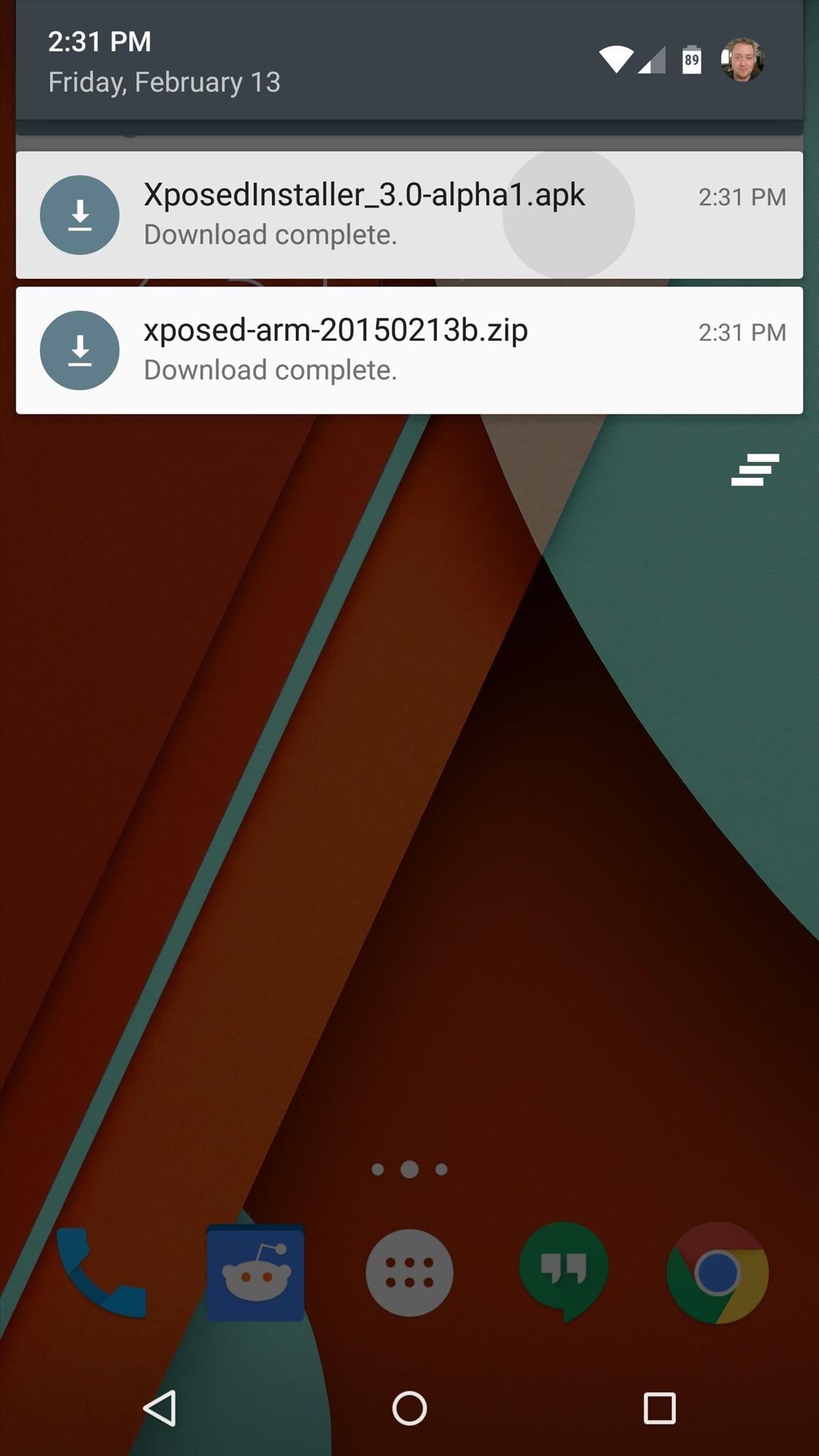
Step 5: Install the Xposed Installer AppWhen you get back up, it's time to install the actual Xposed Installer app. Tap the Download Complete notification for the "XposedInstaller_3.0-alpha4.apk" file, then press "Install" and "Open" on the next two menus. At this point, you should be looking at that familiar Xposed interface we all know and love. Head to the "Download" section to begin browsing modules, but keep in mind that some may not work on Lollipop. Mainly, any modules that deal with system modification are hit-and-miss, while those that deal with app customization are working for the most part. For a list of modules that are known to be working with Lollipop, check out this article.What were some of the first Xposed Modules that you installed on Lollipop? Let us know in the comments section below, or drop us a line on Facebook, Google+, or Twitter.
If you've running iOS 11.1 through iOS 11.1.2, whether you have an iPhone X or an iPhone 5S, you'll notice that Apple's Calculator app can't keep up with your calculations. That's a because a bug has seriously slowed it down so that operation buttons won't always trigger when you press them. Luckily
How To Fix the Broken iOS 11 Calculator In Iphone x
Click the Create a filter link, located at the top of your Gmail inbox (to the right of the 'Search the Web' button). Configure the filter to be the same as the query (or queries) you used for your multiple inboxes. In my case, I want all messages to @techerator.com addresses hidden from my main inbox and displayed in my multiple inboxes.
How To configure Multiple Inboxes in GMail Users - YouTube
The first thing you probably noticed after turning on your LG G3 for the first time was its gorgeous Quad HD display. The G3 is the first device to offer the soon-to-be standard QHD screen, and it's a beauty.
How to Adjust Colors on an LCD Monitor (with Pictures) - wikiHow
Looking to annoy the heck out of someone you dislike? Why not spam their phone a hundred times with a "text bomb" or "SMS bomb"? In this video, learn how to send an SMS bomb by downloading this link.
SMS Bomber Prank Your Friends With Text Bomb App- Android
robusttricks.com/sms-bomber-text-bomb-app/
We have created a Text bomb online script to fun with your friends by sending unlimited messages. Online text bomb app is a program that sends unlimited duplicate messages at your mobile number. The cellular companies don't provide any sms bomb so you can use an online script or android application to send unlimited messages.
How To SMS Bomb Someones Phone *NO DOWNLOAD REQUIRED* - YouTube
Galaxy S10 lock screen can help you keep your data from prying eyes. Samsung also allows you to tweak and customize the Galaxy S10 lock screen to match your personal preferences and needs. This Galaxy S10 how-to guide explains the components of the Galaxy S1o lock screen, shows you how to customize the lock screen, […]
How to Get Custom Lock Screen Shortcuts on Android Lollipop
Learn how to manage custom ROMs on a rooted Moto Droid Google Android smartphone with a ROM manager app. Whether you've rooted your own Motorola Droid smartphone or just want to learn more about the process, you're sure to be well served by this video guide.
Restore Your Motorola Droid RAZR from Bootloop Using Fastboot
Google recently rolled out a new Smart Lock option labeled "On-body detection" for Android Lollipop via an update to Google Play Services. As I'm sure you can gather from the name, this new function keeps your phone or tablet unlocked using the built-in accelerometer to determine whether or not your device is being carried on your body, allowing you to set it down and walk away carefree
How to View Notification Details on the Lock Screen of Your
How to Create Custom Video Boot Animations on Android KitKat
Hiding Folder Labels on your iOS Device without Jailbreak Sep 22, 2015 You will always want to keep things simple on your iOS device especially when you are a minimalist and attentive to detail, and that is why you should consider some simple tricks of hiding folder labels on your device.
Remove Or Change iOS 11 App Icon Label On Home Screen Without
Galaxy S6 & S6 Edge users are in for another treat with the new Volume mod that will significantly increase the volume levels of your device's speaker, headphone, and Bluetooth. Just a while back, we've posted a workaround for enjoying Viper4Android on your Galaxy S6/S6 Edge smartphone which
Galaxy S6 & S6 Edge To Boost Headphone And Speaker Volume
The display on the Nokia 9 PureView is better in almost every way than that of the Google Pixel 3. On the Nokia 9 PureView, you'll get a 5.99-inch P-OLED display with a resolution of 2,880
Nokia 9 PureView Review & Rating | PCMag.com
How To: Your Android Device Can Help Save Lives While You Sleep: Here's How to Help Out News: Android Lollipop—All the New Features You Need to Know About How To: Block Apps from Logging Your Data on Android How To: Just Got a New Android Phone? Here's All the Apps & Info You Need to Get Started
Wearable Android gadgets that can save your life - Komando.com
How long this has been available, who knows, but someone just found an Easter egg in YouTube that allows you to play a game of Snake on the video while it's paused or plays.
Play Snake in YouTube's Player - googlesystem.blogspot.com
Don't Miss: Always-Updated List of iOS App URL Scheme Names for Shortcuts That is a very simple example of what a workflow can do. To see something more complicated, the below screenshots show what the workflow for my "Calculate Tip" shortcut looks like.


0 comments:
Post a Comment