How To: Change Resolution & Bit Rate in Filmic Pro for High-Quality Video Up to 4K at 100 Mbps
Filmic Pro harnesses the full native power of your iPhone or Android phone — and then some. If your smartphone shoots in 4K resolution, Filmic Pro will let you choose that resolution. However, it's not all about the pixels — bit rate is an essential factor in determining the overall quality of your 720p, 1080p, or 4K video, something Filmic Pro gives you full control over.
ResolutionIf you own a smartphone or work with any visual medium, you likely know what resolution is. It's the measurement of pixels visible on the display, measured by width times height. If you're shooting at 1080p, or 1920 × 1080 progressive scan, it'll play on any screen capable of viewing it, though, it may downscale (for a standard definition display) or upscale the resolution (for a 4K display) as needed.
Bit RateThis is a little trickier. To explain briefly, the bit rate of a video is the quality of the footage itself. While resolution involves the number of pixels in the image, during the video encoding process, the bit rate determines the number of bits processed per second. Generally speaking, the more bits per second, the higher quality the video when being played, with better image quality, detail, and color information.The bit rate is measured in Mbps, the acronym for megabits per second. Every byte has 8 bits, so if a video is recording at 1 MB per second (megabyte per second), that'd be 8 Mbps, or 8 million bits per second. Naturally, something with a higher bitrate will have a larger file size than something with a smaller one. While most smartphones let you choose between resolution options in stock camera apps, the majority will not let you change the bit rate of the footage.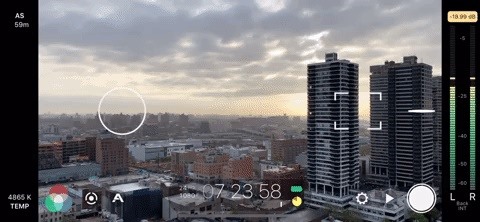
Changing Resolution & Bit RateChanging both video resolution and bit rate in Filmic Pro is quite simple. First, tap the settings cog in the bottom right. Next, tap "Resolution." Here, you'll find your resolution and bit rate options, directly below the "Crop Source to Overlay" toggle. Resolution is on top, with bit rate underneath it. Tap the right arrows to increase the resolution and bit rate and the left arrows to decrease them. Depending on your specific phone model and whether or not you're shooting with the front-facing selfie camera or the main rear camera, you will find different resolution options here. Filmic Pro's default settings for resolution is 1080p in 16x9 aspect ratio. Some custom options available on your phone may include:SD 540p HD 720p HD 1080p 2K 1152p 3K 1836p 4K 2160p Bit rate options, however, should be the same for all: "Economy," the lowest quality; "Standard" (Android) or "Apple Standard" (iOS), the standard bit rate your stock camera uses; "FiLMiC Quality," a higher bit rate than your phone's standard; and "FiLMiC Extreme" the highest bit rate you can achieve. By default, Filmic Pro uses the "FiLMiC Quality" encoding.FiLMiC Extreme: The target bit rate will be 100 Mbps for 2K, 3K, and 4K resolution. At 1080p, it will be 50 Mbps. FiLMiC Quality: The target bit rate will be 64 Mbps for 2K, 3K, and 4K resolution, and 32 Mbps for 1080p. Standard: The target bit rate will be the same data rate as you get with your native camera, based on the resolution chosen. Economy: The target bit rate will be fairly low, and it should only be used when there is very little storage space or if your looking to create a low-res effect. Wondering why these are target bit rates? Filmic Pro provides the following.Note: Our proprietary clip writer code uses functionality to sample the quality from the incoming video feed and automatically scale the data rate based on 'need'. When you set a bitrate in FiLMiC Pro you are establishing a target for the camera framework. Depending on the quality of the feed you may see final bit rates that are higher or lower than this target in order to ensure quality. In doing this we can provide for a high quality while also keeping the video file size as low as possible.Again, it's important to keep in mind that the higher your resolution and bit rate, the larger your video size is going to be. If you don't need to be conservative with your storage, go for bold and max out these settings. However, if you're running low on space, you might be better off reducing these options. A 720p, the "Economy" bit rate is going to be significantly smaller than a 4K, "FiLMiC Extreme" file.This article was produced during Gadget Hacks' special coverage on smartphone-based video creator tips for filming and editing. Check out the whole Videography series.Follow Gadget Hacks on Pinterest, Reddit, Twitter, YouTube, and Flipboard Sign up for Gadget Hacks' daily newsletter or weekly Android and iOS updates Follow WonderHowTo on Facebook, Twitter, Pinterest, and Flipboard
Cover image and GIF by Jake Peterson/Gadget Hacks
How to Make Your Android Unlock Pattern Visible When you lock your Android phone with an unlock pattern all you see are the nine circles on the screen. When you draw your pattern you don't see it.
How to Create an Unlock Pattern on Your Android Phone
The stores mentioned above are green to accept Apple Pay as a form of payments. Though the list can be prolonged even more. Any store, even a vending machine that has a contactless payment reader installed will work and accept Apple Pay. List of Stores That Will Accept Apple Pay Soon
Backup your Mac before installing. There will be periodic updates to the OS X El Capitan beta, and you will be able to upgrade to the final version of OS X El Capitan when it ships this fall.
How to install the OS X El Capitan public beta - CNET
Do your kids always hang up during FaceTime? Find our how to use guided access to lock your iPhone or iPad screen so they can chat with family and friends!
How to Automatically Use Speakerphone When You Move Your Face
Transcription is only available in English and Spanish on Android 8.0 and up. Learn how to check your Android version. Turn on voicemail transcription. Open your device's Phone app . Tap More Settings Voicemail. Turn on Voicemail transcription. Note: If you don't see "Voicemail transcription," make sure you have visual voicemail turned on.
How To Set A Voicemail Number On Any Android Phone - YouTube
While the appearance of the home screen on an Android might differ slightly from device to device due to the phones manufacture or even the phones version of Android the following is a screen capture of a typical Android home screen. By default an Android cell phones home screen usually consists of the following icons:
Broken Buttons on Your Android Phone? Use This On-Screen
The Pixel 3 has an indisputably great camera, but a software update coming soon is going to make it even better. Google will be adding a "Night Sight" shooting mode that's so good with low-light situations that you'll have to see it to believe it.
Google's Night Sight Camera Tested: Shockingly Good
Photos is the app on the iPad that lets you import and view all of your photos on your iPad. You can also create slideshows. We show you how to use Photos in this guide.
According to Google, customizable swipe actions are rolling out to all users starting today. It is not yet live on devices that we checked, and its unclear whether this will be a server-side
3 Tips to Get to Inbox Zero Faster in Gmail « Android
How to Create a File Shortcut in Android. Placing an app shortcut on the homescreen is just a matter of long pressing on its icon in the app drawer, but what if you want to create a shortcut
App shortcuts overview | Android Developers
KODI Legal Live TV is where I show you how to get 100% free and 100% legal Live TV on your KODI box with an addon. KODI Live TV is possible by using an addon called USTVNOW (USTV NOW) and it can
How to install Free Live Tv Kodi add-on - kodiapps.com
How to reset your Android home screen back to the default. IoT, mobile security, remote support, and the latest phones, tablets, and apps IT pros need to know about are some of the topics we
How to Add Apps to the Android Phone Home Screen - dummies


0 comments:
Post a Comment