How To: Change Your Profile Picture & Display Name for iMessage in iOS 13
For quite some time, popular messaging apps such WhatsApp and Skype have let you set a profile picture along with a display name to make you more instantly identifiable to loved ones and colleagues. Apple has finally caught up with this fad in iOS 13, so you can set a profile photo within iMessage to quickly view who's messaging you at a glance.The latest iOS not only lets you set photos as profile images, but it also gives you the ability to use custom Memojis and Animojis for more variety. Paired with the ability to set a display name, the app's new features will help ensure you stand out even more amongst contacts. These new features work no matter what iPhone model you have, as long as it supports iOS 13, it's good.Don't Miss: Download & Install iOS 13 on Your iPhone Right Now
Step 1: Access the iMessage Profile SettingsThere are two ways to access the options for your profile picture and name on iMessage — either through the Settings app or within the Messages app itself.For the Settings approach, select "Messages," then "Share Name and Photo." To set a profile within Messages, tap on the new ellipsis (•••) button at the top of the conversations view, then select "Edit Name and Photo" on the action sheet that appears at the bottom. From the Settings app (left) and within Messages itself (right).
Step 2: Change Your iMessage Display NameWhichever method you chose above, you'll now be able to change your name. It should already be whatever your name is associated with your Apple ID, but you can change the first and last name by deleting what's there and inputting your desired moniker instead. Note that you do not need both fields filled out, so you can have just a first or last name. You can also leave the name alone if you want to show the one that's already displayed.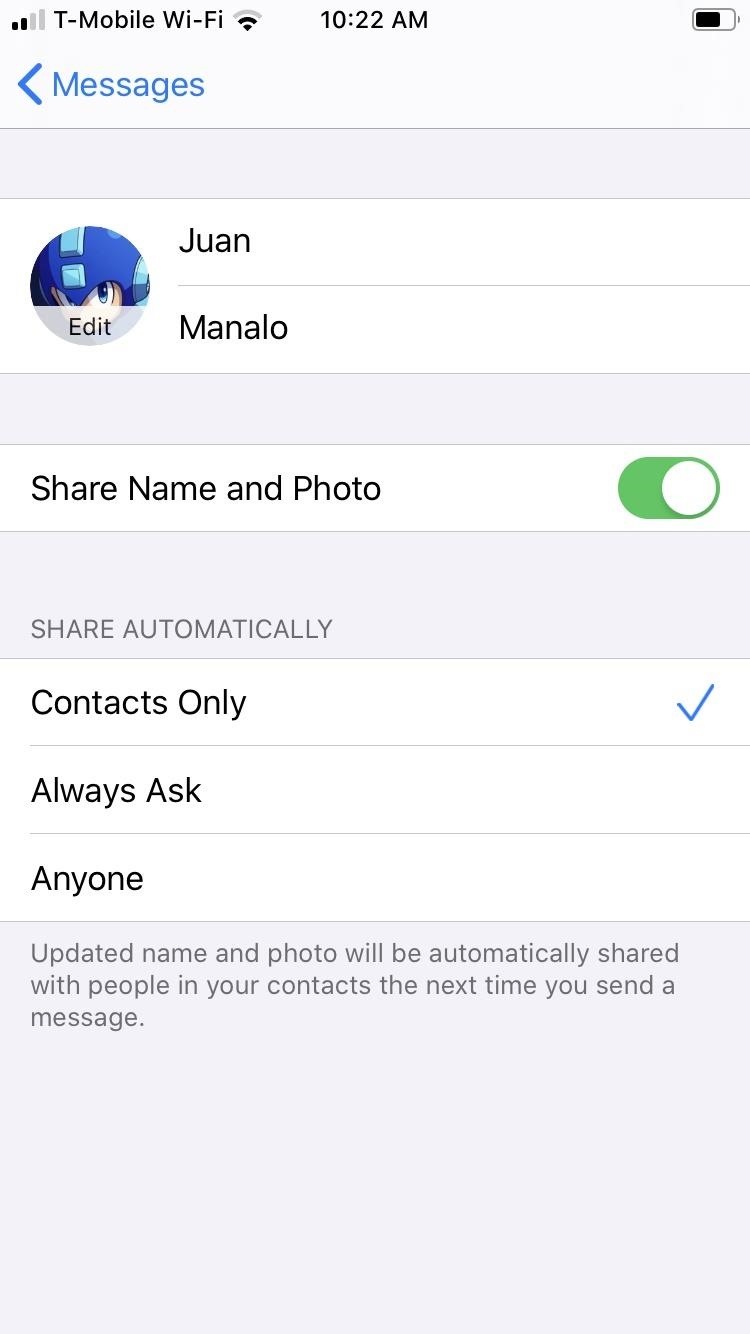
Step 3: Change Your iMessage Profile PictureTap on the image that says "Edit" right next to your name to change your profile image. From there, you have multiple options to choose from:Edit Current Photo: Tap the photo already set as your profile image, tap "Edit Color," and apply a filter. Take New Photo: Hit the Camera button if you'd like to snap a new photo. Snap it, follow the on-screen prompts to center and scale the image, then hit "Choose." Choose Old Photo: Select "All Photos" to pick an image from albums in your Photos app, follow the on-screen prompts to center and scale the image, then hit "Choose." Choose Initials: Pick a monogram (your initials in a circle), then pick a color. Use Animoji or Memoji: Choose an Animoji or Memoji from the list under Animoji, strike a pose, snap your expression, follow the on-screen prompts to center and scale the image, hit "Choose," then select a background color. Note: if you came from the Settings app, you can only choose Animoji, not Memoji. Take New Memoji: Select the plus (+) button under Animoji to create a new Memoji. It's just like making a Memoji the regular way, but iOS 13 has more customization options than iOS 12 and under. Note: if you came from the Settings app, you cannot create new Memojis — it's available only from the Messages app. If you set a new or old photo for your profile, you can tap on it, just like when editing the old photo that was there, to get the "Edit Color" option to apply vivid filters. Also, if you set an Animoji or Memoji, you can tap it to bring up the "Edit Color" option to change the background shade. When completely done, hit "Done" in the upper right to save your profile image. If you're not satisfied, you can always back out with "Cancel." Changing a profile picture from the Settings app.
Step 4: Share Your iMessage Display Name & Profile PictureOnce you've changed both your display name and image, be sure to tap the toggle next to "Share Name and Photo" to turn it on, if not already enabled. By default, it's disabled. Besides that, select how you want your image and name automatically shared in the Share Automatically section.By default, "Anyone" is selected, so everyone who has iMessage will see your profile information. If you only want to share it with people in your Contacts list, check "Contacts Only" instead. The third option, "Always Ask," will display a permissions prompt within each conversation's thread, where you can select "Share" or hit the (x) to keep it hidden. Hit "Done" to exit the settings when ready. While your display name stays within the Messages app itself, your profile image applies across the board, so it will appear in other apps like Settings and App Store where your avatar is displayed.Don't Miss: 100+ Exciting New iOS 13 Features for iPhoneFollow Gadget Hacks on Pinterest, Reddit, Twitter, YouTube, and Flipboard Sign up for Gadget Hacks' daily newsletter or weekly Android and iOS updates Follow WonderHowTo on Facebook, Twitter, Pinterest, and Flipboard
Cover image, screenshots, and GIFs by Amboy Manalo/Gadget Hacks
It's all in this list of gift picks for serious amateur photographers. Whether you're looking for accessories that will lift a loved one's phone-tography to higher ground or trying to help
FAQ for Samsung Mobile Device. Find more about 'How do I set, edit and turn on or off alarms on my Samsung Galaxy smartphone?' with Samsung
Get a brand new 5" HTC One A9 Black Display Assembly (LCD and Touch Screen) at Fixez.com. Find HTC One A9 replacement screens and parts to get your smartphone working like new again quickly.
HTC Screen Replacement Kits | Display Glass Repair
How to Get watchOS 2 Beta on Your Apple Watch Right Now
And it does it while keeping all your data completely safe. Dr.fone - Android SIM Unlock supports a plethora of devices (over 400) including but not limited to Samsung Galaxy Note, Samsung Galaxy S, Samsung Galaxy Tab, Samsung Galaxy A and other models like Ace3 and Mega. To sweeten the deal, it offers a high success rate and 24X6 support.
6 Ways to Lock Your Samsung Galaxy S9/S9+ | Samsung Support
DIY electronic music makers, start warming up your soldering irons: a pair of hardware hacking designers have created a miniature two-button, solar-powered synthesizer with a 3-D printed wrist
DIY Solar Power: Make Your Own Diode-Based - WonderHowTo
Gauss Gun Conservation of Momentum, Work and Energy Introduction In this lab you will explore the Gauss gun, an interesting physical system that will give you the opportunity to explore the notions of work, energy and conservation of momentum. The Gauss Gun is made up of magnets and steel ball bearings, and it can be used to
Build a Gauss Rifle! | Science Project
OK master spy, it's time to get your lurk on. If you're going to be spying, you'll need to be able to spy at night. This video will show you how-to make your very own night vision goggles so you can keep up with your mark well after the sun goes down.
How to build diy Night vision Goggles - YouTube
TrueCaller is sharing your phone activity by revealing the last time your phone was used to contacts. The application used to identify unknown callers launched in 2009 and has faced a wealth of privacy concerns before. In addition to making your contacts public, TrueCaller now has another insidious
Phone Your Sharing Psa Smartphones Is Activity Truecaller
Sep14 Previews Publications.indd 24. 8/5/2014 4:10:27 PM Halloween, your local comic shop is the place to be for Halloween fun and FREE T his comic books and mini-comics! On the Saturday before Halloween, October 25th, participating retailers will open their doors for Halloween ComicFest, an annual event anchored to the Halloween holiday!
BESM d20 Mecha | Unrest | Armed Conflict - scribd.com
How to Get Quick-Access Pandora Controls in the Notification


0 comments:
Post a Comment