How To: Create, AutoFill & Store Strong Passwords Automatically for Websites & Apps in iOS 12
Apple's dedication to iPhone security is one of the company's biggest selling points. It's no surprise then that iOS 12 offers users a simple yet powerful way to make, save, and auto-fill strong passwords to your iCloud Keychain when creating accounts in both Safari and in apps. The best part? You hardly need to do a thing.These saved passwords not only work on the device you create them on but on all devices connected to your iCloud account. Any iPhone, iPad, iPod touch, or Mac paired with this account will have access to your saved iCloud Keychain, any with it, the passwords you create with this method.Don't Miss: How to Find & Change Reused Passwords to Stronger Ones in iOS 12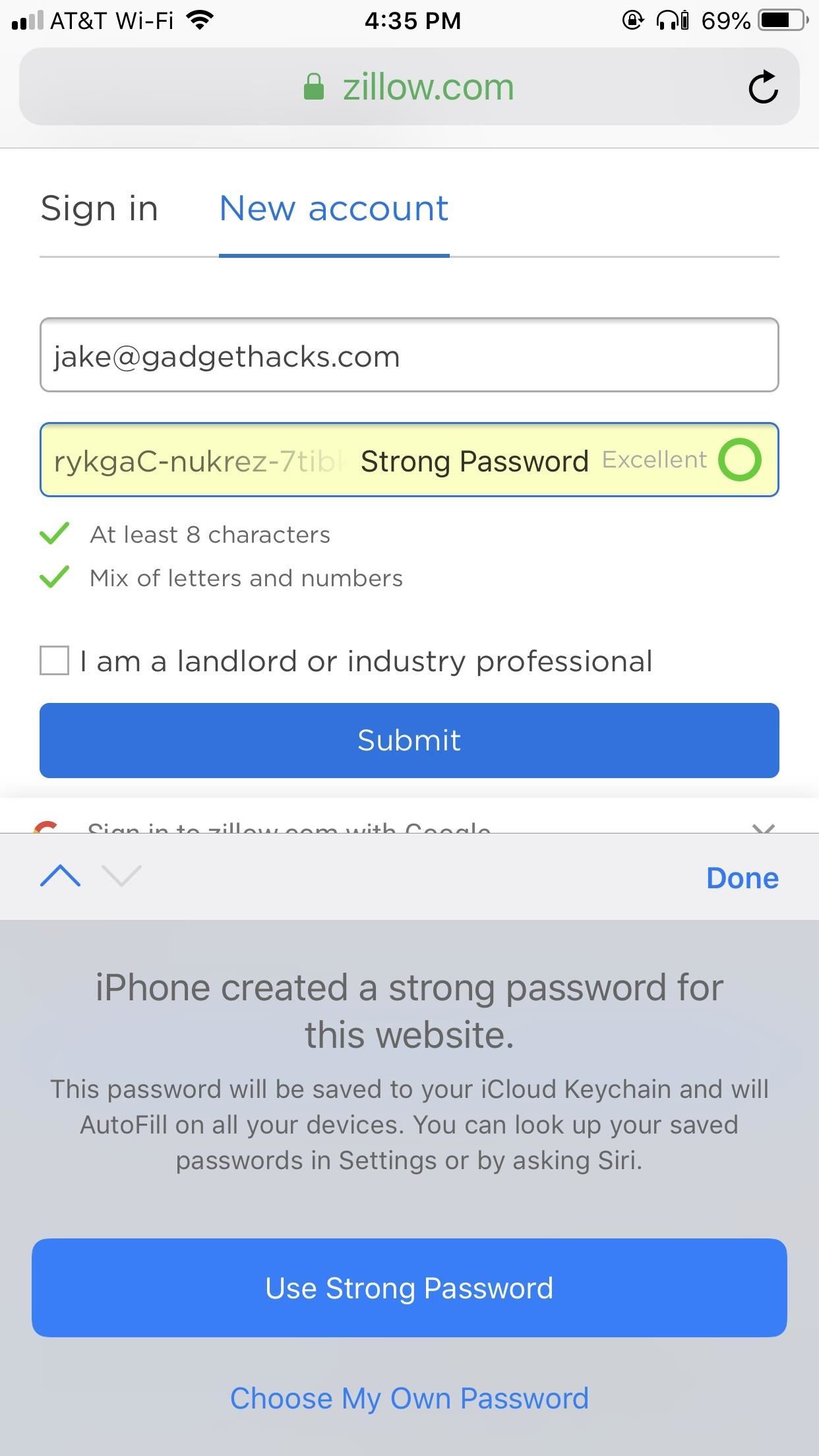
Create, AutoFill & Store Strong Passwords in Your KeychainApple's automatic password generator in iOS 12 works seamlessly when creating a new account either through Safari or a third-party app.Once you tap the password field on the account setup page, iOS will instantly create a random, strong password for the account in question. While this password will be virtually impossible to memorize, iOS saves it to your iCloud Keychain, so you'll never need to know it in order to sign in later.Just tap "Use Strong Password" to confirm that's what you want to use, and the information will save to your Keychain as soon as you finish setting up the account. Note: This is similar to how Apple suggested passwords in previous iOS versions, only more streamlined. Before, you would have to tap "Suggest Password" in the QuickType bar to generate a random password. Plus, it didn't work everywhere, just in Safari and WebView.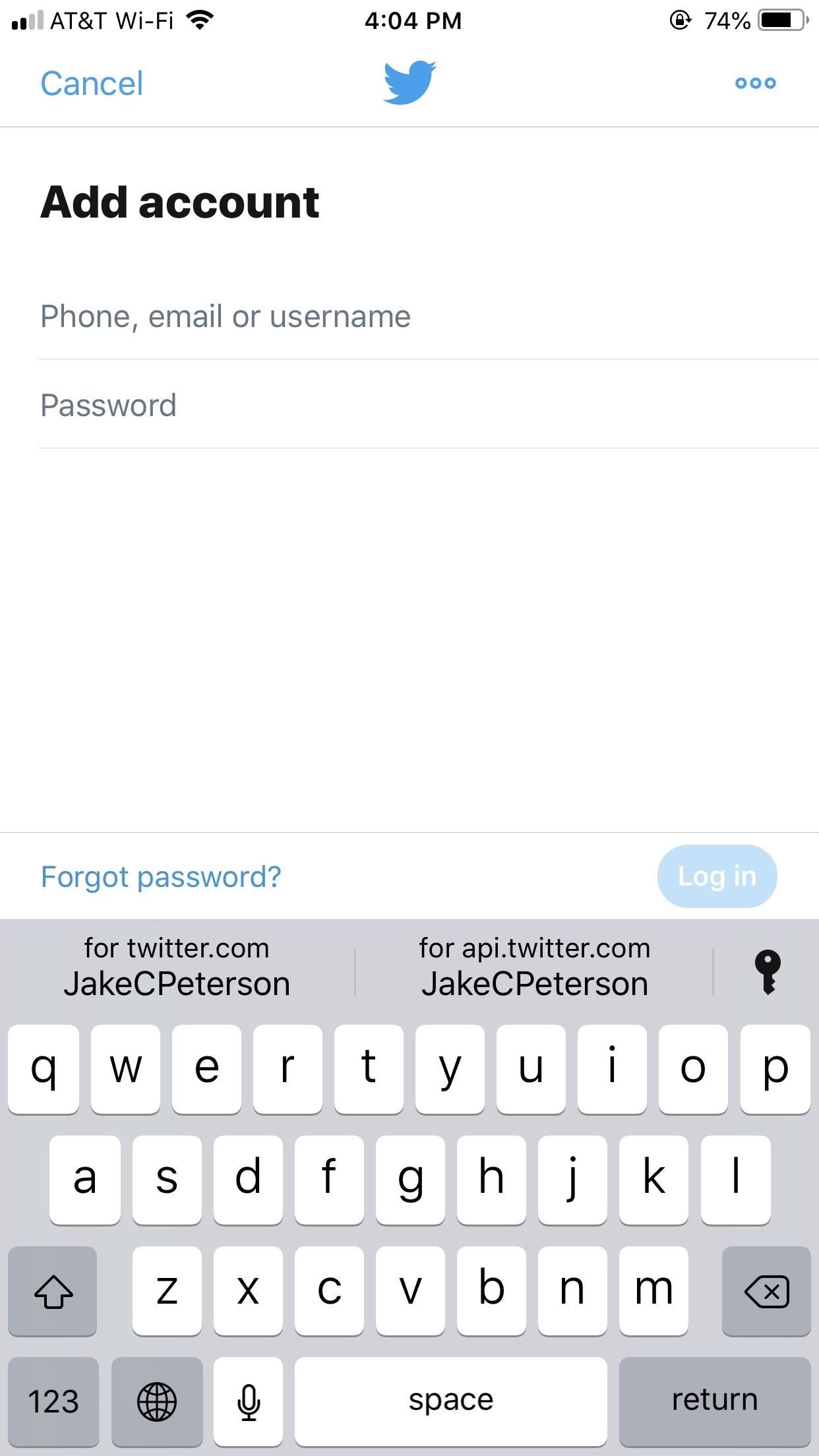
Fill in Passwords Automatically Later from the KeychainWhen you need to sign into an account, your Keychain has your back with AutoFill.After tapping on either the username or password field, your saved account or accounts will appear above the keyboard in the QuickType bar. Tap the appropriate account, then authenticate yourself using either Face ID, Touch ID, or your iPhone's passcode. Once approved, iOS loads your account info into the proper fields, allowing you to sign in without even needing to know your password. If you don't see your account appear above the keyboard, tap the key icon on the far right. Provide your Face ID, Touch ID, or passcode to view your saved passwords in iCloud Keychain, then tap on the relevant account info to automatically load it into the proper sign-in fields.
View & Edit Saved Passwords in the AutoFill MenuTo view and edit your account information in your iCloud Keychain, open up the Settings app, tap "Passwords & Accounts," then "Website & App Passwords." You'll need to use Face ID, Touch ID, or your passcode to go further, and once you do, you can view and edit your Keychain, as well as change weak, reused passwords. Alternatively, with the "Show me my passwords" command, you can jump right to your list of login data with Siri.In the "Passwords & Accounts" menu, you can disable "AutoFill Passwords" if you want, though I'm not sure why you would want to do that. If you use a third-party password manager like LastPass or 1Password, you can enable those for "AutoFill Passwords" and deselect the iCloud Keychain option. That, of course, means you will not be able to create strong passwords automatically as described above.Improving overall iPhone security is the name of the game in iOS 12. Besides offering users an easy way to produce strong passwords for their accounts, the new update transforms Safari with new features to make your browsing experience even more secure. It seems Apple is doubling down its efforts this year to create a tight ship for every iPhone user.Don't Miss: 100+ Cool New iOS 12 Features You Didn't Know About for iPhoneFollow Gadget Hacks on Facebook, Twitter, YouTube, and Flipboard Sign up for Gadget Hacks' daily newsletter or weekly Android and iOS updates Follow WonderHowTo on Facebook, Twitter, Pinterest, and Flipboard
Cover image and screenshots by Jake Peterson/Gadget Hacks (unless otherwise specified)
Learn how to whitelist, blacklist or block websites in Internet Explorer, Firefox, Chrome, Opera browsers on Windows, using scripts, HOST File, extensions, etc.
How to Block and Unblock Internet Sites with Firefox - wikiHow
Enable Kids Mode On A Samsung Galaxy Tab 3 7.0 Kids Mode is a pretty cool feature that Samsung loaded onto the Samsung Galaxy S5. It's a great way to make sure, if you have kids, that they can use your device safely without accidently affecting any of your settings or data.
How to make your Android device safer for your kids
20 Cool New Features in iOS 11.2 for iPhone - Gadget Hacks
9. Create a collection of saved posts. In addition to being able to view all of the posts you've liked, Instagram also has an option to save or bookmark certain posts in collections that you create. Start by going to your profile, and tapping the bookmark icon on the top-right menu above your photos.
How to view photos I've previously liked on Instagram from my
This wikiHow teaches you how to remove a person from your Facebook friends list, which will prevent you from seeing their posts and vice versa. You can do this in the Facebook mobile app as well as on the desktop site. If you would rather remain friends but stop seeing their posts, you can unfollow them instead.
How to Unfriend Someone on Facebook - dummies
How To: Make Your Phone's Dialer Look Like Android Lollipop's News: The Galaxy S8 Is the First Phone with the Longer-Range & Higher-Speed Bluetooth 5.0 How To: Open Google Now Instead of S Voice with the "Hi, Galaxy" Command
Can I Get Rid of the Audio Apps When I Plug in Headphones
How to rearrange multiple apps using drag and drop. While most of the iOS drag and drop features remain iPad-only, this trick actually works on both iPhone and iPad. It allows you to rearrange apps on your Home screen using drag and drop, rather than having to move them one at a time.
iOS 12.3.1/iOS 12 : How to Use Drag and Drop on iPhone: Give
How to set custom notifications for your VIP inbox on iPhone and iPad. Launch the Mail app from the Home screen of your iPhone or iPad. Tap Mailboxes in the upper left corner of your screen. Tap the ⓘ on the right end of the VIP inbox row.
Shop Today For A New Mailbox | Official Lowe's® Website
AD
URLs must start with your custom scheme name. Add parameters for any options your app supports. For example, a photo library app might define a URL format that includes the name or index of a photo album to display. Examples of URLs for such a scheme could include the following:
uri - Is there a list of URL schemes? - Stack Overflow
FaceTime starts off using your iPhone phone number and Apple ID email address as the way for other people to reach you. You can add new addresses — for example, a work or school address —and remove them at any time, though, and set any active number or address as your Caller ID. That way, no
How to Remove a FaceTime Email Address on an iPhone - wikiHow
Click in the top right of Facebook and select Settings. Click Blocking in the left column. In the Block apps section, type the name of the app or game you want to block. To unblock an app or game, click Unblock next to its name.
How to Block and unblock Facebook applications « Internet
How To: Access Your Feedly News Feed Right from Your Android's Lock Screen How To: Get the iPhone's Calendar View on Your Android Lock Screen How To: The Easiest Way to Record Your Screen in Android Lollipop How To: Get Nexus 6 "Ambient Display" Notifications on Your Nexus 5
How to Record Games on Android « Android :: Gadget Hacks
New owner of a Samsung Galaxy Tab? Thinking of picking one up? In this Galaxy tablet owner's guide, you'll learn how to use the Tab's two cameras. For all of the details, including step-by-step instructions, watch this Samsung Galaxy Tab Google Android smart tablet owner's guide.
Taking pictures and videos with the Samsung Galaxy Tab
You can quickly search for common businesses and place categories nearby, like popular bars and restaurants, gas stations, and ATMs. You'll see hours of operation, business phone numbers, ratings, and other information. On your Android phone or tablet, open the Google Maps app . At the bottom of the screen, tap on Explore .
Smartphones :: Gadget Hacks » help for cell phones, pdas


0 comments:
Post a Comment