How To: Use Snapchat to Figure Out What Song Is Playing Around You
Say you're sending a snap to a friend at a restaurant, bar, store, what have you, but you're curious about the song that's playing in the background. You could leave the app to Shazam it, or you could ask screen-hogging Siri or Google Assistant what the track is, but why not just have Snapchat do the work for you? With its built-in scanner, you can discover a song without ever leaving the app.The built-in scanner can be used to accomplish a myriad of tasks. Music discovery is just one of those uses, which has been around since Snap's partnership with Shazam started in 2017. With it, you can see exactly what song is playing, hear a preview of the song to make sure it's the right one, send and share the song with friends, and even see related video content, all without ever leaving Snapchat.Just make sure you're on the latest version of Snapchat for Android and iOS to make use of all available Shazam-related features for your iPhone or Android phone.Don't Miss: How to Add GIFs from Giphy to Your Snaps in Snapchat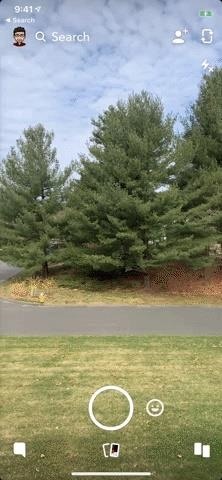
1. Identify the Song & Listen on Your Music ServiceScanning in Snapchat is possibly the easiest feature the app has to offer. Simply tap-and-hold anywhere on the camera screen, and you'll see the scanner get to work around your finger. The music notes denote that Snapchat is listening for a song and, if one is playing, that it is "searching" for it via Shazam to figure it out for you.If Shazam hits a match you'll see it pop right up. Note that we've found that Shazam's own app is more reliable for trickier, less popular songs, as they aren't usually recognized in Snapchat for some reason. In those cases where the search hangs, you might still have to use Shazam proper, Siri, or Google Assistant.To listen to the matched song on your phone, tap "Listen." You'll have options to open the song in Apple Music and Spotify on iOS or Google Play Music and Spotify on Android. If you choose not to listen to the song, you can always tap "Cancel" to return to the previous window.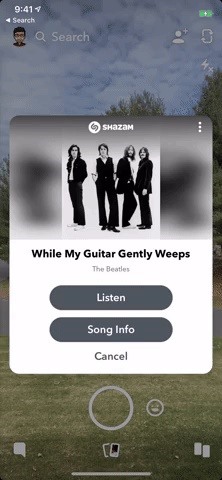
2. View Previews, Lyrics, Video & Song RecommendationsIf you tap "Song Info" on the song pop-up, Snapchat will bring you to a profile of the song. At the top of this profile, you can tap the play button for a brief preview of the song. Tap the pause button to stop or let is stop by itself after the preview.On this info screen, you might also see song lyrics and video content related to this song, if any is available. For videos, it could show a music video, a behind-the-scenes clip, or something else related. In my example, it's a look behind of "While My Guitar Gently Weeps" for The Beatles LOVE performance by Cirque du Soleil.Finally, you'll also see Recommended Songs at the bottom of this song profile. Tap on any track here to see its own individual song profile. You can tap the back arrow in the bottom left to return to the previous song profile. To leave any song profile at any time, swipe back up to the top of the info screen (if not already up there), then swipe down on the screen to return to Shazam pop-up.
3. Share the Song with FriendsSnapchat offers three different methods for sharing your Shazamed songs; You can send a Shazam link to any available app or service using your device's regular share options; send the song profile to your friends in Snapchat; or share a screenshot in Snapchat that you can doodle on top of like any other image in the camera.
Share via Device OptionsFor the first option, tap the vertical ellipsis (•••) in the top right of the matched song pop-up. Next, choose "Share Song To." Your device's standard sharing options will open, which will let you copy the Shazam link (not a Snapchat link) or send it to apps like Gmail, Facebook, Google Drive, Signal, etc.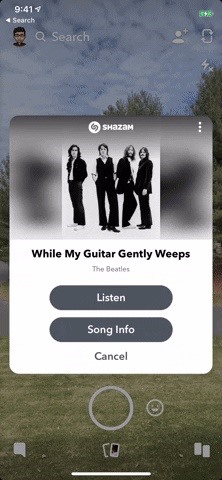
Send to Story, Friends, or Group Right AwayTo do the second option, again, tap the vertical ellipsis (•••) in the top right of the matched song pop-up. Select "Send Song To," and you'll be able to send the song profile to your story or any friend or group on Snapchat, along with a chat note if you'd like. They, in turn, will be able to view all of the song preview options we detailed in the section above. Left: Share via device options. Middle/Right: Send on Snapchat right away.
Share with Annotations to Story, Friends, or GroupsFor the third and final option, tap "Song Info" to view the track's profile, then long-press on the page to not only quickly send the image to friends, but to also edit it like you would any other snap. Add drawings, text, GIFs, and more by tapping the pencil icon in the bottom left. When finished, tap the send button for the usual sending options, or tap the download button to save it to your phone.
4. Subscribe to the Artist (If Available)Some artists that appear on song searches actually let you subscribe to their profile's instantly, right after a search is completed. The catch is that the artist needs to set up an account with Snapchat first, otherwise this option will not appear.If the artist does have a profile, you'll know right away — just check underneath the song card. If there's a profile with a "Subscribe" button, just tap the button to instantly follow the artist on Snapchat (not Shazam). If there's no option, it means the artist simply doesn't have a Snapchat profile connected yet.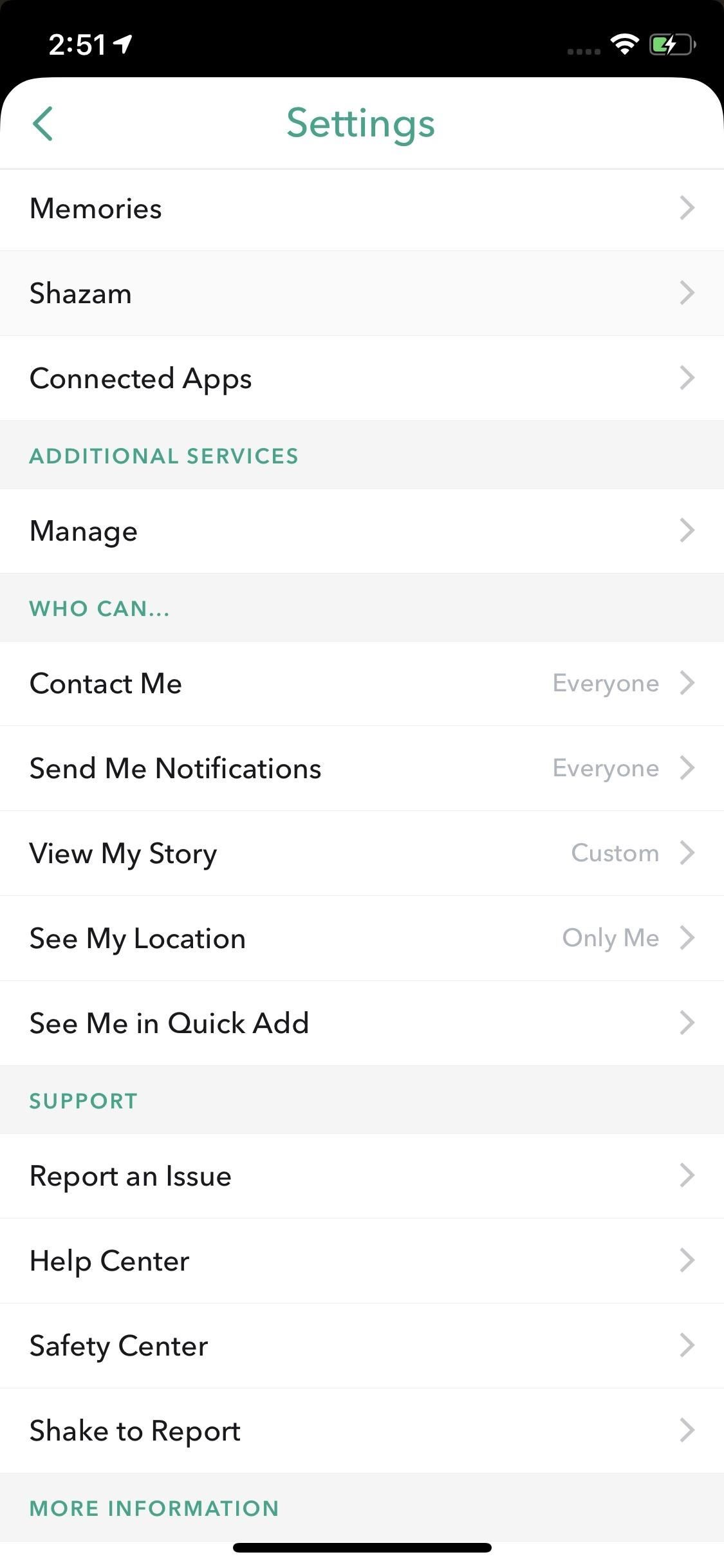
5. View All Your Shazamed Songs in SnapchatForgot the name of that song you Shazamed in Snapchat earlier? Snapchat didn't! After each successful song recognized in Snapchat — even if you close out of the pop-up quickly — is saved into a neat list so you'll never lose track of the songs you want to know about. You just need to know where to find the list.To find your Shazam history, tap your profile icon in the top left. Next, tap the Settings cog in the top right, then scroll down and select "Shazam" from the list. Here, you will find your entire search history. Tap on a song to view its "Song Info" page. Swipe left on any entry to "Delete" it (on iOS, it will show the "Delete" button that you need to tap, while on Android, it will just trash it right away). Note that anything Shazamed from inside the Snapchat app will not be synced to your Shazam account or app, if you have one. The songs in Snapchat stay in Snapchat. Also, there is currently no way to Shazam songs inside Snapchat Stories, if you were wondering about that.Don't Miss: How to Create & Use Stickers in SnapchatFollow Gadget Hacks on Pinterest, Reddit, Twitter, YouTube, and Flipboard Sign up for Gadget Hacks' daily newsletter or weekly Android and iOS updates Follow WonderHowTo on Facebook, Twitter, Pinterest, and Flipboard
Cover image, screenshots, and GIFs by Jake Peterson/Gadget Hacks
Unroot Samsung Galaxy Note5 and restore back to official stock firmware using Smart Switch (First Method) There are two effective method to unroot the Samsung Galaxy Note5. The first method is by using Samsung's owned app called "Smart Switch" that allows Galaxy Note 5 users to back up and transfer files but it also capable for restoring
Unroot and Restore Galaxy back to Stock using Samsung Odin
How To: Hack a toy radar gun into a real one How To: Cheat five bucks from your friends with this flammable bar trick How To: Prank Your Friends with a "Magic" Light Bulb That Lights Up in Your Hand How To: Make a laser out of a lighter How To: Hack a megaphone into a bionic hearing spy device How To: Secretly record people with your own spy
How to Build a radar from cheap satellite dish parts or a toy
Skip navigation Sign in. Search
Open links with gestures using LinkSwipe - appslova.com
Play the Dinosaur Game Hidden inside your Google Chrome Written by Amit Agarwal on Oct 26, 2015 Google Chrome users are probably familiar with the T-Rex dinosaur that shows up when your computer is not connected to the Internet.
There's a Cute Cat Game Hidden in Android Nougat's Quick
How To: Enable Google Assistant in Maps for Hands-Free Navigation Help on iPhone or Android News: Microsoft Cancels Plans to Bring Android Apps to Windows Mobile How To: Check Your Google Assistant History on Mobile News: So Long, Siri! The Superior Google Assistant Is Coming to iOS
Overly Optimistic Report Says 92% of iPhone Users Will Ugrade
Play 'Comix Zone' on Your iPhone Now & Relive the Glory Days
There's one thing that I've always liked about iPhones, and that's their centered digital clock in the status bar at the top of the screen. On Android, it's always on the right side by default, and there's no easy setting that lets you just change it to the center position. But if you have a Google
Color Your Status Bar to Match Any App in Android Lollipop
How To: Android's Built-In Scanner Only Catches 15% of Malicious Apps—Protect Yourself with One of These Better Alternatives How To: Stream music wirelessly with Airport Express and a Mac How To: Improve Battery Life on Android by Optimizing Your Media Scanner
The 5 Best Phones for Privacy & Security « Smartphones
How to Upload Moodle to your server via Webmin « Internet
How to disassemble 📱 Nokia 5 (2017) TA-1053 Take apart
Anonymous Browsing with Tor. Tor (the Onion Router) is an online network for encrypted and anonymous communication. Tor functions similarly to internet browsers, such as Firefox, Safari, and Chrome. However, as opposed to the other browsers, Tor allows you to browse anonymously. The Tor network consists of thousands of servers worldwide.
4 Ways to Browse the Internet Anonymously on Your iPhone
The Real Story Behind Rooting the Samsung Galaxy S4—And Its
How to combine WhatsApp, Facebook Messenger, and Slack in one window A helpful Chrome app called All-in-One Messenger brings together all your new messaging services.
Disa All in One Messenger: Merge Facebook Whatsapp SMS


0 comments:
Post a Comment