How To: Take Control of Your Mac's Sleep Functions with These Commands
Macs are generally highly power efficient due to, in part, the optimized sleeping schedule with OS X. Yet in certain scenarios, you might not want your Mac to go to sleep: downloading a huge file, reading a book, reviewing a spreadsheet, analyzing some content on the screen... the list goes on. To resolve this, you can go to System Preferences and mess with the settings, but this can be an annoying process if you need to do it often.Naturally, there are various solutions available for this dilemma. A classic option is to use the free program Caffeine. More recent versions of OS X introduced some changes to the way the system handles going to sleep alongside a handy built-in utility to induce insomnia. The aptly named Caffeinate is a command line utility that is accessed via Terminal. As the name suggests, running the command will "caffeinate" your Mac and prevent it from going to sleep.The command can be run by itself along with some modification options that will customize its behavior. Some of the more common options are adding a sleep timer, targeting a specific program/process, and modifying the sleep options.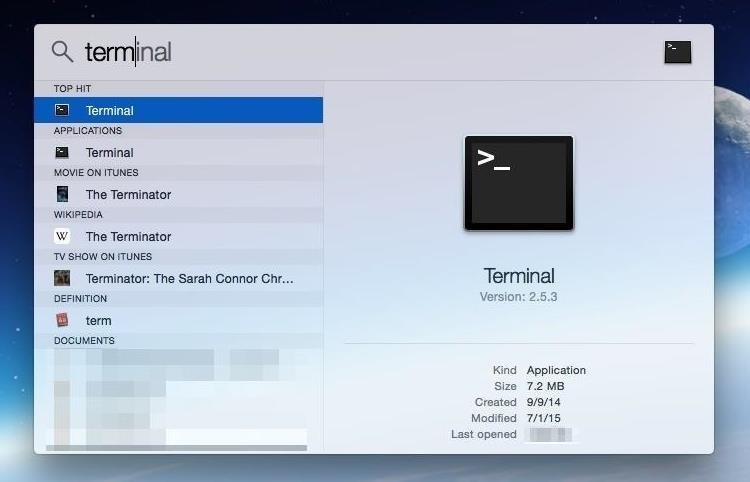
Step 1: Launch TerminalLike other operations, Caffeinate is run via Terminal. Just search for and open Terminal from Spotlight Search, from your Launchpad, or via the Utilities folder in Applications.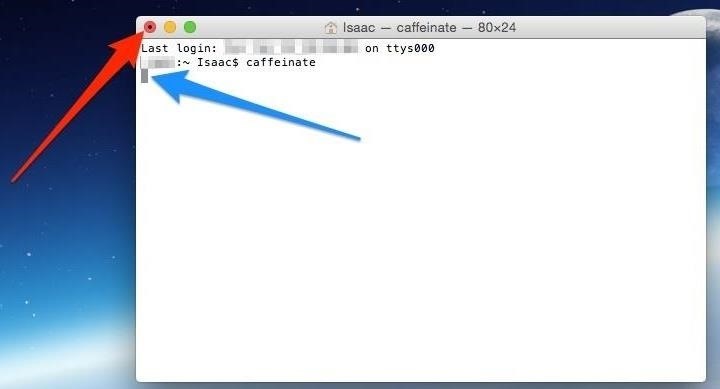
Step 2: Run the Caffeinate CommandYou can simply run the Caffeinate command inside Terminal and it will prevent your Mac from going to sleep for as long as it's active. To do so, just type in caffeinate inside the Terminal prompt and press the Enter/Return key.You'll notice two small changes inside Terminal that tells you the command is currently active. The first is that the Red stoplight has a dot inside it (red arrow) indicating that Terminal is currently running a command. The second is that the prompt cursor is unavailable (blue arrow) indicating that a command is currently being carried out.
Step 3: No More Caffeine!To stop the Caffeinate command, press the Control + C keys while inside Terminal. This classic keyboard combination stops the currently running Terminal command and your Mac should now resume its regular sleep cycle.As stated, the Caffeinate command can be run by itself or with some modifier flags—here are a couple useful modifiers: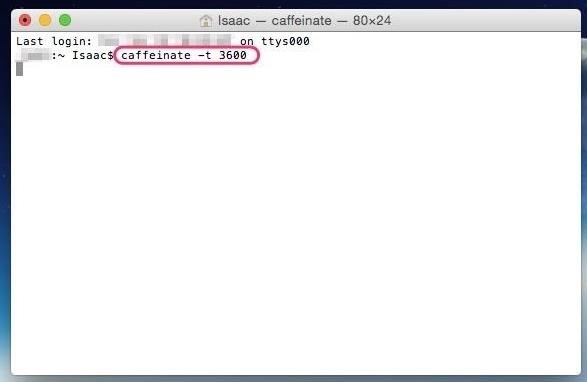
Adding a Sleep TimerSay that you want your Mac to "stay up" for an hour, then resume its proper sleep cycle. Just modify the caffeinate command like so, caffeinate -t 3600, where the -t adds a timer followed by the time in seconds. So for this example of 1 hour, it would be 3600 seconds.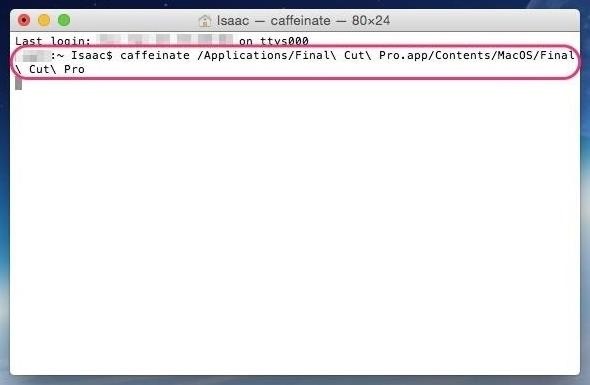
Targeting a Specific Application/ProcessAnother modifier flag is to attach Caffeinate to a certain application or system process. The benefit of this is that the system will not go to sleep as long as the specified program/process is running. So for example, if you're running Final Cut Pro and don't want your Mac dozing off, just modify the command like so:caffeinate /Applications/Final\ Cut\ Pro.app/Contents/MacOS/Final\ Cut\ Pro This is simpler than it looks. The first part is just the caffeinate command and the second part, for this specific scenario, is just the location of the core Final Cut Pro program.
Some More Specific Modifier FlagsPer the manual pages for the Caffeinate command, there's a couple other more specific options that you can attach.-d will prevent the display from going to sleep -i will prevent the system from idle sleeping -m will prevent the disk from going to sleep -s will prevent the machine from going to sleep when plugged in -u replicates a currently active user Naturally, all these choices can be piled on for interesting scenarios. For example, if you're planning on some Netflix and chill, you can combine the pieces into the following to ensure that your Mac stays up...caffeinate -d /Applications/Firefox.app/Contents/MacOS/firefox-bin https://netflix.com
Benefits & Limitations of the Caffeinate CommandIf you have used the command line before, then you know that you can link up the different flags and arguments in various ways to create something custom and possibly powerful. A few common usage scenarios were outlined above, but these can be wielded in many different and interesting ways depending on your needs.On the flip side, there are a lot of options and a lot of use scenarios which can potentially conflict and overwhelm you, especially if you've never used Terminal before. If that's the case, then the free and easy-to-use Caffeine app is the way to go.Personally, I use both Caffeine and the Caffeinate command. Caffeine is awesome for a quick and simple solution but when you want to get all fancy, then Caffeinate is a good native option to use.
More Terminal HacksPurge RAM for Improved System Performance Install the Command Line Developer Tools Without Xcode Access Recently Used Apps & Documents from Your Dock 13 Terminal Commands Every Mac User Should Know Organize Your Dock by Adding Blank Spaces as App Icon Dividers Follow Apple Hacks over on Facebook and Twitter, or Gadget Hacks over on Facebook, Google+, and Twitter, for more Apple fun.
To unsend an email immediately after you send it using the Gmail mobile app for iOS or Android mobile devices, promptly tap Undo at the bottom of the screen. You'll see an Undoing message, and your email is displayed onscreen where you can make edits or additions to it before sending it again.
How to 'unsend' a sent email from your Gmail account - CNET
Here's how to read them with an iPhone, a BlackBerry, or an Android smartphone. How to Read QR Codes With a Smartphone Line up the camera on your device with the QR code you want to scan
How to scan a QR code on an iPhone - Macworld UK
Finally Rooting Essential PH-1 (Mata) is now possible.A working TWRP Recovery is now available for Essential Phone.If you own a Essential PH-1 and looking for a rooting guide, then we have got you covered.Here we will be sharing How To Unlock Bootloader On Essential Phone and a Guide To Root and Install TWRP recovery On Essential Phone.
How to Install TWRP and Root Essential Phone (PH-1) using Magisk
How to Show Battery Percentage in the Status Bar on Android
All account details, i.e., the account name, the name of a character as well as the password can be regained through the account recovery process.. Account recovery can be started by clicking on the "Forgot Password?" link on the account management login page, or by opening the account recovery page directly.
If you forgot your Apple ID password - Apple Support
As one of the most popular social media apps, Snapchat saw nearly 160 million daily active users by the end of 2016. With so many users it's no wonder that cybercriminals would like to gain access to your Snapchat account.
Snapchat Lost Your Trust? Here's How to Completely Delete
Our malware-removal guide will help you clean out your PC and restore it to a pristine state. How to remove malware from your Windows PC Clean out and restore your PC to a pristine state.
How to remove a computer virus / malware - YouTube
Changing an app's name on your home screen is not something you can do on stock Android or TouchWiz, but it should be. If you think of it merely from a customization angle, sure, it's not a big deal, but having the ability to alter an app shortcut's name can do wonders for cleanliness and being able to distinguish from similar icons.
Find og udryd Android Apps, der ondskabsfuldt sporer dig på
Apple's upcoming iOS 13 for iPhone will include new features in Safari that will make browsing the web a little bit better when compared to iOS 12. Some changes are small while others add functionality that just wasn't there before. While Safari didn't get the most love during WWDC, iOS 13 does
The 10 Best New Safari Features in iOS 11 for iPhone « iOS
Chromecast Wallpaper for Android. Cool Collections of Chromecast Wallpaper for Android For Desktop, Laptop and Mobiles. We've gathered more than 3 Million Images uploaded by our users and sorted them by the most popular ones.
Set Chromecast Slideshow Images as Your Android Phone's
How To: Jailbreak your iPhone or iPod Touch using the blackra1n software How To: Get six icon rows for iPod Touch or iPhone How To: Unlock your iPod Touch or iPhone and remove the passcode How To: Delete Cydia or Icy apps via SpringBoard on an iPhone
Must have Cydia/Icy apps? | MacRumors Forums


0 comments:
Post a Comment