Apple Maps 101: How to Add Multiple Destinations to Your Directions
Unscheduled pit stops go hand in hand with road trips, no matter how well-planned they are. In the past, making a stop due to low fuel or an emergency bathroom break may have snowballed into massive delays when you went off course on your own, but thanks to a feature in Apple Maps, you can do this in the most efficient manner possible.Apple Maps lets you add a pit stop in the midst of navigating on your iPhone to help ensure a smooth trip without excessive delays. In addition to its ease of use, you can also access this feature hands-free for an even safer drive. We've detailed the entire process for you below, so keep on reading to learn more about adding a stop on Apple Maps.Don't Miss: How to Add, Edit, Share & Delete Favorite Locations Before we begin, it's important to note that Apple Maps will not let you add more than one additional stop, though you can add a location once again after you've arrived in your targeted pit stop. Unlike Waze or Google Maps, the pit stop feature on Apple Maps also doesn't include an option for you to perform searches for specific locations.Also, one more important thing to note is that you can't plug in directions to multiple locations at the same time. Adding another stop only applies to common stops Apple highlights during a trip. With that out of the way, let's get started.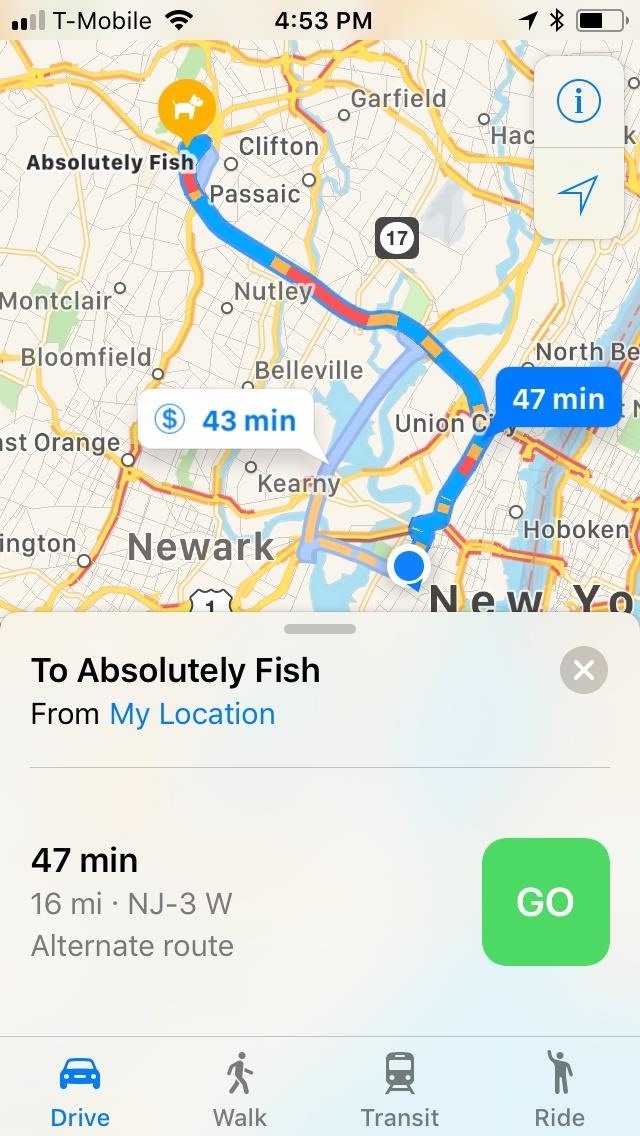
Step 1: Start Navigation to Your End DestinationIn order to add a stop to your current route in Apple Maps, you'll first have to start navigation, so either input your target destination within the app, select a route, then tap on the green "GO" button or just use the "Hey Siri" feature and command Siri to give you "directions to" your destination's name or exact address.
Step 2: Select a Pit Stop to Go ToThere are a few ways you can add a pit stop to your overall directions. If you're not driving yourself or are currently stopped, the first method is probably the best. If not currently driving, however, you'll probably want to use Siri to play it safer.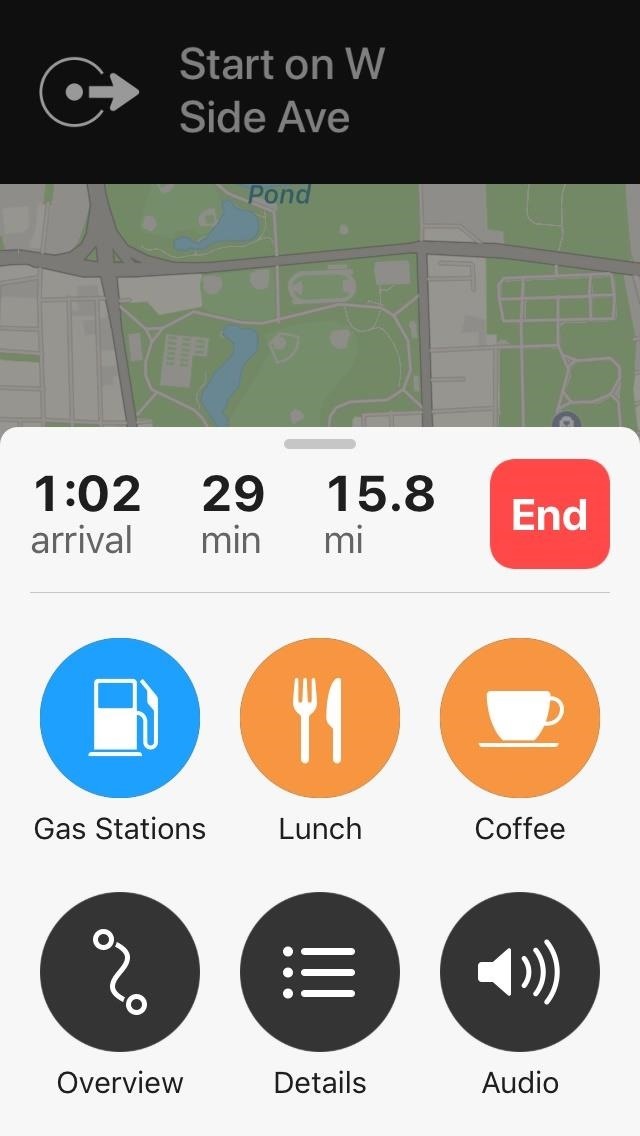
Method 1: Choosing a Pit Stop in Apple Maps DirectlyWith navigation up and running, swipe up from the bottom and pull up the route card. You'll now see a small button list that includes gas stations, coffee, and breakfast, lunch, or dinner, depending on what time it is.Selecting a category like "Gas Stations" will yield all the gas stations that are located along your planned route for you to choose from. If you're on a long trip and need a break, you can select either "Dinner" or "Coffee" to pull up a list of restaurants or coffee shops along your route for you to stop at.Whichever pit stop you decide to make, simply tap on the green "GO" button next to your selection to automatically add it to your current route.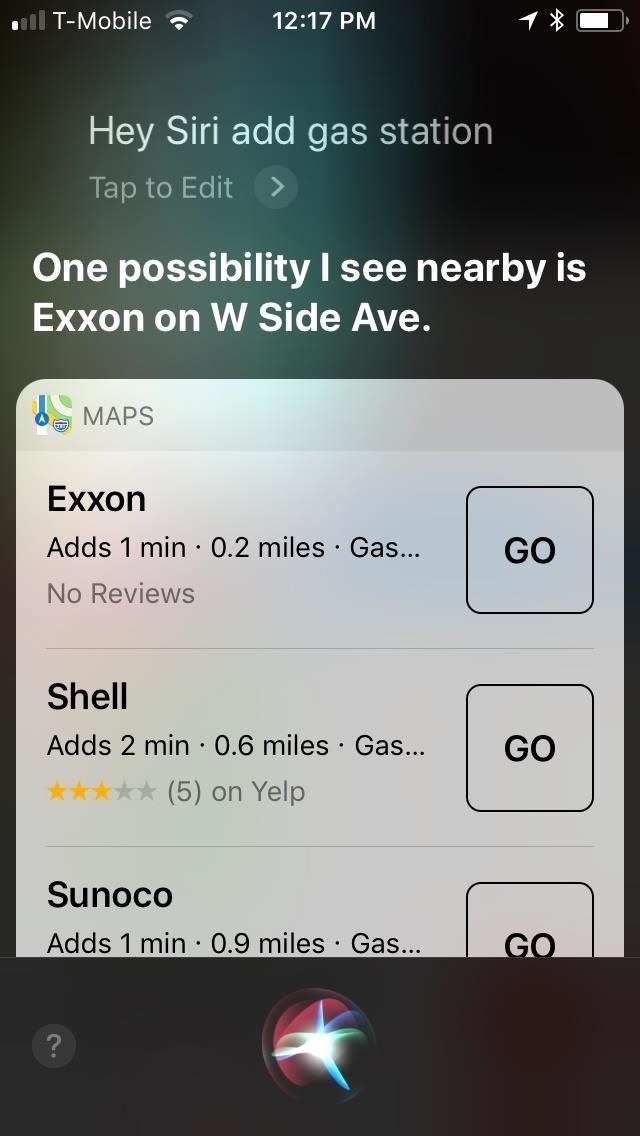
Method 2: Choosing a Pit Stop in Apple Maps with SiriAlternatively, you can add a pit stop completely hands-free with the help of Siri. To do so, say "Hey Siri" to summon your virtual assistant, and say "add" gas station, dinner (or breakfast or lunch), or coffee shop while navigating to your destination. Siri will automatically pull up any relevant stops for you to choose from, any of which you can instantly navigate to simply by tapping on the "GO" button to the right of the name.If you can't access your phone for safety reasons, Siri will also ask you to verbally confirm your selection, starting from the top selection downward. So if you don't want to go to a particular gas station, simply say "no" and Siri will proceed to the next gas station, and so on until you find one that's satisfactory. Once Siri highlights a pit stop that you'd like to add, simply say "yes." Siri will ask if you'd like to either call the location or get directions. Command Siri to "call" if you'd like to know some pertinent details such as gas prices, wait times to be seated in a restaurant, or business hours. If you need to get there as soon as possible, tell Siri to "get directions," and she'll automatically add it on to your current route.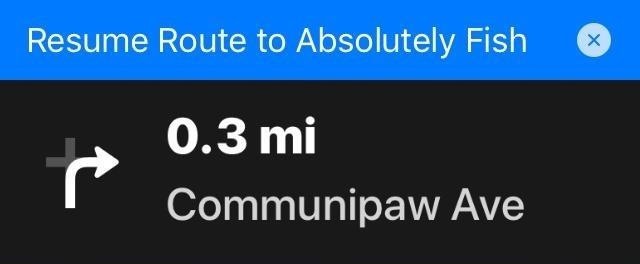
Step 3: Quit Directions to Pit Stop if You Need ToIf you decide to forgo the pit stop and resume your planned route to your original destination, tap on the blue "Resume Route" bar on the top of the screen in Apple Maps to remove the stop and continue on with your route.It's important to note that you can't command Siri to "resume route" and telling her to "remove the stop" will kill your planned route entirely, so keep that in mind if you decide to remove a pit stop in the middle of navigation.
Ways Apple Can Improve This FeatureAs great as this feature is, Apple should roll out some improvements to Apple Maps to make adding a pit stop while navigating a lot more convenient.Besides adding a search feature for more exact pit stops instead of only gas and food/coffee, we'd love to be able to command Siri to add a stop simply by saying "add" followed by the name of the restaurant or gas station for faster access. Currently, you have to mention a category such as "coffee shop" or "dinner" in order for her to process your command.Also, it would good to just see an option to start directions with two places in mind instead of having to make a pit stop. Say, if you're dropping something off at the post office then want to quickly head to the store, we'd like to be able to plan that out from the get-go.What are your thoughts on adding stops on Apple Maps, and what features should Apple include with future iOS updates to make this app safer and more user-friendly? We'd love to hear about it, so let us know by posting in the comment section below.Don't Miss: The 7 Best New Features for Maps in iOS 11 for iPhoneFollow Gadget Hacks on Facebook, Twitter, Google+, YouTube, and Instagram Follow WonderHowTo on Facebook, Twitter, Pinterest, and Google+
Cover photo and screenshots by Amboy Manalo/Gadget Hacks
Test this on your own Snapchat first. To be extra safe, send a Snapchat to yourself. Try this method on this Snapchat first, so you're sure it's working before you try it with someone else's photo. This method should work on Stories as well, but test it on your own private Story first. Some people can get this to work on Snapchats but not Stories.
This is a complete tutorial on how to jailbreak any iPhone 3G 3GS iPod Touch iPad even if you are using the latest baseland 05.12.01 or 3.1.3 firmware. A jailbreak for iOS 4 devices is coming
How to Jailbreak iPhone iPod Touch 3.1.2 3.1.3 Firmware with
By default, Chrome will download the 32-bit version of the browser. If you'd like to use the 64-bit browser on your 64-bit system, select "Download Chrome for another platform" and select "Windows 10/8.1/8/7 64-bit."
How to Install and Setup the Google Chrome Browser - YouTube
Sprint has their EVO 4G. AT&T has their Inspire 4G. And now HTC has designed Verizon Wireless's first 4G smartphone—the ThunderBolt. It launched last week with high praises amongst Android devotees, despite its hefty weight, mainly because of the blazing fast speeds Verizon users are experiencing
How To Experience the HTC ThunderBolt—Then Root and Remove
Netflix, which now offers streaming service in some 190 nations, says it's going to bring the hammer down on people who circumvent country-based content licensing restrictions using proxies or
Netflix announces crackdown on VPN users - theguardian.com
How to Use Pinterest & Tumblr to Find Your Next Great Job
How to enable lock screen gestures on your phone to launch applications directly from the lock screen? Different Android devices have different lock screen designs. Pure stock Android has a simple user interface with the unlock button on the middle and Touchwiz has fancy lock screens with water, light and ink effects.
Use the Google Now Gesture to Launch Any Android App
Instantly Unlock Your iPhone with Face ID — No Swipe Needed By admin On 26 aprile 2019 · Face ID does an excellent job with keeping your iPhone safe, boasting a million-to-one odds against unauthorized access when compared to Touch ID, which is 20 times less secure.
Video: The fastest way to unlock your iPhone X with Face ID
Rock ringtones for HTC Desire HD for HTC Desire HD, you can download for free and without registration on our site. Downloading free Rock ringtones for HTC Desire HD, you have the ability to pre-listen to any of the suggested songs or ringtones, but after listening to download on your HTC Desire HD, be it a smartphone based on Android OS
how do i set a mp3 as my incoming message tone? - HTC Desire
You should keep in mind that recording phone calls is illegal in some states and countries without explicit consent of the other party. Just something to keep in mind if you ever decide to record your phone conversations because doing so might land you into legal trouble, or your recording could be denied as legal evidence in court.
Home » Palm » How to disable the Internet connection on your Palm Centro. All the news on Palm Centro in our articles. How to disable the Internet connection on your Palm Centro. Whether you are on an airplane or simply having a family dinner, you may want to disable the Internet on your Palm Centro to avoid being disturbed by your e-mails or
How to Connect a DirectTV set-top box or DVR to the Internet
Tip 5: Increase Bluetooth Audio Performance with Custom Codecs. If your Galaxy device is running Android Oreo, it now features multiple audio codecs that you can choose from to enhance your experience when using Bluetooth headphones. In a nutshell, codecs are used to compress digital audio streams, similar to ZIP files.
[HowTo] Tuning Up the BT Sound | Samsung Galaxy S9


0 comments:
Post a Comment