How To: Make Your iPhone Look & Feel Like Android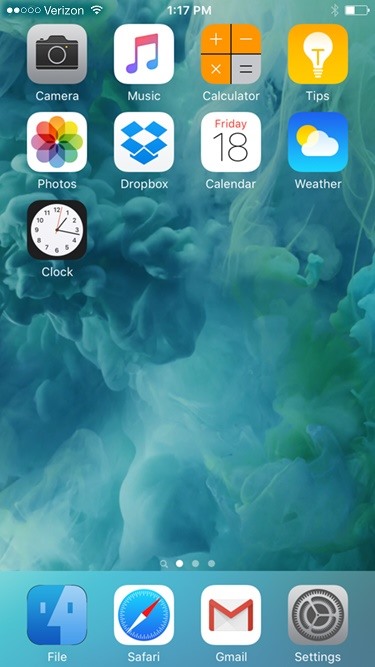
The competition between iOS and Android is fierce. Each operating system offers unique and powerful features, so it can be hard to choose which one you want. However, for iPhone users, a little tweaking and some themes can give your iPhone some of the key features and aesthetics of an Android.Andrios is a Cydia tweak that adds many practical features from Android, such as a back button, a mini-player widget, a Google search widget, and more. Of course, you'll need a jailbroken device to use it, and about six bucks in tweaks. Additionally, AndriOS changes some existing iOS functions to look more like Android, such as the Notification Center and the Power menu. To theme the lock screen, AndroidLock XT changes your passcode to the Android-style pattern unlock.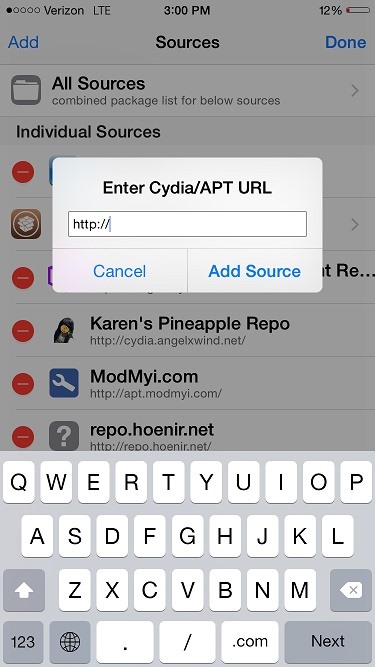
Step 1: Adding ReposOpen Cydia and go to the "Sources" tab in the bottom left. From there, hit "Edit" in the top-right corner, then "Add" in the upper left. Then enter the following URL in the field.repo.hoenir.net Check to make sure you have the BigBoss and ModMyi repos. They install with Cydia by default, but if they have been deleted, repeat the above process with these URLs:apt.thebigboss.org/repofiles/cydia apt.modmyi.com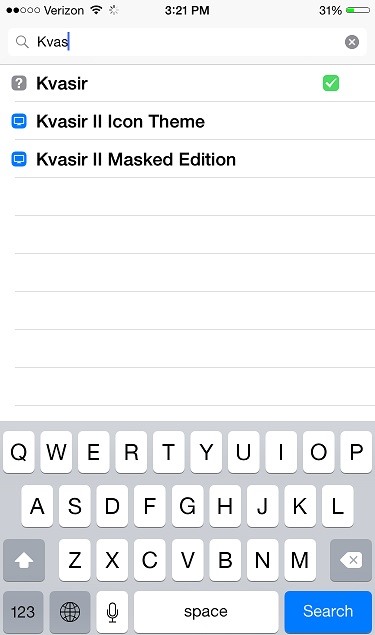
Step 2: Installing the TweaksWe are going to be using WinterBoard (free), Andrios ($4), AndroidLock XT ($2), and the "Kvasir II" theme (free). Search for and install each of these tweaks in Cydia (you can use your PayPal account to pay for Cydia tweaks).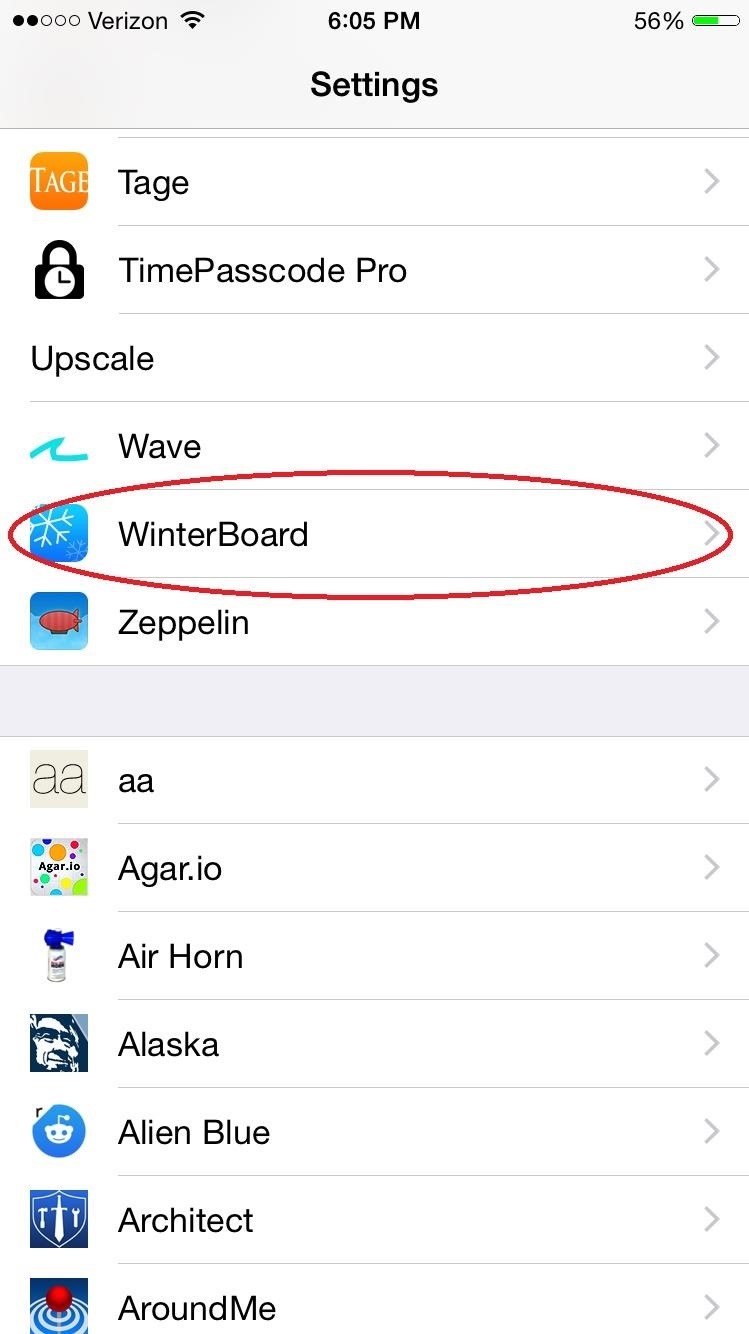
Step 3: Configuring WinterBoardOnce you have all of these tweaks installed, head over to Settings so we can configure them. First up is our theme, Kvasir. Go to WinterBoard, then "Select Themes" and check all of the Kvasir options (also shown below). After you make these changes, your device will require a respring.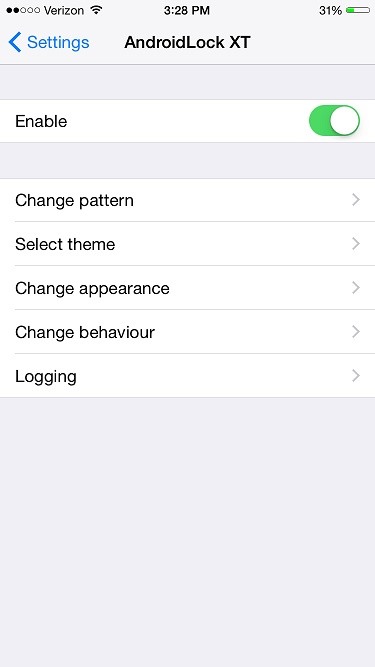
Step 4: Configuring AndroidLock XTIn Settings, tap on AndroidLock XT to get to its settings. Toggle on the "Enabled" switch, then set a pattern to act as your passcode. There are also other settings including "Select theme," "Change appearance," and "Change behaviour" that allow you to customize how AndroidLock XT looks and behaviors.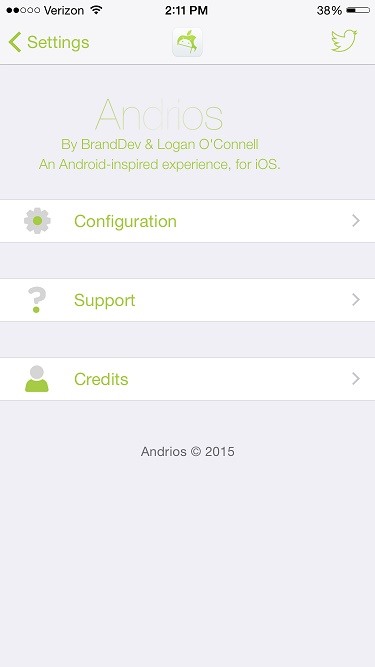
Step 5: Configuring AndriosAndrios is the biggest tweak of the bunch and has the most features to customize. Head to the "Andrios" section in Settings, then go to "Configuration." It has 8 main features: Action Bar, AlternateNC, Miniplayer Widget, Power Menu, Search Widget, Switches Widget, and Volume Slider. Each of these can be enabled or disabled individually and have various customization options, along with a tutorial explaining how to use them. You can customize these to your preference; in the above screenshot, all of the features are enabled. If you have Activator, you can also set the Action Bar or Widgets to activate with certain button presses or screen gestures. Finally, the Extras section has a few aesthetic options.
TipsAndrios might not be compatible with other home screen tweaks. If your phone crashes or reboots, try uninstalling any other tweaks that modify the SpringBoard (aka home screen). To add to the effect, use an Android wallpaper. You also might want to use a tweak to arrange your home screen so the widgets fit in better. In the above screenshot, I used HomescreenDesigner ($2). Have your own Android setup for your iPhone? Show us in the comments!Follow Apple Hacks on Facebook or Twitter, and Gadget Hacks on Facebook, Google+, or Twitter, for more Apple tips.
Mobile Leer en español How to listen and reply to text messages hands-free. Android has joined iOS in allowing you to hear and answer messages without touching your phone.
How to listen and reply to text messages hands-free - Syncios
Setting Up Snappy. Firstly, download Snappy - Send and Receive Snaps (it's free) on your Mac from the Mac App Store (or from this .zip file).Once installed, open it up from your Launchpad or from your Applications folder and use your Snapchat credentials to log in.
How To Use Snapchat on a Mac - Tech Junkie
News: Finally! These 5 MLB Stadiums Now Accept Apple Pay Gmail 101: How to Send & Receive Money with Android's Default Email App News: Cinemark Movie Club Is a Great Subscription for Occasional Filmgoers & Popcorn Addicts
In a year or so good sound players and Hi-Fi sound, chipsets make smartphones a treat for music lovers. Although all smartphones have the speaker but not all of them are capable of providing best sound experience. The device perfect hardware combination with software level boost is necessary to turn music lovers head.
Top 10 Smartphones for Music Lovers | Slashdigit
In this tutorial, I'll be showing you how to boost the headphone volume on your Galaxy S6 Edge by about 10%. This mod is only intended for use on the S6 Edge, and you'll need to be rooted with a
Boost Headphone and Speaker Volume on Galaxy S6 & S6 Edge
How to Hack an Election in 7 Minutes In less than a minute, they infected a Diebold machine with "Even with optical scan voting, it's not just the voting machines themselves—it's
Hackers Take Over US Voting Machines In Just 90 Minutes
A while back, Facebook released a killer feature called "Chat Heads" to its Facebook Messenger app. Messages from users would "pop up" in small bubbles that floated on the screen that could be seen, accessed, and moved around from within most apps.
Get Facebook's Chat Heads in Chrome with Faces.im - CNET
Night Sight is an extremely efficient feature from Google. - Google Camera App now has Night Sight on these Nokia devices; Here's how to download
Google Pixel Night Sight Shoot-Out: Which Phone Takes the
If you are eager to use such a messenger application, let's follow how to install the Android 5.0 Lollipop Messenger to your Android. Remember, this tips is only for Kitkat users only since the OS below it cannot install this app. 1. Enable Unknown Sources
How to Install Android 5.0 L Lollipop Messenger in KitKat
How To: Play DuelBeats on Your iPhone or Android Before Anyone Else How To: Craving a Mario Kart Gaming Experience on Your iPhone? Give This Soft Launched Game a Try How To: Get Your FIFA Fix & Play Kings of Soccer on Your iPhone Right Now
How to Find Search Between a Gas Station Soccer Pitch and
How To: Reply to Messages with Your Favorite Rap Lyrics Using RapKey for iPhone How To: Sync Reading Lists & Cloud Docs on Your iPhone into a Single Audible Playlist How To: Keep Photos from Hogging Your iPhone's Storage
How to Sync Your Data Across Multiple Devices
How to Update Facebook Profile Picture Without Notifying Anyone click the downward facing arrow in the top-right corner of your profile update post and click "Turn off notifications for this
Update Facebook profile picture without notifying everyone
Test this on your own Snapchat first. To be extra safe, send a Snapchat to yourself. Try this method on this Snapchat first, so you're sure it's working before you try it with someone else's photo. This method should work on Stories as well, but test it on your own private Story first. Some people can get this to work on Snapchats but not Stories.


0 comments:
Post a Comment